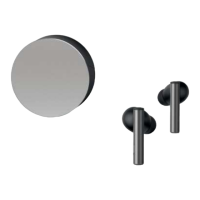
OWNER'S GUIDE
15. Troubleshooting
1) The power does not turn on:
- Make sure earbud protection film has been removed.
- Charge the device at least 30 min.
- If the power does not turn on even after charging, contact ODDICT Customer Service.
2) The device does not charge:
- Make sure the earbud protection film has been removed.
- Check whether the USB charging cable has been properly connected with the device.
- [Wireless charging] Check if the aluminum cover of the TWIG PRO case is facing up.
- [Wireless Charging] Check if the TWIG PRO case is correctly positioned at the charging location of the
wireless charging pad.
3) The device does not pair:
- Check whether the power of the “Bluetooth” device is on and that the protective films are removed from the earbuds.
- Check whether the Bluetooth feature within the ‘Bluetooth Device’ you want to connect is enabled.
- Check whether the ‘Bluetooth Device’ you want to connect is within the supported range.
(Pairing is supported only when within 3 feet)
- Check whether the Bluetooth profile within the ‘Bluetooth Device’ is compatible.
4) When there is no sound or music:
- Check whether the power of the device and ‘Bluetooth Device’ is on.
- Check whether music is being played within the connected ‘Bluetooth Device’.
- Check whether the volume within the connected ‘Bluetooth Device’ is low.
5) When there is static noise or the sound cuts off:
- Check whether there is another electronic device nearby using the 2.4 GHz frequency band that is connected to
the Bluetooth device.
- Check whether the connected Bluetooth device is within the proper communication distance to the device.
(Maximum communication range: 33 feet)
6) The other party cannot be heard while on a call:
- Check if the power of the Bluetooth device you want to connect is on.
- Check whether the volume within the connected Bluetooth device is low.
7) When noise cancelling or ambient mode does not work.
- Make sure both earbuds are being properly worn.
8) If the product stops working or does not respond:
-
Place the earbuds back in the case. Close and open case lid again. TWIG PRO will automatically enter pairing mode.
- If any of the above methods do not work, please reset the earbuds.
9) The device is paired with a PC/Laptop but does not work:
- PC/Laptops are equipped with various Bluetooth drivers depending on the manufacturer. It is possible that the
PC/Laptop you are trying to connect is not compatible with TWIG PRO.


 To Next Page
 Loading...