Save contacts to Phonebook
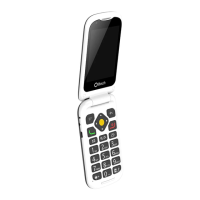
1. Press the top right key to select Phonebook
2. Press the top left key to select Options
3. Scroll to and select New
4. Select Phone or SIM (storage location)
5. Edit name and phone number (required); and
add photo and/or change ringtone (optional).
6. Select Save
Additional information:
• The options of adding a photo and changing
the ringtone are only present when saving a
contact to the phone.
• A voice recording can be created and used
as a ringtone. The enables the contact’s
name to be sounded when receiving an
incoming call from them (e.g: “Ryan’s
calling”). See pages 23 - 24 of the EasyFlip 2
User Manual for additional information.
• When typing the name and phone number,
press the # key to change the input method
(letter settings or numbers). Additional
information regarding input methods can be
found on page 32 of the EasyFlip 2 User
Manual.


 To Next Page