125
8
Processing Photo Images with a Computer
3,5,7
6
4
2
Make sure the power on both the computer and the camera is
turned off before connecting.
3
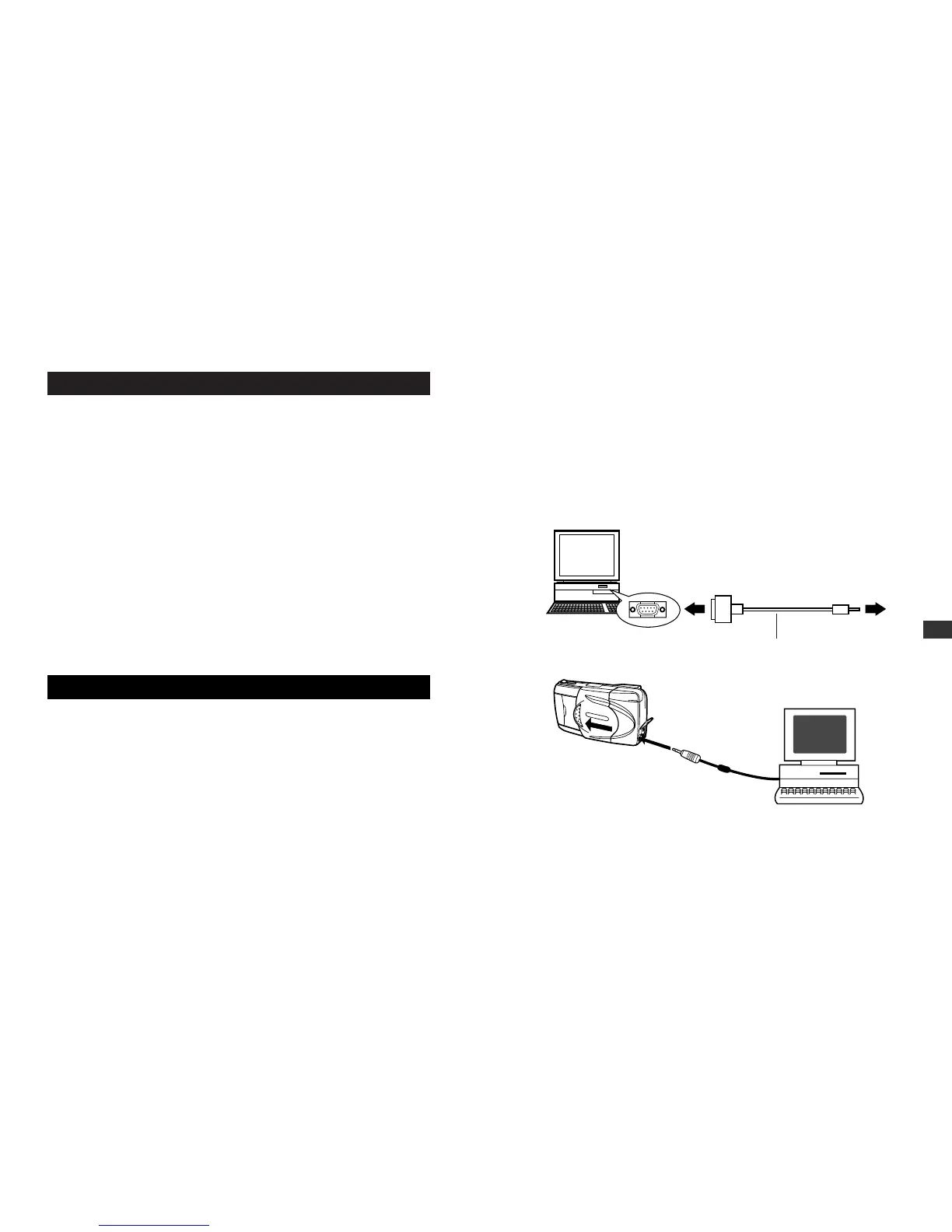
Attach the provided RS-232C PC serial cable to the serial port
(COM1 or COM2) on your computer.
4
Open the connector cover on the camera and connect the
computer cable to the data input/output (I/O) terminal on the
camera.
5
Turn on your computer.
IBM PC/AT
D-SUB 9-pin
serial port
Computer
connector
RS-232C PC
serial cable
6
Open the lens barrier of the camera.
7
Start up CAMEDIA Master 2.0.
124
Connecting your Camera to a
Computer with a Computer Cable
Computer Operating Environment
IBM PC/AT compatibles (As of June 2000)
OS : Windows 98SE/98/95/NT 4.0/2000 professional
CPU : Pentium or better
Available hard disk space : at least 30MB
Memory : at least 32MB
Serial port : Standard RS-232C interface
Type : D-SUB 9-pin
Monitor : 256 color or better, at least 800 × 600 dots.
Using a 32000 color monitor or better is recommended.
Apple Macintosh (As of June 2000)
OS : Mac OS 7.6.1 ~ 9.0.4
CPU : PowerPC or later
Available hard disk space : at least 30MB
Memory : at least 32MB
*Serial port : Printer port or modem port
Monitor : 256 color or better, at least 800 x 600 dots.
Using a 32000 color monitor or better is recommended.
*Not available for models with USB ports such as iMac and iBook.
Connecting your Camera to a Computer
Use the appropriate connector to your computer.
1
Preinstall CAMEDIA Master 2.0 on your computer.
• For installation details, see the CAMEDIA Master online
instructions.





 To Next Page