NETWORK CONFIGURATION (CONT.) sysTEm CONFIGURATION sysTEm CONFIGURATION (CONT.) QUICK-sTART INsTAllATION GUIdE
OmNIA.11 sTEREO Fm AUdIO PROCEssOR
Items you need to supply:
• RackwithfouravailableEIArackspacesformounting
• Professionalline-levelanalogorAES/EBUdigitalaudio
sourcesonstandardXLRconnectors
• ConfiguredEthernetswitch
REQUIRED EQUIPMENT, CABLES, AND ACCESSORIES:
Thereareafewadditionalitemsrequiredforasuccessfulinstallation.Checkthelistbelowandmakesure
youhavewhatyouneed.
Included items:
• Omnia.11AudioProcessor
• ACPowercable
• Ethernetcable
• 4rackscrews
WehavemadethisOmniaSystemeasytosetupandconfigure.Thisquick-startguidewilltakeyouthroughthe
basicstepstoconfigureyournewOmnia.11tostartdeliveringcleaner,clearer,louder,andmoreconsistentsound.
Beforewegetstarted,let’smakesureyouhavewhatyouneed.
ThANK yOU FOR PURChAsING ThE OmNIA.11 sTEREO Fm
AUdIO PROCEssOR
CONTINUE TO sysTEm CONFIGURATION
Network configuration is complete. Your system is
readyforsystemconfiguration.Continuetothe“System
Configuration”instructions.
1. Once the system has rebooted, touch the “Setup”
button(S).
2. Touch the Livewire button (T). The Livewire
configurationscreenwillbedisplayed(U).
3. If you do not have a Livewire system, make sure
the 2 Livewire output channels are disabled. The
2 "Enable" buttons (V) will be white if Livewire
is disabled and green when enabled. To disable
Livewire, touch each of the two green "Enable"
buttons(V)toturnthemwhite.
4. If you do have a Livewire system, enable Livewire
bytouchingeachofthetwo"Enable"buttons(V)to
turnthemgreen.
5. IfyouhaveaLivewiresystem,touchthewhitefields
(W) next to the Output #1 and #2 and enter the
appropriatechannelvalueviathepop-upkeyboard(X).
6. Touchthe“APPLY”button(Y)undertheOutputs.
7. Touchthewhitefields(Z)nexttotheInput#1and#2
toentertheappropriatechannelvalueviathepop-
upkeyboard(X).
8. Touchthe“APPLY”buttonundertheInputs(AA).
lIVEWIRE CONFIGURATION
OUTPUT CONFIGURATION
1. Touchthe“Output”icon(II).TheOutputConfigurationscreenwillbedisplayed.Ifthe“Basic”tabisnot
active,touchtoselectit.
INPUT CONFIGURATION
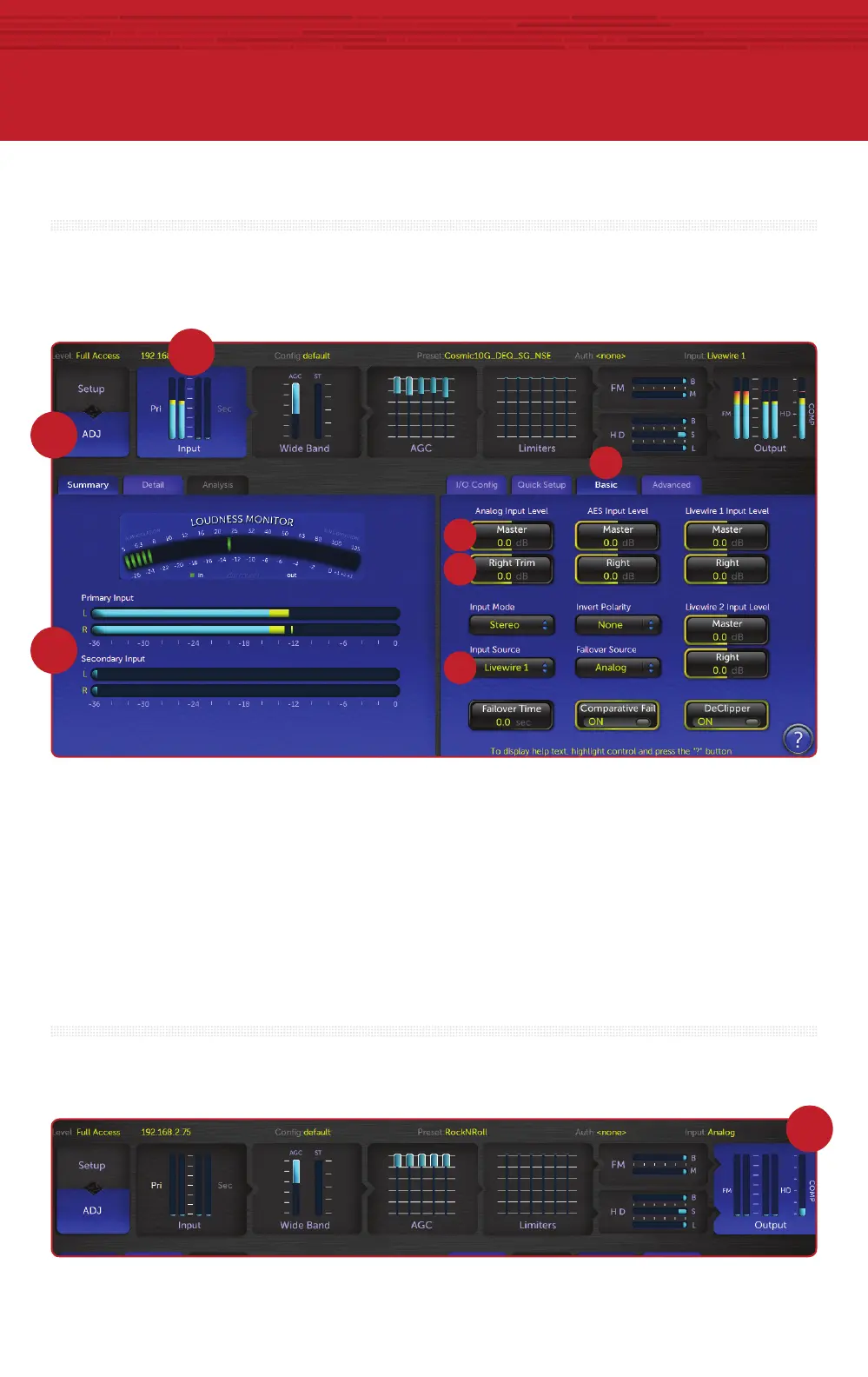
1. Touchthe“ADJ”icon(BB)toreturntotheinitialSystemscreen.
2. Touchthe“Input”icon(CC).TheInputConfigurationscreenwillbedisplayed.Ifthe“Basic”tab(DD)
isnotactive,touchtoselectit.
3. Fromthe“InputSource”drop-down(EE),selecttheAnalog,AES/EBUorLivewireinputasappropriate
foryourinstallation.Ifyouraudiosourceisprovidinganaudiofeedyoushouldseemeteractivityon
thebargraphmeters(FF).
4. Whiledrivingtheinputswithtypicalprogrammaterialatnormaloperatinglevel,adjustthe
appropriate“Master”InputGaincontrol(GG)foryourinstallationuntilthepeak-readinginputbar
graphmetersarereadingjust“intotheyellow”(about–15to–12dBFSorso).Iftheleft/rightaudio
levelscomingintotheOmnia.11aresomewhatunbalanced,youcanadjustthe“RightTrim”control
(HH)tochangetheleveloftherightchannelaloneoveralimitedrange.
©
2016TLSCorp.,AllRightsReserved.
1490-00099-001—QUICKSTARTGUIDE:OMNIA.11C16/15035
yOUR sETUP Is COmPlETE!
That’sit!YouarenowreadytoexperiencetheOmnia.11
forsoundlikeneverbefore.
1. Touchthe“FMOptions”button(JJ)ontheleftsideofthe
MenuAreaandensurethatthePre-Emphasis,Diversity
Delay(ifpresent)andBS-412settings arecorrectfor
yoursystemandyourlocation.
2. Touch the appropriate button (KK) above the “FM
Options”buttontoselectthegroupofoutputcontrols
fortheoutputyouwillbeusing.Alloutputsareactive
simultaneously. Note: If you are using a conventional
AES/EBU L/R digital output to feed an FM exciter or
linearSTL,touchthe“AES/EBU”buttonandbesurethe
“OutputSelection”issetto“FM”andthe“De-emphasis”
isturned“OFF”fortheoutputbeingused.Foraccessto
thecompositeMPXstereogeneratoroutputleveland
stereo pilot controls, touch the “Composite” button.
Note that these controls simultaneously adjust the
OmniaDirectoutput levelsaswell.Finally,adjust the
appropriatecontrolsothatthepeakoutput/modulation
level is correct for the equipment that follows the
Omnia.11.
3. Touchthe“FM”iconbutton(LL)atthetopofthescreen
andthentouchthe“Preset”tab(MM)todisplaythelist
offactoryprocessingpresets.Ifthepresetlistislocked
(grayed-out),touchthe“padlock”icontounlockit.Once
unlocked,simplytouchthedesiredpresetnameinthe
listanditwillbeputdirectly“ontheair".Werecommend
listening to all factory presets to get a feel for their
differencesandthenselectonetostartwith.
4. Touch the “Quick Setup” tab (NN) and adjust the
followingcontrolstosetthebasicloudness,bassand
brightnesssounddesired.
5. Adjust the “Clipper Drive” control (OO) as low as
possible for the loudness needed. This controls the
primaryloudnessvs.distortiontradeoff.Turningitup
makes the sound louder (but more distorted) while
turning it down makes the sound cleaner but not as
loud.Itshouldalwaysbesetaslowaspossibleforthe
levelofloudnessrequired.
6. Settheoverallamountofbassusingthe“Bass”control
(PP). At higher settings of the “Bass Thump” (QQ)
control,the “kick” or “Thump”actionofbassmaterial
isemphasized.
7. Set the basic brightness of a preset by using the
“Presence” (RR), “Treble” (SS) and “Sparkle” (TT)
controls.Notethatthesethreecontrolsonlyboostthe
brightness.Asettingof“0.0”is“flat”ortheminimum
amount of boost for the particular preset that is
currently selected. Reducing brightness can be done,
foroneexample,by reducingthehigherbandsofthe
AGCorLimitermixers.
T
S
U
Z
AA
VW
Y
X
II
KK
JJ
LL
MM
BB
CC
DD
GG
HH
EE
FF
NN
OO
PP
RR
QQ
SS TT


 To Next Page
 Loading...