10
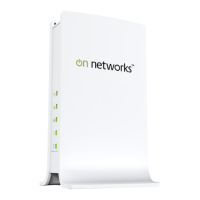
If the modem router is unable to access the Internet:
1. Check your cables.
• Disconnect and reconnect each cable. There is usually an
audible click when the cable is correctly connected.
• See if the telephone cable connecting your DSL modem
router to the wall jack is plugged into a filter. A filter is not
required when you do not have telephone voice service. A
filter that is installed where it is not needed eliminates your
ADSL signal.
2. Power down your DSL modem router, and then power it up again.
a. Shut down your computer and turn off the modem router.
b. Unplug the power adapter and all other cables from the back
of the DSL modem router.
c. Wait 30 seconds, then reconnect the cables and adapter to
your DSL modem router, and turn it on.
d. Make sure that the router Power LED is on. If the LED is off,
try plugging the adapter into another power outlet.
e. Turn your computer back on, and wait for the indicator LEDs
to turn green.
3. Open a web browser and try to access the Internet.
When steps 1–3 do not resolve the problem:
4. Reset your modem.
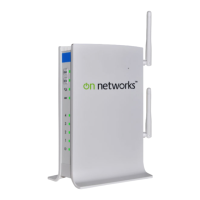
To reset your DSL modem router, use a pin or paper clip to press
and hold the Reset button for at least 7 seconds. (The Reset
button is located inside a small hole on side panel above the On
Networks logo.)
Reset button


 To Next Page
 Loading...