EasyManua.ls Logo

on networks N300 - User Manual

on networks N300
14 pages
Print Icon
To Next Page IconTo Next Page
Loading...
Easy, Reliable & Secure
Installation Guide
On Networks
September 2012
Technical Support
Thank you for selecting On Networks products.
After installing your device, locate the serial number on the label
of your product and use it to register your product at
www.on-networks.com/register. Registration is required before
you can use our telephone support service.
Go to support.on-networks.com for product updates and web
support.
N300 Wireless ADSL2+ Modem Router
N300RM Installation Guide
Package Contents
The box should contain the following items. If any items are
incorrect, missing, or damaged, contact your On Networks
dealer.
The filter or
splitter provided
depends on the
region.
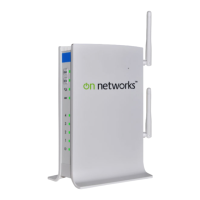
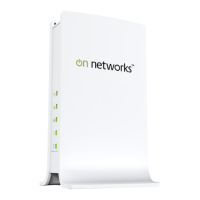
N300 Modem Router
Ethernet cable Power adapterPhone cable
Filter/splitter
Question and Answer IconNeed help?

Do you have a question about the on networks N300 and is the answer not in the manual?

on networks N300 Specifications

General IconGeneral
Brandon networks
ModelN300
CategoryWireless Router
LanguageEnglish

Summary

Technical Support

Package Contents

Compliance

Before You Begin

Install Your Modem Router

Connect the ADSL

Install an ADSL filter/splitter between the phone line and the phone.

Add Power to the Modem Router

Connect the power adapter to the router and plug it into an outlet.

Connect a Computer

Use an Ethernet cable or connect wirelessly to the router.

Open a Web Browser

Enter http://www.mywifirouter.com in the address bar to access the router.

Preset Wireless Security

Wireless Network Settings

Add Wireless Devices to the Network

WPS Method

Connect wireless devices using the WPS button on the router and client device.

Manual Method

Connect wirelessly by searching for the SSID and entering the password.

Access the Modem Router to Make Changes

Log in to the Modem Router

Launch a web browser, navigate to www.mywifirouter.com, and enter login credentials.

Change Modem Router Password

Navigate to MANAGEMENT > Set Password to change the user name and password.

Troubleshooting

Browser Not Displaying Web Page

Check connection, router power, browser cache, and IP settings.

Unable to Access Internet

Check cables, power cycle, and reset modem if issues persist.

Reset Modem Router

Press and hold the Reset button for at least 7 seconds to restore factory settings.

Related product manuals