4
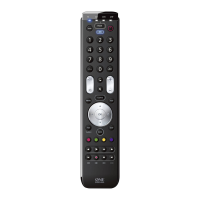
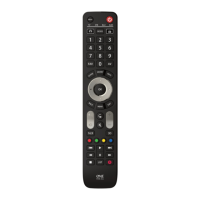
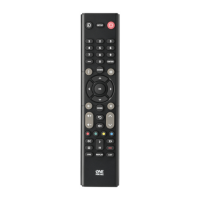
The Essence 8 remote is pre-programmed to control some of the most
popular devices out of the box. If you have one of the following devices
try the putting the batteries in and pressing the device key, and then
press a few keys to see if the remote works your device:
Device Key To Press Device controlled
TV Samsung TV
OTT Roku Streaming Box
STB Sky Q Box
AUD Onkyo Receiver
AUX Vestel TV
BLU Samsung Blu-ray Player
DVD Sony DVD Player
BAR Samsung Sound Bar
If your device is not one of those listed above, or you have extra
devices to set up, there are 2 ways to do this. The easiest is SimpleSet
which is used for the common brands and devices.
If the brand of your device is shown in the SimpleSet picture pointing
to a key, you can use the SimpleSet system described in this section,
please locate the brand of your device and note the key associated
with it.
SETUP
SIMPLESET
To set up your device:
1. Turn on your device (not on standby) and point the Essence
remote towards it. If you are setting up a Streaming device,
make sure a movie or TV show is playing.
2. Press the Device key you wish to set up (for
example TV).
3. Hold down the Setup key until the LED under the
Device key blinks twice.
4. Hold down the digit for your brand and device as
listed in the tables above - e.g. 7 for a Samsung TV.
5. For all devices except OTT the remote will send the Power key
every 3 seconds, for a streaming box the remote will send the
Play/Pause function.
6. As soon as your device reacts by turning o or Pausing
(Streaming box only) release the digit.
7. The LED will blink twice and the remote should now operate
your device.
• If you nd one or more keys do not work as you expect, start again at
step 2 – the remote will start with the next code in the memory.
713430_1-3_21T_Printfile_URC1281_ESSENCE_8_RDN1150323.indd 4713430_1-3_21T_Printfile_URC1281_ESSENCE_8_RDN1150323.indd 4 22-03-2023 11:5122-03-2023 11:51


 To Next Page
 Loading...