the home screen and select WIDGETS. Then
press a widget and drag it to the home screen.
Remove widgets: Press and drag a widget on
the home screen to the Remove label.
Home Settings
Long press the blank space on the home screen
and select HOME SETTINGS.
Add icon to Home screen: When enabled, it will
display an icon on the home screen after
installing a new app.
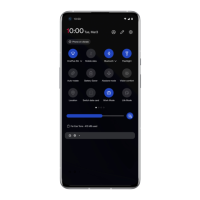
Swipe down: Swipe down from home screen to
access quick settings.
Double tap to lock: Double tap a blank area of
the home screen to turn off the screen and lock
the device.
Drawer: Gives you an option to use app search
automatically when entering the Drawer.
Notification dots: When enabled, the app icon
will display dots to indicate new messages.
Icon pack: Set up icon styles for preset apps and
some third-party apps
Home screen layout: Adjust the number of
desktop grids and icon sizes.



 To Next Page