2
Sign payment orders in UniCredit’s Internet Banking applications
1.
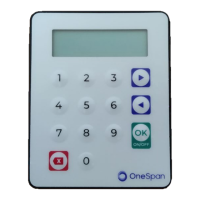
button to turn the token on.
Welcome
Hold it for at least 1 second.
2.
Enter your confidential 4
digit-long PIN then press
OK.
PIN?
3.
<OK>
You have entered the correct PIN.
Press the green OK button
twice then continue from
step 2.
Wrong PIN
<OK>
Incorrect PIN was entered, therefore
the login was not successful.
4.
Press the purple right
arrow button once.
1. Password
5.
Press the green OK button
to start the creation of a
new signature code.
Menu
2. Signature
6.
Enter the 6-digit-long
account ID displayed by
the Internet Banking app.
Account ID?
- - - - - -
7.
Enter the total amount of
the payment.
Total amount?
0,00
The digits are shifted from the right side
of the display, so for integer numbers
two zeros are also required.
5.
into the appropriate pass-
word field in the application
Signature code:
******
The password can be enlarged by
pressing the green OK button.
PIN change
1.
button to turn the token on.
Welcome
Hold it for at least 1 second.
2.
4-digit-long PIN then press
OK.
PIN?
3.
<OK>
You have entered the correct PIN.
Press the green OK button
twice then continue from
step 2.
Wrong PIN
<OK>
Incorrect PIN was entered, therefore the
login was not successful.
4.
Press the purple right
arrow button twice.
Menu
1. Password
5.
Press the green OK
button.
3. Settings
6.
Press the green OK
button.
1. Change PIN
7.
4-digit-long PIN then press
OK.
PIN?
8.
<OK>
You have entered the correct PIN.
Press the green OK button
twice then continue from
step 2.
<OK>
Incorrect PIN was entered, therefore the
login was not successful.


 To Next Page