Note:
• If use Long Exposure function, Time Lapse Photo,TL Duration, Burst
Photo and Delay Timer will not be available automatically.
• If use Time Lapse Photo function, Burst Photo, Delay Timer and
Long Exposure will not be available automatically.
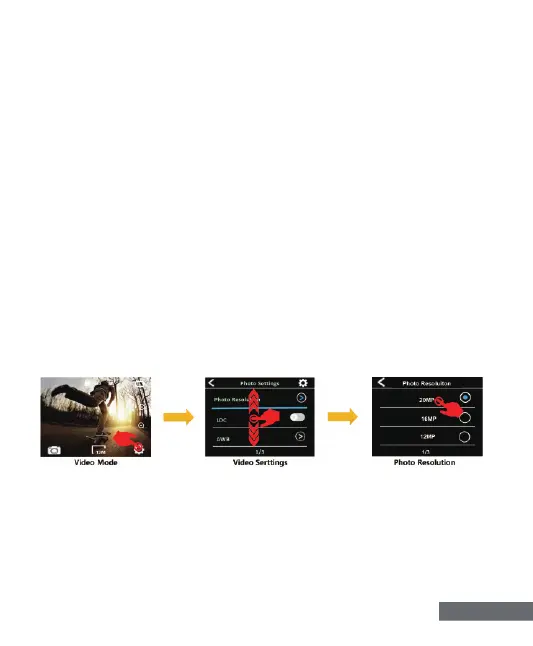
PHOTO SETTING
Verify the camera is in Photo Mode, tap the setting icon on the
bottom right corner of the screen, then swipe up or down to cycle
through the various option and tap the desired option,or press Up
Button or Down Button to cycle through the various option and press
Shutter Button to select the desired option.
In Photo Mode, tag the zoom icon to adjust the zoom level.
• If you use Time-Lapse Video function, Loop Video,Slow Motion and
Fast Motion will not be available automatically.
• If you want to set Time Lapse Duration, please turn on Time Lapse
Interval first.
• Please select 1080P 120FPS, 720P 240FPS or 720P 120FPS when
you want to record slow motion movie.
• If you use Slow Motion function, EIS,Time-Lapse Video and Fast
Motion will not be available automatically.
• Using as a dash cam, we suggest to turn on the Loop Video, Driving
Mode and Screen Saver at same time.
English-7


 To Next Page