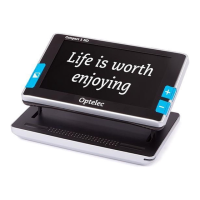
Optelec Compact
+
HD
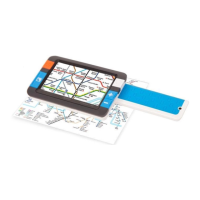
Using the snapshot button
The snapshot button allows you to take a temporary picture of a text or an
image.
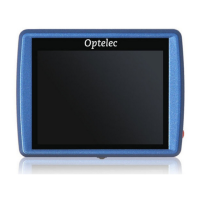
- Hold or place the Compact
+
HD over the text or image you wish to
capture.
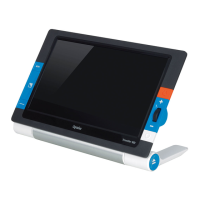
- Press the snapshot button located on the top right side of the unit to take
the snapshot.
- Bringing the Compact
+
HD closer to your eyes will enable you to view
the object or text closely.
- Press the Mode button to change the viewing mode.
- Use the magnification buttons located to the right side of the screen to
change the magnification of the displayed image in 3 steps.
- While viewing the taken image, press the snapshot button for 2 seconds
to save the image and return to the life video mode. A short beep and
the onscreen indicator will confirm that the image has been saved. A
maximum of 4 images can be stored inside the Compact
+
HD memory. A
new image will replace the oldest image in memory.
- Press the snapshot button again to unfreeze the image. It is now
possible to take a new snapshot.






 To Next Page