Samsung Model (Cont.)
3
4
5
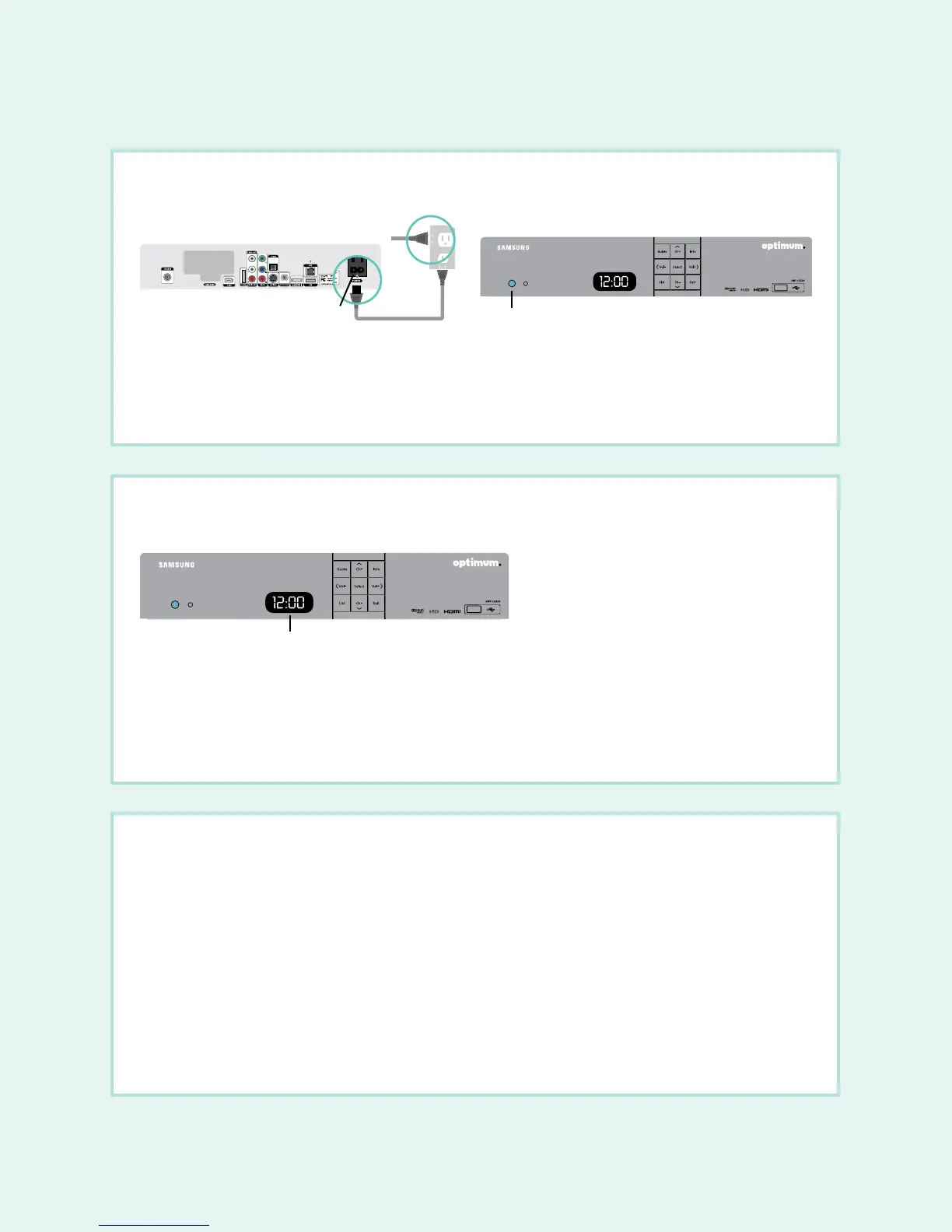
• Plug the power cord from the AC power input on the digital cable box into the wall outlet or surge protector.
The blue light on the front of the box will indicate the power is on. Press the power button in the lower left corner of
the box if it’s not on.
DO NOT plug other components such as DVD players, VCRs or gaming consoles into the back of the digital cable box.
• Activation begins automatically and a series of numbers and letters will display on the LED screen on the front of your
digital cable box. Once “turn” and “on” alternate on the LED screen every three seconds, turn on your digital cable box;
a blue light will indicate the power is on.
• Make sure your TV is on and you’ll see a gray screen that says, “Please wait, we are preparing the service for you.”
When the correct time displays on the LED screen, wait up to 15 minutes to be sure service is fully activated.
Back of digital cable box
Power button
AC power input
Power cord
LED screen
TV plug
HDTV:
• For the best display, press the SETTINGS button on your remote twice to get the full settings menu.
• The default picture format setting on the Samsung HD digital cable box is 480p (best SD). Use the ARROWS to highlight
“HD settings” and press SEL, then highlight “Display Resolution” and press SEL. Scroll to 1080i (best HD) and press SEL.
Next, go to the menu on your HDTV and set the Picture Format “Aspect Ratio” to 16:9.
SDTV:
• The “Display Resolution” should be 480p (best SD) and the Picture Format “Aspect Ratio” should be 4:3.
Check that the TV is on the correct input for the cable box by pressing the TV/Video, Input or Source button on your TV manufacturer’s
remote control. The input selected must match the input you used to connect your HDMI cables or component cables from your digital
cable box to your TV.
Connect the power
Activate
Setting the picture format
4


 To Next Page
 Loading...