EasyManua.ls Logo

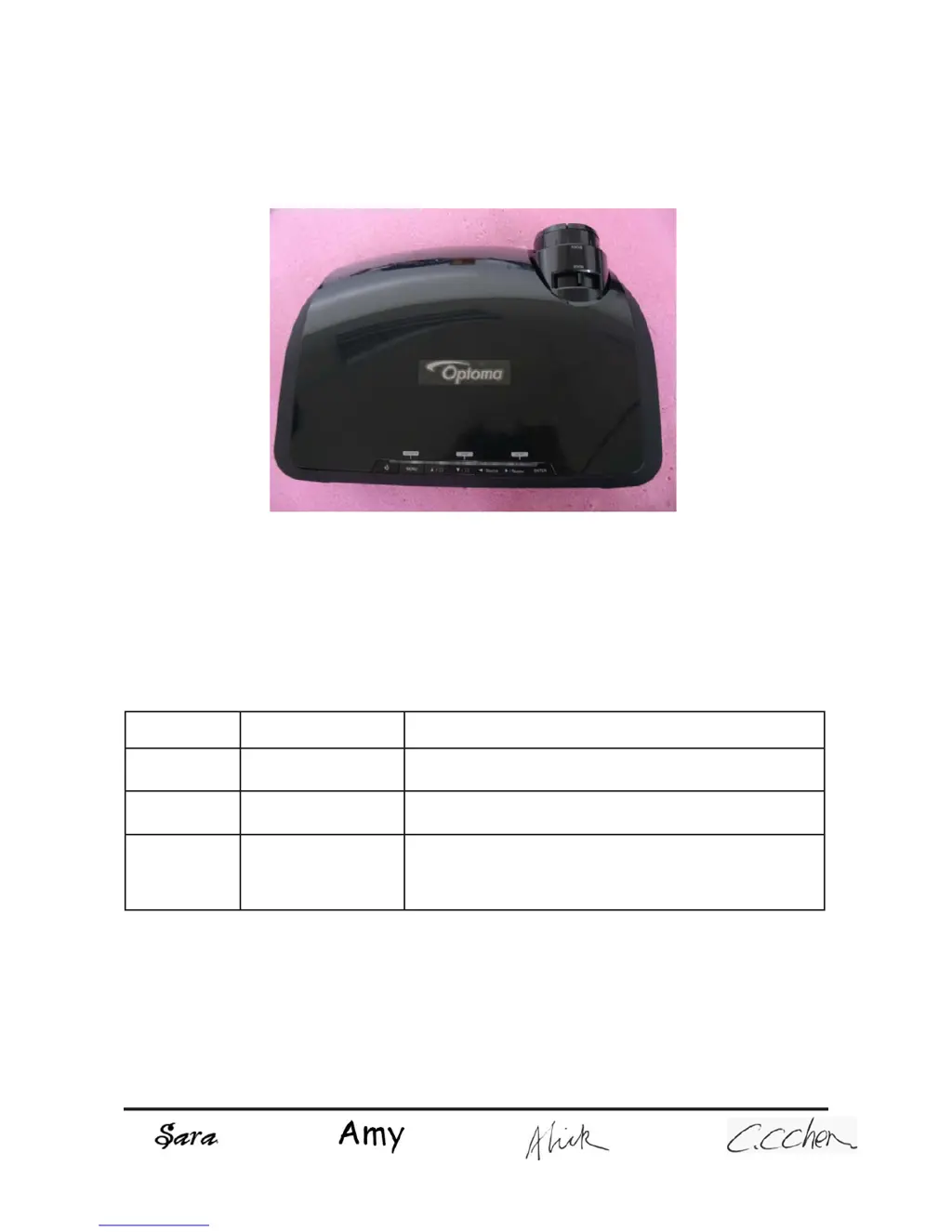
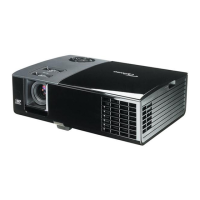
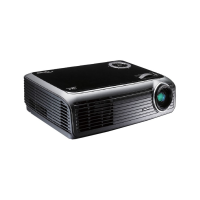
Optoma EP1080 - User Manual

Optoma EP1080
90 pages
Print Icon
To Next Page IconTo Next Page
Loading...
SERVICE MANUAL
SI : TSE: Check: Approved:
Date Revise Version Description
2008.09.10 V1.0 Initial Issue
2008.09.22 V2.0 Modify Chapter 1 and add Chapter 7
2009.03.13 V3.0
Add EP1080 extended models: DX1080, OP1990,
VE810, DP7290, PV8530, P350, TX1080 and amend
the method of getting into FW mode in Chapter 5
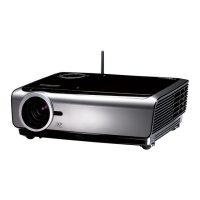
EP1080/DX1080/OP1990/VE810/DP7290/
PV8530/P350/TX1080
Copyright March, 2009. All Rights Reserved P/N:36.8BH03G001

Table of Contents

Other manuals for Optoma EP1080

Questions and Answers

  • J
    Jared BurkeAug 20, 2025
    Why does my Optoma EP1080 Projector have no power?
    • K
      Katherine NewtonAug 20, 2025
      If your Optoma Projector isn't turning on, make sure the power cord and AC power outlet are securely connected. Also, check the lamp cover and interrupt switch. Ensure all connectors are securely connected and aren’t broken. You may need to check the Lamp Driver, LVPS, Scaler Board, or Formatter Board.
  • V
    vreynoldsAug 22, 2025
    What causes image flicker on my Optoma EP1080 Projector?
    • T
      Tracy DavisAug 22, 2025
      Image flicker on your Optoma Projector can be resolved by doing a “Reset (All data)” of the OSD Menu. Also, ensure that the signal cables and source are working correctly. If not, check the Lamp Module, Color Wheel, DMD Board, Scaler Board, and Formatter Board.
  • B
    Brandy FrancoAug 25, 2025
    What to do if my Optoma EP1080 Projector has no image?
    • A
      Ashley BurnsAug 25, 2025
      If your Optoma Projector is not displaying an image, ensure the signal cable and source are working. If multiple sources are connected, use the “Source” button to switch between them. Also, ensure all connectors are securely connected and aren’t broken. You may need to check the Scaler Board, Formatter Board, DMD Board, DMD Chip, or Engine Module.
  • M
    Monique MedinaAug 26, 2025
    Why does my Optoma EP1080 display a garbage image?
    • K
      Kyle CrossAug 27, 2025
      If your Optoma Projector is showing a garbage image, ensure that the signal cables and source are working correctly. Also, check the Scaler Board, Formatter Board and DMD Board.
  • B
    Brian Edwards DDSAug 28, 2025
    Why does my Optoma EP1080 shut down automatically?
    • A
      Aaron CarterAug 28, 2025
      Your Optoma Projector might be automatically shutting down due to several reasons. If the Lamp LED is flashing red, check the fan and Scalar Board or Formatter Board. If the Temp LED is red or flashing, check the thermal switch and the fan. If the Lamp LED is constantly red, check the lamp, Lamp Driver, Formatter Board or Photo Sensor.
  • K
    Kristin FowlerAug 30, 2025
    What to do if my Optoma Projector has color abnormalities?
    • J
      Joshua FarmerAug 30, 2025
      If your Optoma Projector displays abnormal colors, try performing a “Reset (All data)” from the OSD Menu. You can also try to adjust the Color Wheel Index. If the issue persists, check the Scaler Board, Formatter Board, DMD Board, or Color Wheel.
  • L
    Leonard McdanielSep 1, 2025
    Why is there no light on my Optoma Projector?
    • J
      Joseph EatonSep 1, 2025
      If your Optoma Projector has no light, ensure all connectors are securely connected and aren’t broken. Check the Lamp Module, Lamp Driver, LVPS, Scaler Board, Formatter Board, Photo Sensor, and Color Wheel.
  • S
    Sarah ParkerSep 3, 2025
    Why is my Optoma EP1080 making mechanical noises?
    • J
      jonesdestinySep 3, 2025
      If your Optoma Projector is making mechanical noises, check the Color Wheel and Fan Module.
  • A
    amy38Sep 5, 2025
    What causes poor uniformity or shadows on my Optoma EP1080's image?
    • J
      Jeremy SmithSep 5, 2025
      To address poor uniformity or shadows on your Optoma Projector, ensure the projection screen is free of dirt and that the projection lens is clean. Also, ensure the brightness is within specified limits. If problems persist, check the rod alignment and Engine Module.
  • M
    munozrebeccaSep 7, 2025
    What to do if Optoma EP1080 remote control or control panel failed?
    • B
      Brian RuizSep 7, 2025
      If the remote control or control panel of your Optoma Projector is not working, start by checking the battery. If that's not the issue, check the Remote Controller, IR receiver, Scaler Board, Formatter Board, FPC, and Keypad.

Summary

Preface

Manual Content Disclaimer

Notice regarding potential changes to manual information and future editions.

Chapter 1 Introduction

Projector Highlight Specifications

Details key specifications and features of the projector, such as dimensions, weight, and resolution.

Projector Compatible Video Modes

Lists compatible resolutions and refresh rates for different video signal types.

Chapter 2 Disassembly Process

Disassembly Equipment and Product Overview

Lists necessary tools and provides an initial overview before starting disassembly.

How to Disassemble Lamp Cover Module

Step-by-step instructions for removing the projector's lamp cover.

How to Disassemble Lamp Module

Instructions for safely removing the lamp module from the projector.

How to Disassemble Lens Shelter

Procedure for carefully removing the lens shelter assembly.

How to Disassemble Top Cover Module

Guide for removing the main top cover of the projector.

How to Disassemble Keypad Board Module

Steps to detach and remove the keypad interface board.

How to Disassemble Projector Vent

Instructions for removing ventilation components from the projector.

How to Disassemble Rear Cover Module

Procedure for removing the projector's rear panel.

How to Disassemble Formatter & Scaler Boards

Steps to remove the formatter and scaler circuit boards.

How to Disassemble Air Ductor

Instructions for removing the air duct component.

How to Disassemble System Fan Module

Procedure for removing the projector's cooling fan assembly.

How to Disassemble Left Shielding Module

Steps to remove the left-side shielding component.

How to Disassemble Engine Module

Guide for removing the main optical engine assembly.

How to Disassemble Color Wheel Module

Procedure for removing the color wheel assembly.

How to Disassemble DMD Chip

Instructions for removing the Digital Micromirror Device (DMD) chip.

How to Disassemble LVPS Module

Steps to remove the Low Voltage Power Supply (LVPS) module.

How to Disassemble Ballast Module

Procedure for removing the lamp ballast module.

How to Disassemble Blower Module

Instructions for removing the blower fan module.

How to Disassemble Safety Switch

Steps to remove the projector's safety switch.

How to Disassemble IR Sensor & Air Duct

Procedure for removing the IR sensor board and air duct.

How to Disassemble Elevator Modules

Instructions for removing the left and right elevator modules.

Projector Rod Adjustment Procedure

Guide for adjusting the projector's optical rod for image alignment.

How to Re-write Lamp Usage Hour

Steps to update the projector's lamp usage hour counter.

Chapter 3 Troubleshooting

Understanding Projector LED Status Lights

Explains projector status and errors indicated by LED lights.

Projector Troubleshooting Main Procedures

Outlines systematic troubleshooting steps for common projector symptoms.

Chapter 4 Function Test & Alignment Procedure

Equipment for Projector Function Testing

Lists necessary equipment for performing projector functional tests.

Accessing Projector Service Mode

Instructions on how to enter and navigate the projector's service mode.

Resetting Projector OSD Settings

Procedure to reset On-Screen Display settings to factory defaults.

Conditions for Projector Testing

Specifies environmental and operational conditions for accurate testing.

Projector Module Inspection Procedures

Details tests required for various projector internal modules.

Testing Projector via PC Mode

Procedures for testing projector functions using a PC connection.

Projector Calibration Procedures

Steps for calibrating projector settings for optimal performance.

Measuring Projector Optical Performance

Methods for measuring brightness, contrast, and uniformity.

Testing Projector Video Performance

Procedures for evaluating video input and output quality.

Testing Projector Network Functions

Steps to verify network connectivity and features.

Other Projector Function Tests

Miscellaneous functional tests not covered elsewhere.

Adjusting Frequency and Tracking

Procedure for adjusting signal frequency and tracking for stable images.

Testing for Projector Light Leak

Method to identify and assess light leakage issues on the screen.

Testing for Dark Image Blemishes

Procedure to check for dark spots or imperfections in the projected image.

Testing for Bright Dead Pixels

Method to identify and test for bright pixel defects on the display.

Testing for Dark Dead Pixels

Method to identify and test for dark pixel defects on the display.

Projector Focus Adjustment and Test

Guide for checking and adjusting the sharpness of the projected image.

Evaluating Projector Color Performance

Procedures for assessing and verifying color accuracy and saturation.

Projector Video Calibration Steps

Instructions for calibrating video settings after component replacement.

Projector PC Calibration Steps

Procedures for calibrating projector settings for PC input signals.

Chapter 5 Firmware Upgrade

Firmware Upgrade Equipment Requirements

Lists the software and hardware necessary for firmware updates.

Installing USB Drivers for Firmware Update

Steps to install the required USB drivers for the update process.

Projector Firmware Upgrade Process

Detailed step-by-step guide to performing a firmware update.

Chapter 6 EDID Upgrade

Understanding EDID Data

Explains Extended Display Identification Data and its function.

EDID Upgrade Equipment Requirements

Lists the software and hardware needed for EDID upgrades.

Setting Up EDID Upgrade via VGA-2;DVI-D

Steps to connect and configure for EDID upgrade using specific ports.

Keying In EDID Data via VGA-2;DVI-D

Procedure for manually entering EDID information via VGA-2/DVI-D.

Setting Up EDID Upgrade via VGA-1;HDMI

Steps to connect and configure for EDID upgrade using specific ports.

Keying In EDID Data via VGA-1;HDMI

Procedure for manually entering EDID information via VGA-1/HDMI.

Chapter 7 Network FW Upgrade Procedure

Network Firmware Upgrade Equipment

Lists the software and hardware required for network firmware updates.

Finding Projector Network IP Address

Steps to locate and record the projector's IP address.

Configuring PC Network Settings

Guide for setting up PC network parameters for projector communication.

Linking PC to Projector via LAN

Instructions for establishing a physical network connection between PC and projector.

Appendix A

EP1080 Exploded View Diagram

Exploded diagram illustrating the main projector components.

Appendix B

Projector Serial Number Format Explained

Defines the structure and meaning of the projector's serial number.

PCBA Code Structure Explained

Explains the format and components of the PCBA code.

Optoma EP1080 Specifications

General IconGeneral
Resolution1920 x 1080
Zoom1.1x
Display TechnologyDLP
Input Lag16 ms
HDMI Version1.4a
Contrast Ratio20000:1
InputsHDMI, VGA, USB
Projection Size30" - 300"

Related product manuals