EasyManua.ls Logo

Optoma EW631 - User Manual

Optoma EW631
48 pages
Print Icon
To Next Page IconTo Next Page
Loading...
OPTOMA
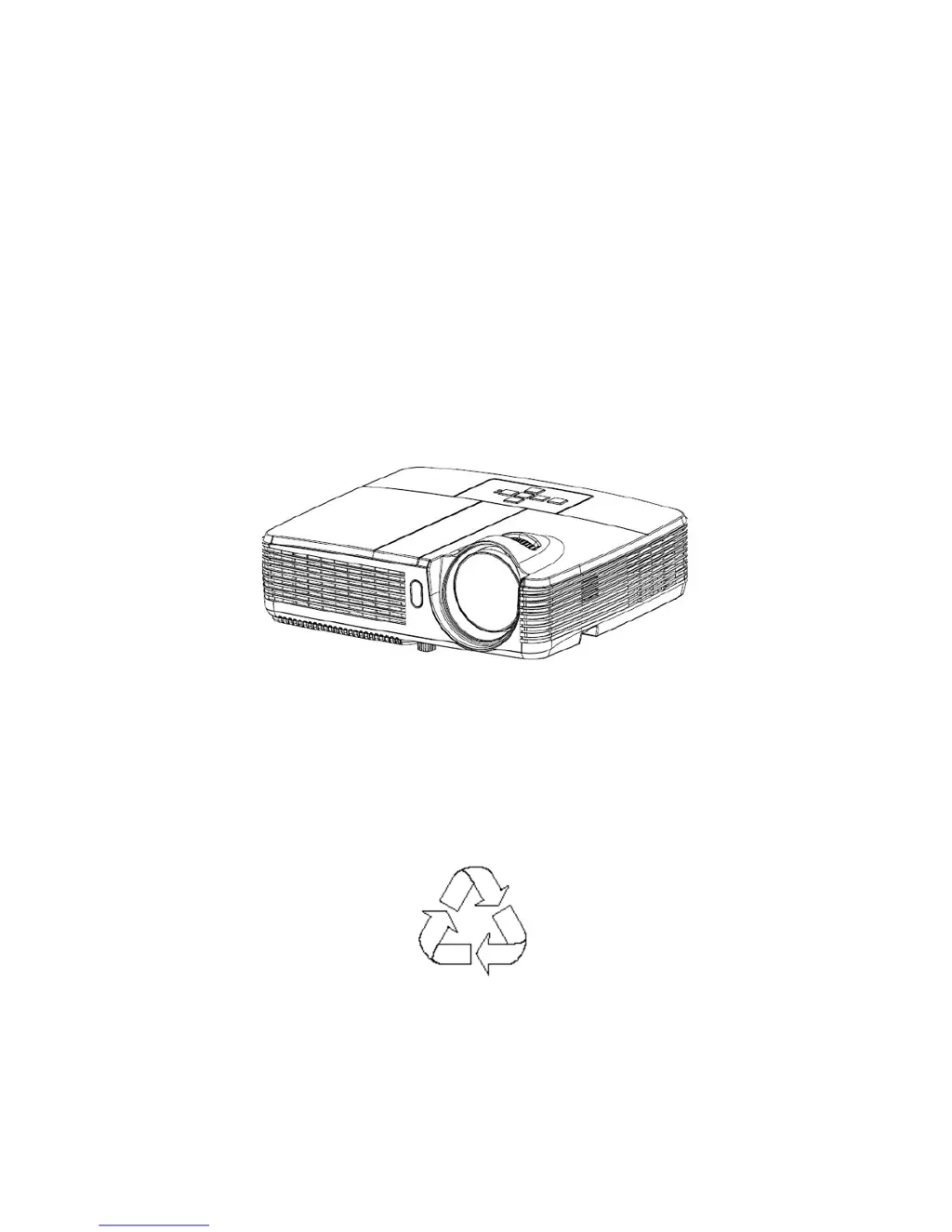
EX631/EW631 Projector
Service Manual
100% Recycled Paper
Date: 2012/03/20

Other manuals for Optoma EW631

Questions and Answers

  • K
    Kristen LewisAug 14, 2025
    How to fix Optoma Projector that fails to light up?
    • S
      Stephanie WatsonAug 15, 2025
      If your Optoma Projector fails to light up, you can try the following: check the LED indicator and follow the indicative actions, replace the Lamp Module, replace the Mainboard, replace the Ballast, or replace the Power board.
  • J
    James BernardAug 17, 2025
    Why does my Optoma EW631 Projector say 'No Signal' from my computer?
    • R
      Ronnie HopkinsAug 17, 2025
      If your Optoma Projector displays 'No Signal' from your computer, ensure the source is turned on, replace the cable, or replace the mainboard.
  • K
    Kelly GrantAug 21, 2025
    What to do if Optoma Projector shows 'No Signal' for video?
    • J
      James FowlerAug 21, 2025
      If your Optoma Projector shows 'No Signal' for video, first turn on the source. If that doesn't work, replace the cable, or replace the mainboard.
  • C
    Clarence AriasAug 25, 2025
    How to troubleshoot abnormal image on Optoma EW631?
    • J
      Joshua GlennAug 25, 2025
      To troubleshoot an abnormal image on your Optoma Projector, power it on again and reset the OSD. You can also adjust the input signal, replace the Mainboard, or replace the Optical Engine.
  • J
    jocelyn78Aug 27, 2025
    Why is the color abnormal on my Optoma EW631?
    • J
      Jeffrey NelsonAug 27, 2025
      If the color is abnormal on your Optoma Projector, try adjusting the input signal or adjusting the Color Wheel Index. If the issue persists, consider replacing the Mainboard or replacing the Optical Engine.
  • D
    dustinkellyAug 31, 2025
    What to do if my Optoma EW631 Projector has no power?
    • D
      David AndersonAug 31, 2025
      If your Optoma Projector has no power, try these steps: replug the power cord, check the connector, replace the power cord, or replace the safety switch.
  • Y
    yvonne86Sep 3, 2025
    How to fix Optoma Projector remote control failure?
    • S
      Scott FordSep 3, 2025
      To fix a remote control failure with your Optoma Projector, try replacing the battery, replacing the remote control, replacing the IR, or replacing the Mainboard.
  • D
    Donna ArmstrongSep 7, 2025
    What to do if Optoma EW631 fan fails after turning on?
    • J
      Jessica KingSep 7, 2025
      If the fan fails after turning on your Optoma Projector, try reconnecting the fan connection, replacing the fan, or replacing the button.
  • X
    xramirezSep 10, 2025
    How to restore sound on Optoma EW631 with no volume?
    • D
      Dawn WilliamsSep 10, 2025
      If there is no volume on your Optoma Projector, you can try replacing the button, replacing the speaker, or replacing the mainboard.

Summary

Safety Instructions and Precautions

Safety Precautions

General safety measures for operating and servicing the projector.

Product Safety Notice

Importance of using specified replacement parts for safety.

Service Personnel Warning

Critical warnings for technicians regarding electrical hazards and lamp handling.

Remote Control Laser Warning

Caution regarding potential laser beam exposure from the remote.

Projector System Introduction

Technical Specifications

Detailed technical data for EX631/EW631 models.

System Block Diagram

Visual representation of projector internal components and connections.

Lamp Handling and Safety

Safe Lamp Handling Procedures

Guidelines for safely handling the projector lamp.

Safe Lamp Usage Guidelines

Precautions for operating the projector lamp.

Firmware Upgrade Process Overview

Firmware Loader Purpose and Notes

Explains the utility's function and critical usage notes.

Firmware Upgrade Setup and Installation

Installing the Firmware Utility

Step-by-step guide to install the DLP Composer Lite software.

DLP Processor USB Driver Installation

Installing the DLP USB Device Driver

Procedure for installing the necessary USB driver.

Projector Firmware Update Procedure

Preparing Projector for Update

Steps to put the projector into firmware update mode.

Connecting and Initiating Update

Connecting the projector and configuring the software.

DLP Composer Configuration Settings

Setting Library Path

Specifying the directory for firmware image files.

Configuring USB Device ID

Adjusting Vendor and Product IDs for USB communication.

Flash Loader Configuration

Selecting Firmware Image File

Choosing the specific firmware file for upload.

Flash Loader Options and Settings

Skip Boot Loader Area Option

Deciding whether to overwrite the boot loader during firmware update.

Firmware Download and Post-Processing

Initiating Firmware Download

Starting the data transfer to the projector.

Post-Download Cooling Process

Instructions for cooling the projector after firmware update.

Firmware Update Finalization

Machine Disassembly and Replacement Guide

Disassembly Procedure and Warnings

Critical Disassembly Warnings

Safety and handling precautions before starting disassembly.

Internal Component Access

Internal Component Removal Procedures

Shielding and Optical Engine Removal

Troubleshooting and Repair Verification

General Troubleshooting Warnings

Important warnings before diagnosing issues.

Projector Troubleshooting Flowcharts

Power Source Troubleshooting Guide

Diagnostic steps for power-related problems.

Fault Diagnosis and Signal Troubleshooting

Lighting and Volume Troubleshooting

Flowcharts for resolving no-light or no-volume issues.

Image and Color Issue Diagnosis

Operation Function Troubleshooting

Post-Repair Verification Procedures

Operation and Image Quality Verification

Image Quality Standards and Tests

Image Quality: Blemish and Pixel Inspection

Image Quality: Uniformity and Banding

Focus and Sharpness Evaluation

Input;Output Port and Resolution Verification

Safety Test Procedures

Electrical Safety Analyzer Usage

Performing safety checks with specialized equipment.

Connector Information and Locations

Main Board Backside Connector Details

Board-Specific Connector Information

Field Replaceable Unit (FRU) List

Optoma EW631 Specifications

General IconGeneral
ResolutionWXGA (1280 x 800)
Contrast Ratio20, 000:1
Lamp Life (Standard/Normal)4000 hours
Lamp Life (Eco/Dynamic)10000 hours
Display TechnologyDLP
Zoom TypeManual
Noise Level (Eco mode)29dB
Connectivity/I/O PortsHDMI, VGA, USB, Audio In/Out

Related product manuals