● To set the primary reading language and enable or disable automatic language
detection, select the Reading Settings option.
● To change the system language to any of the available languages, select the System
Language option.
Laser Pointer Modes.
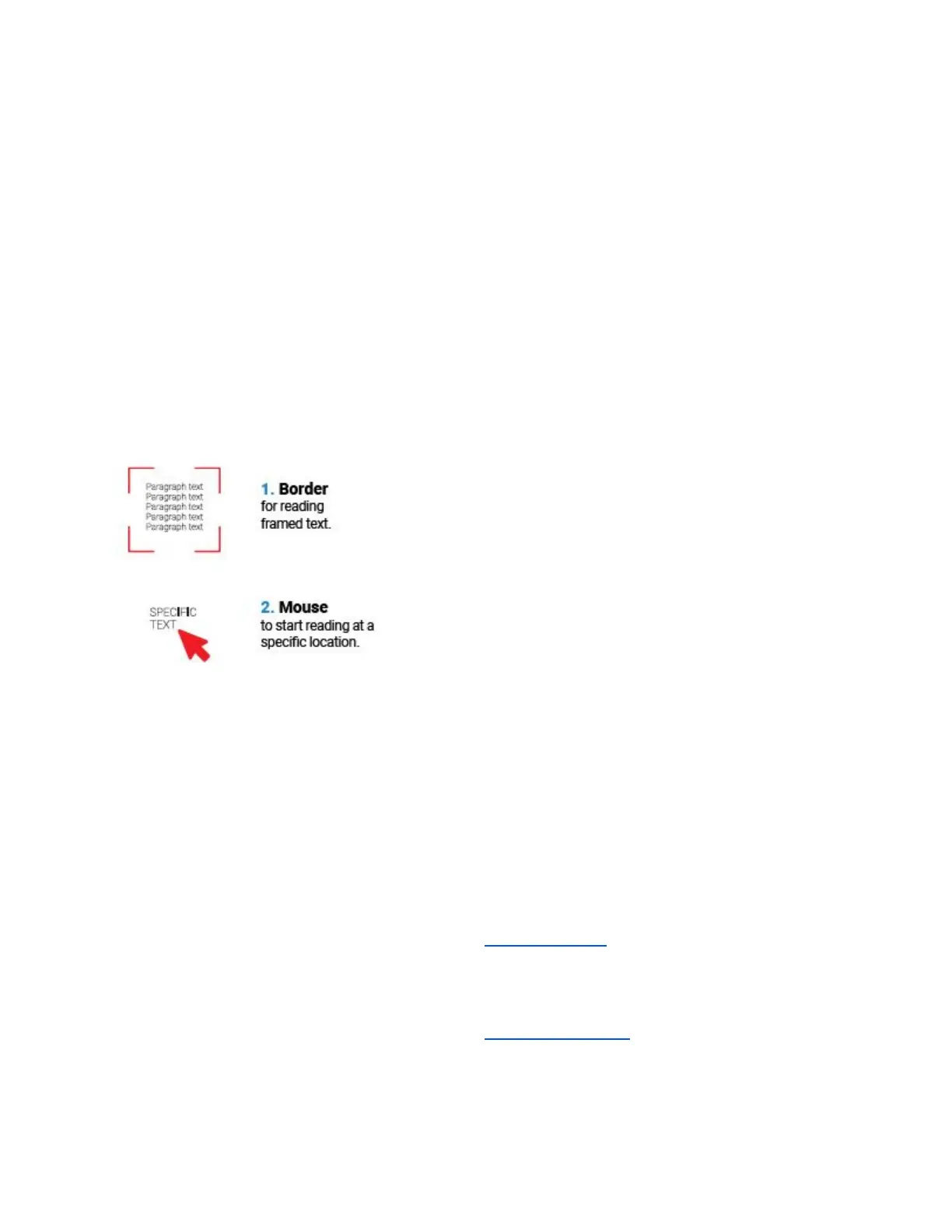
The laser pointers are designed to help you focus your OrCam Read on any desired text. You
can switch the laser pointer mode by pressing the plus and minus volume buttons at the same
time. There are two laser pointer modes:
● “Border” for reading framed text.
● “Mouse” to start reading at a specific location.
Note: OrCam Read captures the selected text within 5 seconds of pressing and holding the
trigger button. If your finger is not released before 5 seconds transpire, the camera will not
activate.
OrCam Please Commands.
OrCam Please commands are written commands that can be used to easily set some settings
and receive information. OrCam Read will internally read the command and perform the
intended action.
The following commands can be used only when you are on the relevant OrCam website pages.
Press the trigger button to activate them.
OrCam Please Read QR Code
Use this command along with the instructions to “Connect to WiFi” in this manual to connect
your OrCam Read to the WiFi.
OrCam Please Set Zone and Time
Use this command along with the instructions to “Set Zone and Time” in this manual to set the
timezone and time on your OrCam Read.


 To Next Page