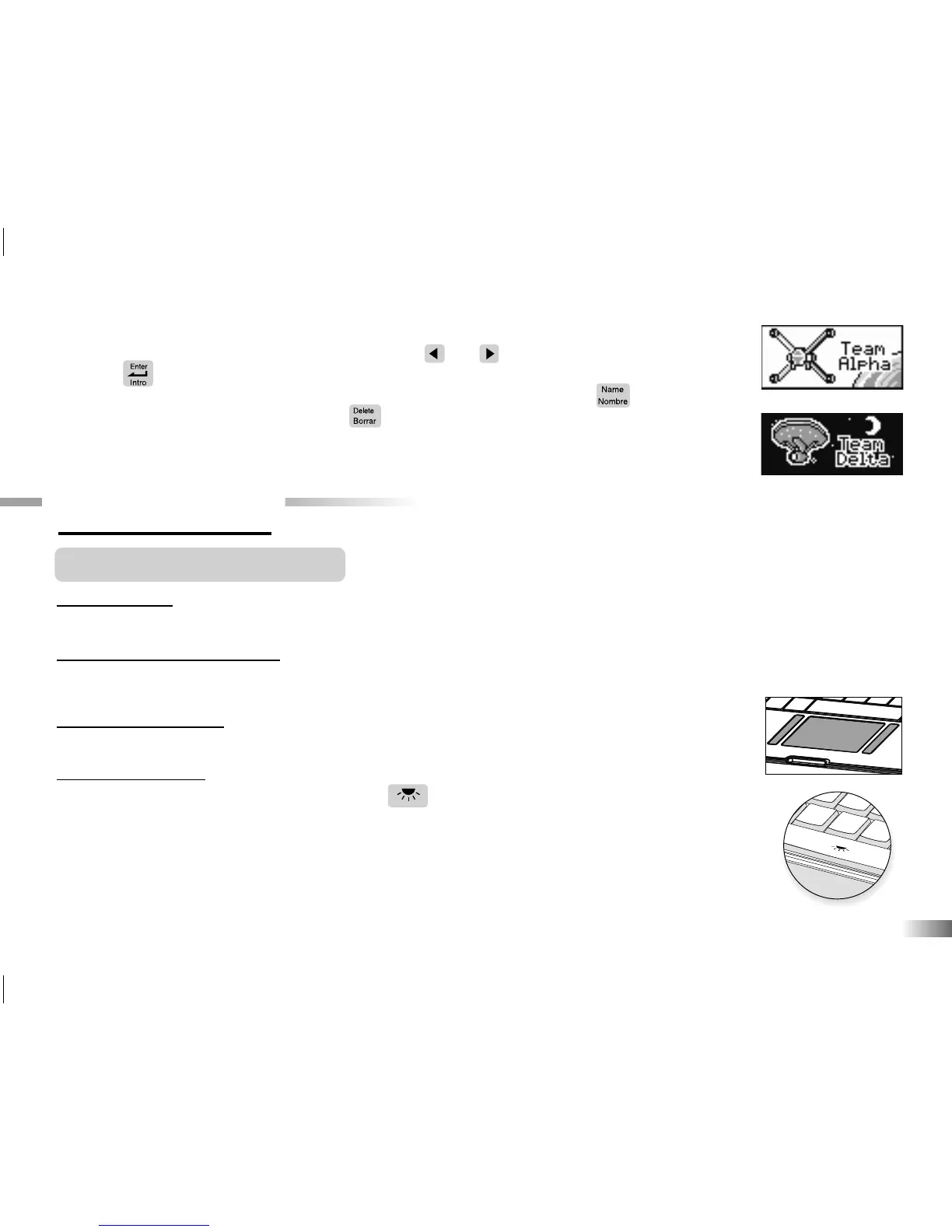
Next choose between Team Alpha and Team Delta theme. This will determine your
reward items and experience in the games. Use the and
arrow keys
to pick a theme and
press the button to confirm your choice.
If you need to change the name or theme once it has been stored, press the button
to see the name animation, and press the button to go back to the confirmation screen.
Press the letter Y for Yes to continue, or N for No, and go back to your game.
Chapter 3
Chapter 3
Useful Features and Controls
The Keyboard
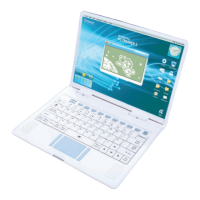
Your Accelerator PC Trainer 5 Learning Laptop features a fully functional computer keyboard.
The Directional Cursor Pad
Use this pad to control the cursor arrow. Press the directional cursor pad to indicate the direction
you want the cursor arrow to go. Then press the Submit button icon to enter your selection.
The Flashing Cursor
This shows you the position in which the next keyboard entry will appear.
Back Light Switch
To turn on the red LCD backlight, press the button on the space bar of the keyboard.
To turn off the backlight, press it again.
5


 To Next Page