ENGLISH
FRANÇAIS
ESPAÑOL
DS6639 Manual-Eng/Fre/Span (086-003300-060)
ENGLISH
FRANÇAIS
ESPAÑOL
Movie Mode Functions
Function Page Description
Toggling OSD Information
p.8 Identical procedures to Camera Modes
Zooming p.9 Identical procedures to Camera Modes
Begin Recording Movie N/A Press the Shutter Release Button
Stop Recording Movie N/A Press the Shutter Release Button again
after recording has started.
MOVIE MENU
Press MENU to access the Movie Menu.
Use to navigate the menu screen ( p.4). Press directly onto to
confirm setting changes.
Movies Settings and Options
The options underlined and in italics are initial defaults.
Settings Page Options
White p.17 Auto / Sun light/ Shade/ Yellow F.L. (Fluorescent
Balance Lamp) / White F.L. (Fluorescent Lamp) / Tungsten
ISO p.18 Auto / 50 / 100 / 200
EV p.19 +2.0 / + 1.7 / +1.3 / +1.0 / +0.7 / +0.3 / 0.0 / -0.3/
-0.7 / -1.0 / -1.3 / -1.7 / -2.0
PLAYBACK FUNCTIONS
In Playback Mode, you can review the images and movies stored within your current
active storage memory. The last image or movie taken is displayed on the OSD in
Playback Mode. Use
and press or to view through the images and
movies taken.
If the Secure Digital card / Multi-Media Card is installed, the Playback Mode
will only show the images and movies stored on the card. To access the data
stored within the internal memory, the SD card must first be removed (
p.5).
PLAYBACK OF IMAGES
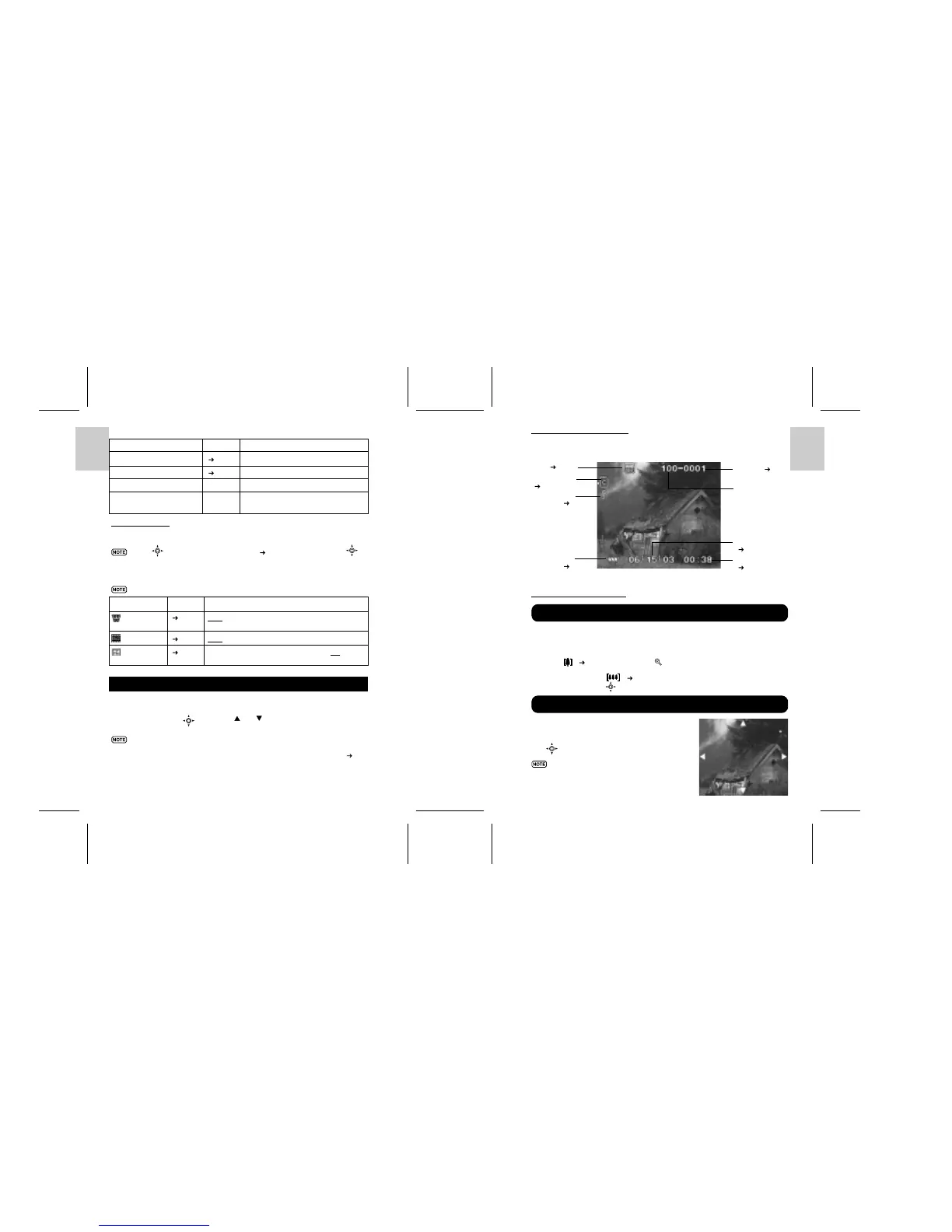
Image Playback Mode On-Screen Display
ZOOMING FUNCTIONS
The zooming function can magnify images up to x5.0 on the On-Screen Display:
x1.0 / x1.5 / x2.0 / x2.5 / x3.0 / x3.5 / x4.0 / x4.5 / x5.0
1. Wait until the icons disappear from the playback image.
2. Press
( p.4) to zoom in. The icon appears, as well as the current
magnification level.
3. To zoom out, press
( p.4).
4. Press directly onto
to exit zooming mode.
While an image is magnified, only a portion
of the image will be visible. Press the Shutter
Release Button to enable/disable scrolling, then
use
to scroll to other parts of the image.
All zooming functions are disabled
while the Scrolling Mode is enabled.
20 21
Size ( p.16)
Folder number
File No. ( p.13)
Memory Type
( p.5)
Protect Mode
Indicator ( p.24)
Battery Level
Indicator ( p.6)
Current Time
( p.11)
Current Date
( p.11)
Zooming into Pictures
Scrolling a Magnified Image


 To Next Page