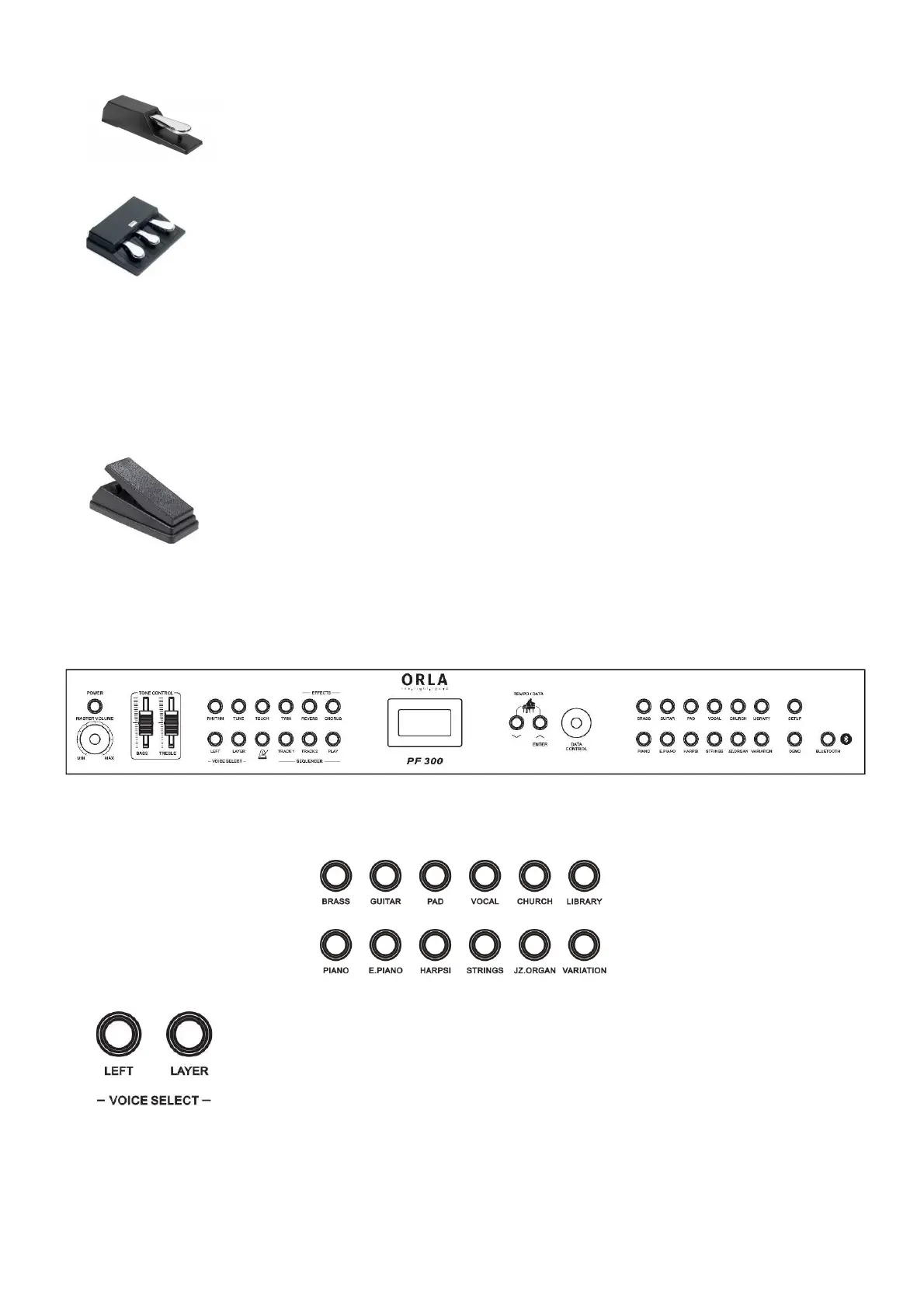
SUSTAIN PEDAL
The instrument has a Sustain pedal included in the box.
To be able to play with the Sustain Pedal, connect its jack to the Sustain/Sostenuto plug (in the
back panel). Now the pedal will work in the same way as a Sustain Pedal works in an acoustic
piano. It will in fact sustain the piano sound after the piano keys have been released.
3 Lever PEDAL - SOFT/SOSTENUTO/SUSTAIN (optional)
This pedal will be connected to the jack plugs in the back of the piano.
The mono jack – connected to Soft/Expression jack plug
The stereo jack – connected to the Sustain/Sostenuto jack plug
The instrument works now with a set of three pedals giving the following functions:
SOFT Gives the piano voices a ''softer'' sound.
SOSTENUTO This sustain only the notes pressed on the keyboard when the Sostenuto pedal is activated and
no the subsequent notes played afterwards.
SUSTAIN: Has the same function as the ''sustain'' pedal on the acoustic piano. It provides sustain and
lets the sound slowly decay after the keys have been released.
VOLUME PEDAL
When playing with sounds like Organs, Strings Ensemble or Vocal Ensemble it is possible to
connect Volume Pedal (or Expression Pedal) to control the sound volume in the most
appropriate way. It is necessary to select ON the Expression Pedal in the SET UP page, and
connect the Volume Pedal to the Soft/Expression jack plug in the back of the instrument.
CONTROL PANEL
The instrument's control panel is designed to be easy to use. Most of the controls are single function.
Each control has an LED showing if the function has been activated.
Whenever your instrument is switched ON, it will automatically select PIANO 1 (Grand Piano) on the keyboard.
SOUND SELECT
To select the desired sound just press the related button. The Led will switch on to confirm it.
LAYER
The LAYER feature allows to play two different sounds at the same time, for example PIANO
and STRINGS.
Here how to proceed:
- Select the Piano button.
- Press the LAYER button that starts blinking.
- Using the (/\) and (\/) buttons and or the DATA CONTROL scroll on the display all the
available sounds until the STRINGS sound is indicated.
- The LAYER button stops blinking and remain ON to confirm the sound
- The two sounds are now selected and can be played together.
It is now possible to balance the two sounds.
Press and hold the LAYER button and using the (/\) and (\/) buttons and or the DATA CONTROL try the different
volume settings as per following table:



 To Next Page