Setting Up The Lock
The smart lock supports Touch Button Setting and APP setting.
① Touch button setting:
Enter the lock setting
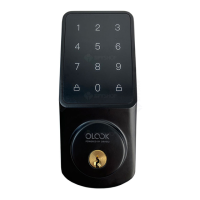
Press the button and then the button to enter setting mode.
Follow the prompts to set/verify the administrator password to
enter the lock setting.
② Add new user
Press 1 button to add a new user. Follow the prompts to set a
6-digit password.
a. The regular password used for normal unlocking.
b. The emergency password used for emergency unlocking,
and the APP will receive the alarm notification after unlocking.
③ Add the user password
Press 2 button to add a user password, regular password or
emergency password.
④ Delete the user
Press 3 button to delete a user, enter the user password, and
then press button to delete.
⑤ Lock setting
Press 3 button for lock setting, you can set auto-lock and unlock
prompt tone.
14


 To Next Page