EasyManua.ls Logo

Osram ROADsight 20 - User Manual

Osram ROADsight 20
46 pages
Print Icon
To Next Page IconTo Next Page
Loading...
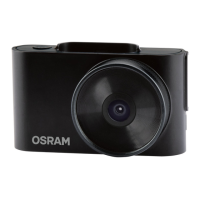
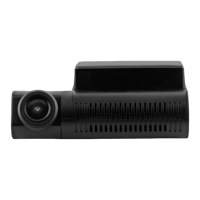
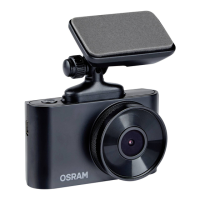
ROADsight 20
Dashcam HD 1080p
English
Magyar
Question and Answer IconNeed help?

Do you have a question about the Osram ROADsight 20 and is the answer not in the manual?

Summary

Safety Warnings

Legal Compliance and Data Protection

Observe country-specific laws for recording duration, data transfer, and dashcam use.

Installation and Usage Precautions

Avoid obstructing view, use supplied adapter, avoid water, and do not self-service.

Package Contents

Windscreen Mounting

Surface Preparation and Adhesion

Clean glass and warm mount adhesive for secure attachment.

Connecting the Mount

Position the mount and connect the dashcam to it.

Powering and Charging

Connecting Power Source

Connect power cable to mount and USB charger to vehicle's 12V socket.

Automatic Power On

Device turns on automatically when the vehicle's engine starts.

Adjusting Viewing Angle

Optimal Field of View

Position correctly for 30% sky/70% road coverage, centering horizontally.

Device Configuration

Button Functions Overview

Explanation of Power, Menu, Up, Down, Rec, and Reset buttons.

Device Modes

Photo and Playback Modes

Instructions for entering Photo and Playback modes.

Menu Navigation

How to access and use the menu options for settings.

MicroSD Card Installation

Inserting and Removing Card

Insert until click, press to remove. Ensure device is off.

Card Handling Warning

Avoid excessive force; use a pointed tool if needed.

Turning On and Off

Automatic and Manual Operation

Device powers on with ignition; use power button for manual control.

Loop Recording Setup

Recording Duration and File Management

Set loop duration (3/5 min); oldest files are overwritten.

Emergency Recording

Protecting Critical Footage

Protects current video from being overwritten or deleted.

Automatic Event Detection

Activated by G-sensor impact or sudden acceleration/deceleration.

Recording Playback

Initiating Playback

Stop recording, use MENU to switch modes, select files with Up/Down.

Deleting Files

File Deletion Process

Access delete option via MENU, select file(s), and confirm.

Locked Files and Warnings

Unlock locked files in Playback mode; deleted files are permanent.

General Settings

Video, Audio, and Loop Settings

Configure resolution, record audio, and loop recording duration.

Date, G-Sensor, and Parking Mode

Adjust date/time, G-sensor sensitivity, and parking mode.

License Plate Feature

Entering License Plate

Option to enter license plate number to display on recordings.

Advanced Settings

Screen Saver, Sounds, Language

Configure screen saver, device sounds, and menu language.

Date;Time, Format, Version

Adjust date/time, format SD card, and check firmware version.

Troubleshooting

Recording Issues and Blurry Images

Address recording failures, stops, and blurry images by checking SD card and lens.

Device Hangs and Card Issues

Rebooting and Card Formatting

Reboot frozen devices with RESET; format unrecognized MicroSD cards.

Updating Firmware

Firmware Update Procedure

Download, copy file to SD card, insert, connect power, and turn on.

Important Update Precautions

Do not power off during update; format card after completion.

Product Features Overview

Technical Specifications

Power and Temperature Specs

Details on input voltage, charging voltage, and operating/storage temperatures.

Battery Recycling

Summary

Safety Warnings

Legal Compliance and Data Protection

Observe country-specific laws for recording duration, data transfer, and dashcam use.

Installation and Usage Precautions

Avoid obstructing view, use supplied adapter, avoid water, and do not self-service.

Package Contents

Windscreen Mounting

Surface Preparation and Adhesion

Clean glass and warm mount adhesive for secure attachment.

Connecting the Mount

Position the mount and connect the dashcam to it.

Powering and Charging

Connecting Power Source

Connect power cable to mount and USB charger to vehicle's 12V socket.

Automatic Power On

Device turns on automatically when the vehicle's engine starts.

Adjusting Viewing Angle

Optimal Field of View

Position correctly for 30% sky/70% road coverage, centering horizontally.

Device Configuration

Button Functions Overview

Explanation of Power, Menu, Up, Down, Rec, and Reset buttons.

Device Modes

Photo and Playback Modes

Instructions for entering Photo and Playback modes.

Menu Navigation

How to access and use the menu options for settings.

MicroSD Card Installation

Inserting and Removing Card

Insert until click, press to remove. Ensure device is off.

Card Handling Warning

Avoid excessive force; use a pointed tool if needed.

Turning On and Off

Automatic and Manual Operation

Device powers on with ignition; use power button for manual control.

Loop Recording Setup

Recording Duration and File Management

Set loop duration (3/5 min); oldest files are overwritten.

Emergency Recording

Protecting Critical Footage

Protects current video from being overwritten or deleted.

Automatic Event Detection

Activated by G-sensor impact or sudden acceleration/deceleration.

Recording Playback

Initiating Playback

Stop recording, use MENU to switch modes, select files with Up/Down.

Deleting Files

File Deletion Process

Access delete option via MENU, select file(s), and confirm.

Locked Files and Warnings

Unlock locked files in Playback mode; deleted files are permanent.

General Settings

Video, Audio, and Loop Settings

Configure resolution, record audio, and loop recording duration.

Date, G-Sensor, and Parking Mode

Adjust date/time, G-sensor sensitivity, and parking mode.

License Plate Feature

Entering License Plate

Option to enter license plate number to display on recordings.

Advanced Settings

Screen Saver, Sounds, Language

Configure screen saver, device sounds, and menu language.

Date;Time, Format, Version

Adjust date/time, format SD card, and check firmware version.

Troubleshooting

Recording Issues and Blurry Images

Address recording failures, stops, and blurry images by checking SD card and lens.

Device Hangs and Card Issues

Rebooting and Card Formatting

Reboot frozen devices with RESET; format unrecognized MicroSD cards.

Updating Firmware

Firmware Update Procedure

Download, copy file to SD card, insert, connect power, and turn on.

Important Update Precautions

Do not power off during update; format card after completion.

Product Features Overview

Technical Specifications

Power and Temperature Specs

Details on input voltage, charging voltage, and operating/storage temperatures.

Battery Recycling

Osram ROADsight 20 Specifications

General IconGeneral
BrandOsram
ModelROADsight 20
CategoryDash Cameras
LanguageEnglish

Related product manuals