Oticon Genie 2 Fitting Software
Function Description
The Oticon Genie 2 2021.2 is a fitting software designed for use with various Oticon hearing instrument families, including Oticon More™, Oticon Opn S™, Oticon Opn™, Oticon Xceed, Oticon Opn Play™, Oticon Xceed Play, Oticon Ruby, and Oticon Siya. The software's primary function is to facilitate the fitting and updating of hearing solutions, and it can also provide access to real-ear measurement equipment.
The software is intended for use by Hearing Care Professionals (HCPs), such as Hearing Aid Professionals (HAP), audiologists, ENT doctors, and Hearing Aid Dispensers (HAD). Users are expected to be appropriately trained and competent in assessing hearing, selecting, fitting, and delivering hearing instruments, as well as providing rehabilitation care to individuals with hearing loss, in accordance with national or regional regulations.
A key feature of Genie 2 is the Tinnitus SoundSupport™ tool. This tool generates sounds to offer temporary relief for patients suffering from tinnitus, as part of a broader tinnitus management program. It is important to note that Tinnitus SoundSupport is not intended for users under 18 years of age and its fitting must be performed by a hearing care professional participating in a tinnitus management program.
The software also supports Oticon RemoteCare™, enabling HCPs to communicate with clients and make real-time adjustments to hearing instruments remotely. This feature allows for remote In-situ Audiometry during remote fitting sessions, provided a valid audiogram is on record and has not changed.
Important Technical Specifications
System Requirements
Hardware Requirements:
- CPU: Intel Core i5, 4 cores, 3.2 GHz or faster
- RAM: 8 GB or more
- Hard Drive Space: 8 GB free hard drive space
- Hard Drive Type: 256 GB Solid State Drive (SSD)
- Screen Resolution: Minimum 1920 x 1080 pixels
- DVD Drive: For DVD installation
- USB Port: USB 2.0 port for USB installation and programming devices
- Input Devices: Keyboard and mouse
- Sound Card: Stereo or 5.1 surround sound card (recommended)
Operating System Requirements:
- Windows 7 SP1 (32/64 bit)
- Windows 8.1 (32/64 bit)
- Windows 10 Anniversary Update, or later (32/64 bit)
Optional Tools:
- Noah 4 audiology software (Noah-compatible management systems must be HIMSA certified)
- Internet browser for Oticon website access
- Adobe™ Acrobat Reader™ software
- Anti-virus protection software (recommended)
RemoteCare System Requirements
For the Client:
- Hearing Instruments: Oticon More™, Oticon Opn S™™, Oticon Opn Play™™, Oticon Opn™™, Oticon Xceed, Oticon Xceed Play, Oticon Ruby, or Oticon Siya hearing instruments paired to a client's smartphone/tablet.
- Mobile Device: Compatible Apple or Android phone/tablet (check www.oticon.global/compatibility for compatibility).
- Internet Connection: Stable internet connection suitable for sound and video streaming, with a recommended minimum speed of 1 Mbps (upload/download).
- Credentials: Email account, or Apple, Google, or Facebook credentials.
For the Hearing Care Professional:
- Browser: Internet Explorer 11
- Camera: Internal webcam or external camera device
- Audio: Microphone and speakers or headset
- Account: A RemoteCare account (contact local Oticon representative to sign up).
- Internet Connection: Stable internet connection suitable for both sound and video streaming, with a recommended minimum speed of 1 Mbps (upload/download).
Usage Features
Installation and Updates
- First Installation: The software is provided on a DVD/USB drive. The installation program typically starts automatically upon insertion. Otherwise, users can run the
Setup.exe file.
- Genie Updater: Installed with Genie 2, a small icon appears on the Windows taskbar to indicate updates. Users can configure update check frequency.
- Upgrading: For older versions (2019.2 or earlier), an update to version 2020.1 is required before installing newer versions. Client sessions from previous Genie 2 versions remain visible.
Navigation and Workflow
The software features an "Organiser" with horizontal navigation, structuring the fitting process into five steps:
- Client: (Appears in stand-alone mode without Noah database) For entering/editing client demographic data, audiogram, etc.
- Welcome: Connects hearing instruments or runs simulations.
- Selection: Selects instrument family, style, and features.
- Fitting: Verifies, adjusts, and fine-tunes instrument settings.
- End Fitting: Verifies and sets individual user operational settings, finalizes the session, and saves settings.
A "Task Pane" provides vertical navigation within each organiser step, offering access to relevant tools and links. Contextual help is available by pressing F1 or clicking the "?" symbol.
Connecting Hearing Instruments
- Wired/Wireless Connection: Hearing instruments can be connected via programming devices (cables or wirelessly). Oticon More instruments require Noahlink Wireless for connection.
- Connection Status: The "Connection Bar" indicates connection status (GREEN for connected, GREY for not connected).
- Side Assignment: For wireless programming, instruments must be assigned to the left/right side, or side selection confirmed.
- Acoustics Selection: If acoustics are not selected, users are prompted to do so based on the instrument type.
Simulation Mode
- Users can simulate an instrument connection in the "Welcome" step by clicking "SIMULATE." This allows manual selection of instrument family, style, and features for simulation purposes.
Transfer Settings
- This tool allows transferring settings from one fitting session to a new selection of hearing instruments, even across different instrument families.
- It starts automatically when different new hearing instruments are connected or selected.
- Manual access:
Tools > Transfer Settings.
- Programs and settings not available in the target instrument are not transferred; those that cannot be transferred correctly are set to default or prescribed.
- Standard insertion gain is transferred as closely as possible and adjusted to the new acoustic setup.
- Personalisation: Customizes fitting for client's listening needs, recommended for first fitting or when experience level changes. Influences prescription for specific Oticon families (Opn, Opn S, More).
- Acoustics: Selects acoustic coupling (earpiece, tubing, vent). Genie 2 applies gain based on acoustical parameters and instrument style.
- Audiometric Data: Verifies and updates audiometric parameters for correct gain prescription, especially for infants and children.
- Audiogram: Specifies measurement method, transducer, and unit for the audiogram.
- RECD (Real Ear to Coupler Difference): Simulates Real Ear Measurement (REM) by coupler measurement, useful for children and difficult-to-test clients. RECD measurements can be imported from Noah or entered manually.
- REUG (Real Ear Unaided Gain): Measures individual ear canal for precise fitting. REUG measurements can be imported from Noah or entered manually.
- Fine-tuning: Adjusts gain controls at different output levels and Adaptation Manager steps.
- Feedback Analyser: Analyzes feedback path and applies feedback margins.
- REM: Sets hearing instruments to measurement mode for use with Real Ear Measurement equipment. Adaptation Manager is set to level 3, with feature settings for speech or noise signals.
- REM AutoFit: Automatically and manually fits hearing instruments to the prescribed target using a compatible REM system.
- MoreSound Intelligence™: Clarifies sound, suppresses noise, and makes meaningful sounds stand out. Available in Oticon More family.
- OpenSound Navigator: Processes sound in various listening environments. Available in Oticon Opn, Opn S, Opn Play, Xceed, and Xceed Play instruments.
- Support in Noise: Adjusts noise reduction and directionality. Available in Oticon Siya and Oticon Ruby instruments.
- Program Manager: Adds, changes, and deletes programs (up to four per instrument).
- Acoustics: Same as in the Selection step.
- Fitting Assistant: A three-step questionnaire for common client complaints, suggesting fine-tuning solutions.
- Automatic Adaptation Manager: A three-step process for gradual client adjustment to instrument response. Manual adjustment available for follow-up.
- Automatics: Controls automatic features like Transient Noise Management, Spatial Noise Management, Binaural Broadband, Silencer control, and Feedback management.
- Tinnitus SoundSupport: Enables and adjusts the tinnitus sound generator.
- Speech Rescue / Speech Rescue LX™: Enables and adjusts frequency lowering.
- Data Logging: Provides statistics on hearing instrument usage.
- In-situ Audiometry: Measures client's hearing thresholds using hearing instruments as transducers, allowing fine-tuning to individual ear canal, instrument, and acoustic coupling.
- Access: In the "Fitting" step, under "More Tools," click "In-situ Audiometry."
- Background Noise Measurement: Measures background noise using hearing instrument microphones. A GREEN meter indicates a quiet environment (below 45 dB), while ORANGE indicates levels exceeding 45 dB. In-situ Audiometry cannot be performed when the meter is active.
- Tone Controls:
- Level: Use up/down arrow keys or mouse scroll wheel to increase/decrease signal level.
- Frequency: Use right/left arrow keys or mouse click/scroll wheel to switch frequencies.
- Talk Over: Activates communication with the client during In-situ Audiometry. Amplification is based on the conventional audiogram.
- Play Tone: Plays a tone in the hearing instrument. Tone type can be set to "Continuous" or "Pulsed."
- Audiogram Use: Select "Use conventional audiogram" or "Use in-situ audiogram" for the measured side(s).
- Important Notice: Do not use In-situ Audiometry for diagnostic purposes. Ensure an audiogram is added in Noah or the Client step before conducting. Remove any REM AutoFit results and perform in a quiet area.
- Remote In-situ Audiometry: Oticon RemoteCare allows for remote In-situ Audiometry. Clients must be in a quiet environment, understand noise impact, and wear instruments correctly. Tones should be played for at least two seconds with pauses of more than two seconds to compensate for connection delays. The HCP's microphone should be turned OFF. If internet connection is lost, the client must restart hearing instruments if muted or playing sound.
Tinnitus SoundSupport
- Access: In the "Fitting" step, on the Task pane, under "More tools," click "Tinnitus."
- ON/OFF: Click the ON or OFF button in the bottom right pane.
- Availability: Ensure the hearing instrument is connected and supports Tinnitus SoundSupport. Not available in Phone and Telecoil programs.
- Safety: Caution users about limiting use to ensure safe listening levels due to potentially high sound-pressure levels. Note recommended wearing times in the fitting software, print report, and IFU. Not for users under 18.
- Save and Exit: Summarizes connected hearing instruments' features and settings, then saves and exits Genie 2. In stand-alone mode, this is "Save and Go to Client Step." Users can choose to save to Noah or the stand-alone database. Session comments can be added.
- Buttons and Indicators: Defines button operation, volume control, beep settings, and LED patterns.
- Batteries: Shows current battery level, health, and replacement instructions (for rechargeable instruments only).
- Accessories: Manages accessories like smartphones, ConnectClip, TV Adapter, EduMic, Remote Control, and DAI/FM.
- Generate Report: Prints, saves, or emails selected reports.
Battery Protection Mode
- Function: Preserves battery life for rechargeable hearing instruments, useful for service or storage.
- Access:
Tools > Battery protection mode.
- Availability: Available for Oticon More™ family instruments.
Maintenance Features
- Firmware Tools: Updates firmware of hearing instruments and accessories.
- Instrument Updater: Provides firmware version information, update details, and update process. Wireless updates are possible depending on the instrument family.
- Accessory Updater: Provides serial number, current firmware version, available firmware version, and status for accessories.
- Firmware Update Precautions:
- Users should not wear instruments during firmware updates as they reset to factory settings.
- Instruments should not be returned to the user before restoring user settings.
- Ensure the connected instrument's serial number matches the one registered in the office automation system.
- Verify firmware versions before and after updates, and ensure programming device firmware is compatible with fitting software firmware.
- Avoid interruptions or connection failures during updates.
Warnings and Disclaimers
- General Safety: Users must familiarize themselves with general warnings. Unexpected operations or serious incidents should be reported to local distributors and national authorities.
- Intended Use: Refer to the "Intended Use" section for fitting software.
- Tinnitus SoundSupport Risks: Be aware of risks related to fitting levels and recommended wearing times.
- Children's Fittings: Special caution for children under 36 months; always use tamper-resistant battery drawers and ear moulds. SPL in children's ears can be substantially higher than in adults; RECD measured to correct target OSPL90 is recommended.
- Connection Stability: Avoid losing wired/wireless connection or communication errors during fitting.
- Power Instrument: Exercise special care when selecting, fitting, and using hearing aids with maximum sound pressure capability exceeding 132 dB SPL (IEC 60318-4) due to potential risk of impairing remaining hearing.
- REM System: Pay attention to error messages from the REM system.
- Transfer Settings: Ensure the user does not wear hearing instruments during settings transfer.
- In-situ Audiometry: Not for diagnostic purposes.
- Manufacturer Responsibility: The manufacturer (Oticon A/S) does not take responsibility for consequences of using the fitting software outside its intended use or warnings.
- Manufacturer: Oticon A/S, Kongebakken 9, DK-2765 Smørum, Denmark.
- CE Mark: CE 0123. The device complies with EU regulations and directives. The four-digit number indicates the identification of the notified body.
- Medical Device (MD): The device is a medical device.
- Electronic Waste (WEEE): Recycle hearing aids, accessories, or batteries according to local regulations. Hearing aid users can return electronic waste to their HCP for disposal.
- Global Trade Item Number (GTIN): A unique 14-digit number for medical device products, including software.
- Catalogue Number (REF): Indicates the manufacturer's catalogue number.
- Instructions for Use: Consult electronic (elFU indicator) or printed instructions for use.
- Declaration of Conformity: Available from headquarters or www.oticon.global/doc.

 Need help?
 General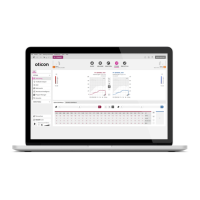

 To Next Page
