S3 User Guide 13 PN 875-0196-000 Rev C1
Chapter 2: Installation and Setup
Starting the S3
To start the S3:
1. Power up the S3. If you have any additional components connected to the S3
power them up as well. See “Powering Up the S3” on page 11 for more
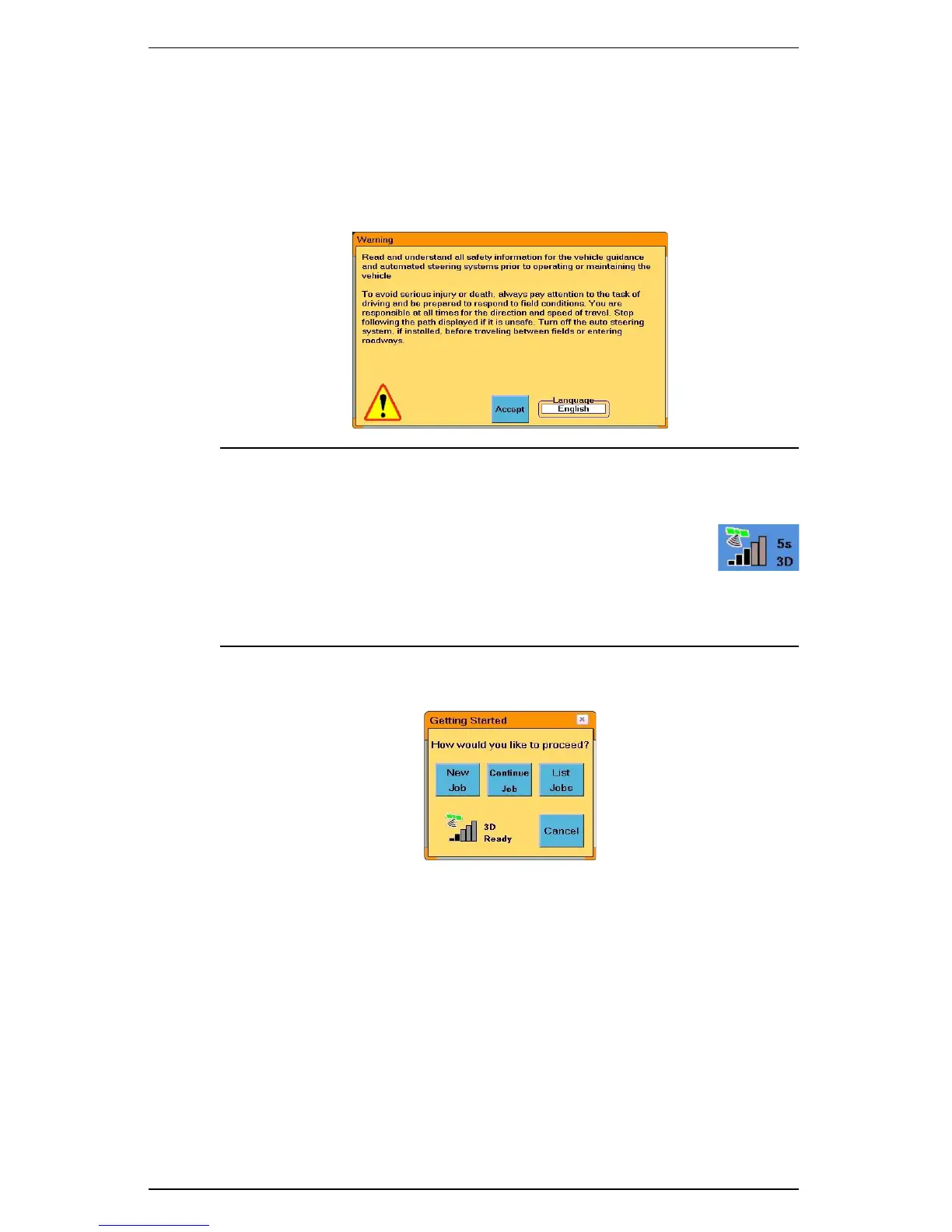
information. Upon powerup the S3 completes a self test, the LED illuminates
green, and the following screen appears.
Note: Upon startup the S3 starts acquiring a DGPS signal (as
long as the antenna has a clear view of the sky)—this may take
several minutes, during which the vehicle can be moving and
you can perform certain functions. Upon achieving a GPS
signal, the satellite icon on the GPS tab turns from red to
orange. Upon acquiring a DGPS signal, the satellite icon turns
green and the GPS tab displays “3D”. The S3 must have DGPS
present to begin a job and provide guidance. See “Viewing GPS
Signal Information” on page 30 for more information.
2. Touch Accept. The Getting Started window appears.
3. Touch any of the Job buttons to work with a job or touch Cancel to close the
Getting Started window without selecting a Job option.
•Touch the New Job button to begin a new job. S3 automatically
assigns a job name and displays the Map screen.
•Touch the Continue Job button. S3 automatically loads the most
recently performed job and displays the Map screen. If this is your first
time starting S3 there is no previous job to continue and the Continue
Job button is unavailable (gray).
•Touch the List Jobs button to display the Manage Jobs window. See
“Loading or Deleting Job Data” on page 45 for more information on
working with the Manage Jobs window.
•Touch the Cancel button to start working with S3 with no job.
See “Managing a Job” on page 44 for more information on jobs.


 To Next Page
 Loading...