S3 User Guide 14 PN 875-0196-000 Rev C1
Chapter 2: Installation and Setup
S3 Display
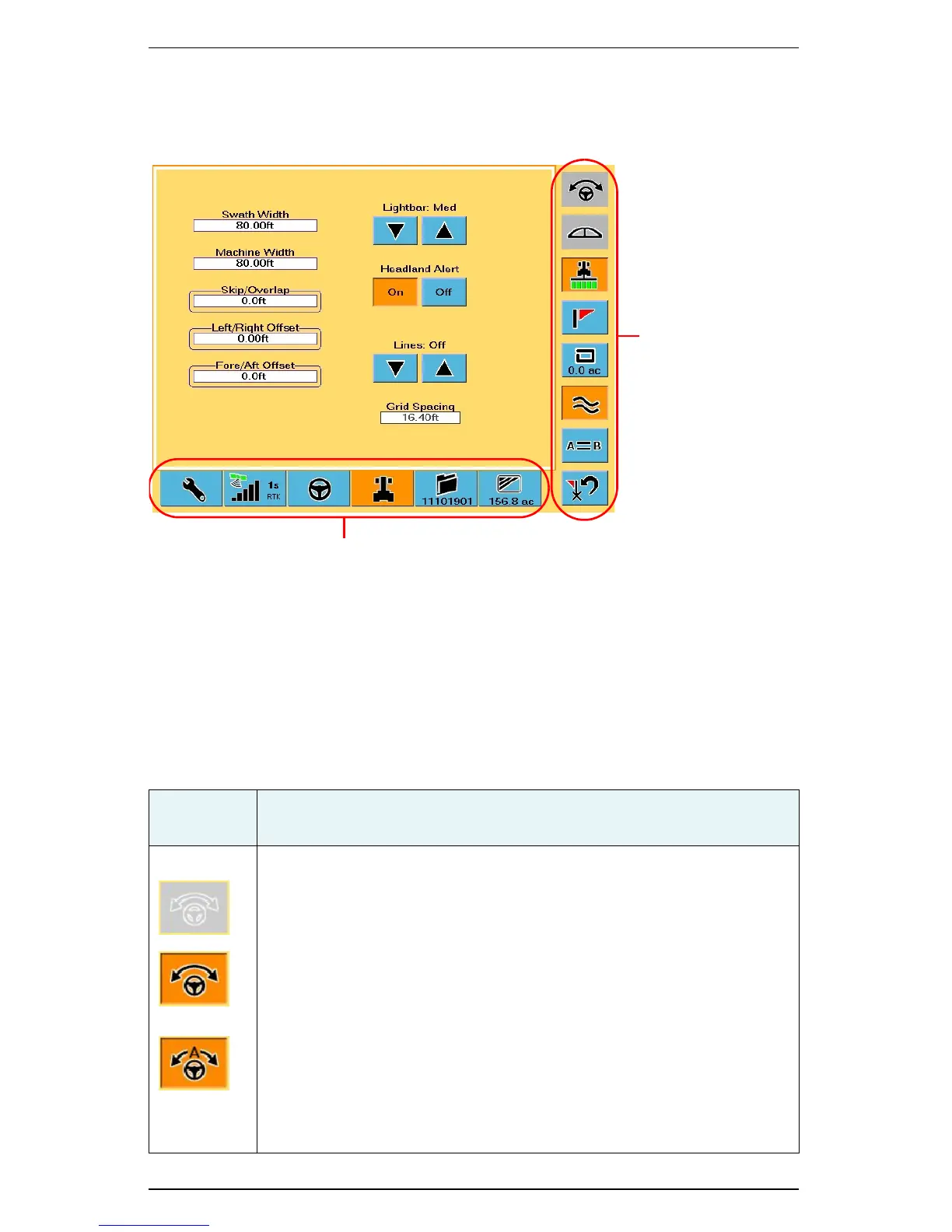
The S3 display consists of control buttons, screen tabs, and screens. Figure 2-2 shows
the Vehicle screen.
Figure 2-2: S3 console display
Control Buttons
Control buttons allow you to perform such tasks as engaging automated steering,
displaying the lightbar, and activating contour guidance. Table 2-1 describes each
control button and includes links to other sections within this manual with more
detailed information on these buttons.
Table 2-1: Control buttons
Control
Button
Description
Auto Steering (available if eDriveTC, eDriveVSi, or eDriveX is installed)
The button is not available (gray) if eDriveTC, eDriveVSi, or eDriveX is not
installed on the system or not available to engage.
If AutoEngage is set to Manual on the Steering screen, the button appears
as shown at left. Touch to manually engage or disengage automated
steering. Blue indicates it is disengaged; orange indicates it is engaged.
If AutoEngage is set to Auto on the Steering screen, the button appears as
shown at left. The system automatically engages when it detects a
guidance line and all steering criteria are met. Flashing blue and orange
indicates that it is disengaged and not automatically steering (but the Auto
Engage feature remains active); orange indicates it is engaged and
automatically steering.
Control Buttons
Can be on the left or
the right of the screen
(orange indicates an
active button)
Screen Tabs
Orange indicates the screen for that tab is displayed


 To Next Page
 Loading...