S3 User Guide 16 PN 875-0196-000 Rev C1
Chapter 2: Installation and Setup
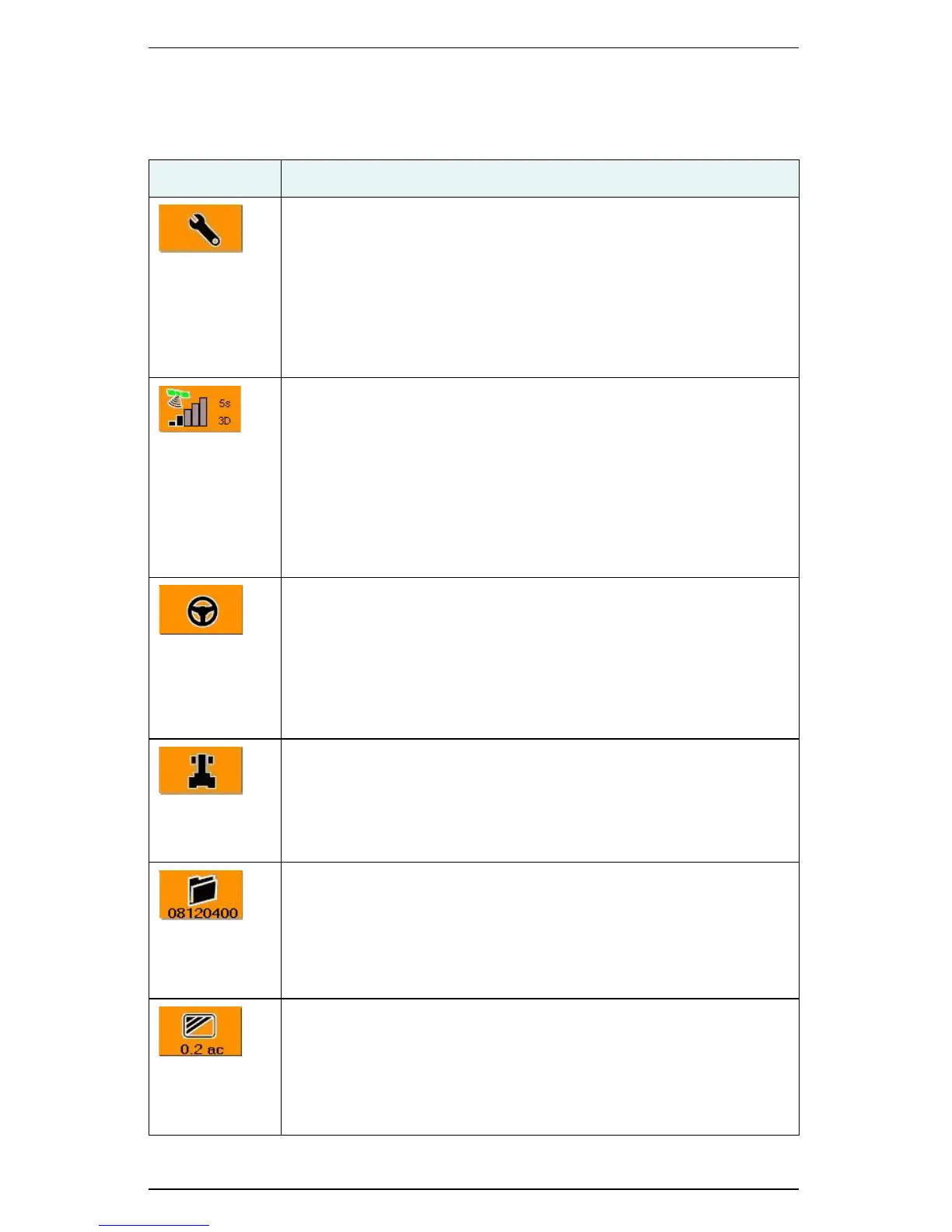
Table 2-2 describes the S3 tabs. For more information on each tab refer to the other
sections in this manual noted in Table 2-2.
Table 2-2: Tabs and screens
Tab Description
Setup tab
Provides access to the following screens: System, Display, Codes.
Set options such as screen lighting for day or night work, displaying
the control buttons on the right or left side of the screen, or US or
Metric units of measure; view system information such as application
version and operating system; calibrate the touchscreen and upload
updates.
See “Configuring Display Settings” on page 18 for more information.
GPS tab
Provides access to the following screens (depending on your installed
components): Setup, NMEA, Radio, L-Band, e-Dif, GPS Details, RTK
Status.
View system-generated GPS information such as latitude and
longitude, altitude, Diff Age, and the number of satellites tracked; view/
change message rates; configure radio settings; select differential
correction options.
See “Configuring GPS Settings” on page 19 for more information.
Steering tab
Provides access to the Steering screen (depending on your installed
components other screens may be available).
View steering-related GPS information such as GPS course; set
steering related options such as track or wheel vehicle type; calibrate
the tilt sensor for eDriveTC.
See “Configuring Steering Settings” on page 21 for more information.
Vehicle tab
Provides access to the Steering screen.
Set vehicle related values such as swath and machine width; set
guidance sensitivity and headland alerts.
See “Configuring Vehicle Settings” on page 21 for more information.
Job tab
Create new jobs, continue a previous job, use templates, and import or
export job data; record job specific data such as the farm, field, and
operator ID; view system-generated current job number for quick
reference.
See “Managing a Job” on page 44 for more information on jobs.
Map tab
View a moving graphical representation of the field operation; use
zoom features and steering indicators; view the applied area total for
quick reference.
See “Using the Map Modes and Views” on page 26 for more
information on the Map screen.


 To Next Page
 Loading...