S3 User Guide 18 PN 875-0196-000 Rev C1
Chapter 2: Installation and Setup
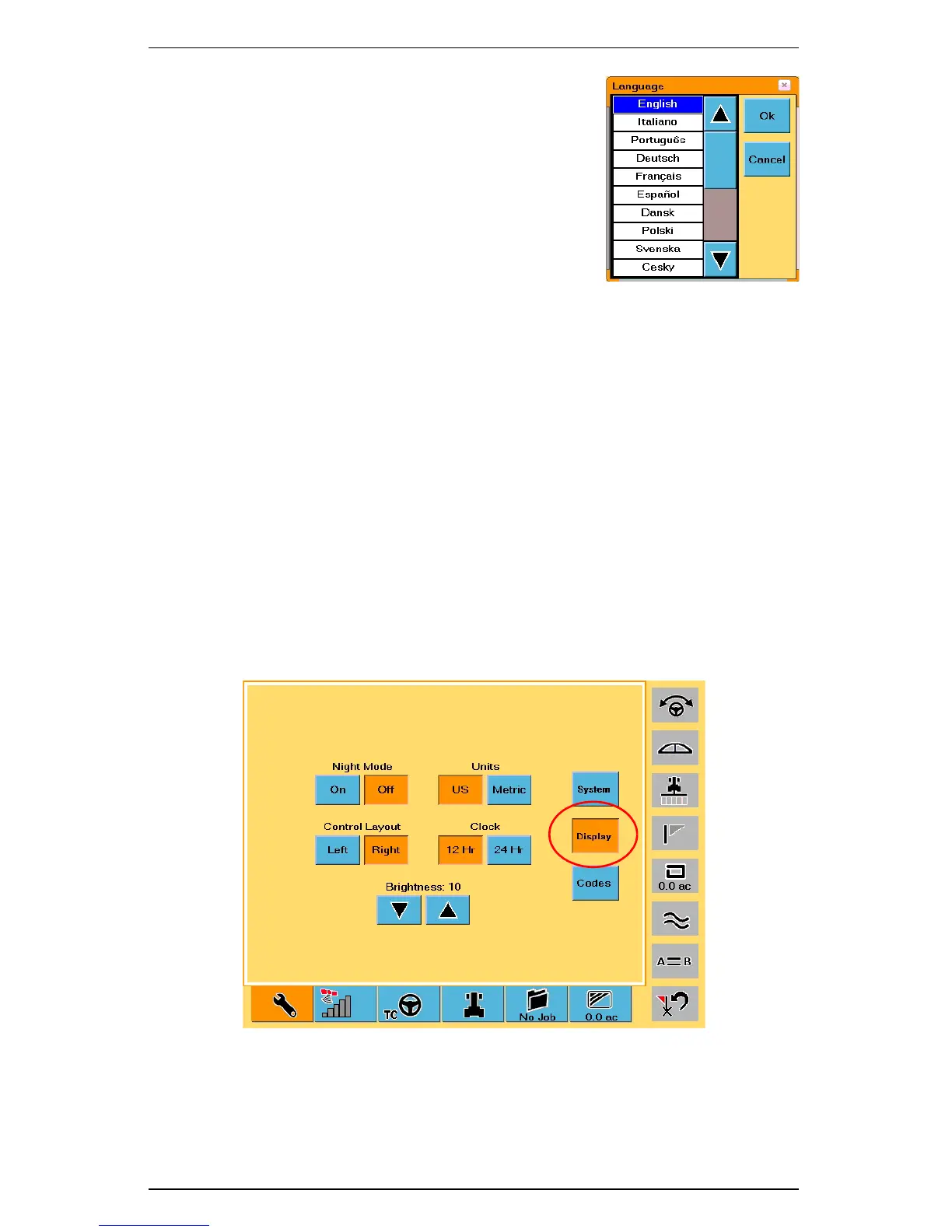
To change the system language:
1. On the System screen touch the Language field.
2. In the Language window select the desired
language.
3. Touch OK. The Language window closes and the
selected language is used throughout the S3
interface.
You S3 is shipped factory-calibrated. However, if necessary you can calibrate the
touch screen in just a few steps.
To calibrate the touch screen:
1. On the System screen touch the Touch Screen button. The calibration
screen appears.
2. Each time a “Press” message appears press and hold until “Release”
appears until the following message appears:
Touch the screen to verify the target moves to your finger.
3. Press and drag around the screen to verify the onscreen image follows your
finger.
4. Touch OK. You are returned to the System screen.
Configuring Display Settings
The Display screen has various settings that affect the way the system displays and
records information.
Figure 2-4: Display screen
To access the Display screen:
1. Touch the Setup tab.
2. Touch the Display button.


 To Next Page
 Loading...