S3 User Guide 33 PN 875-0196-000 Rev C1
Chapter 3: Basic Operation
Performing Basic Field Operations
This section describes straight guidance (linear and circular/pivot) and contour
guidance.
Starting a Job
• To begin a new job, touch the New button on the Job
screen.
• To continue the last job, touch the Continue button
on the Job screen.
Creating and Following Parallel Paths (Straight and Pivot
Guidance)
Choose Straight guidance to generate linear (straight) or circular (pivot) parallel
paths for the S3 to follow.
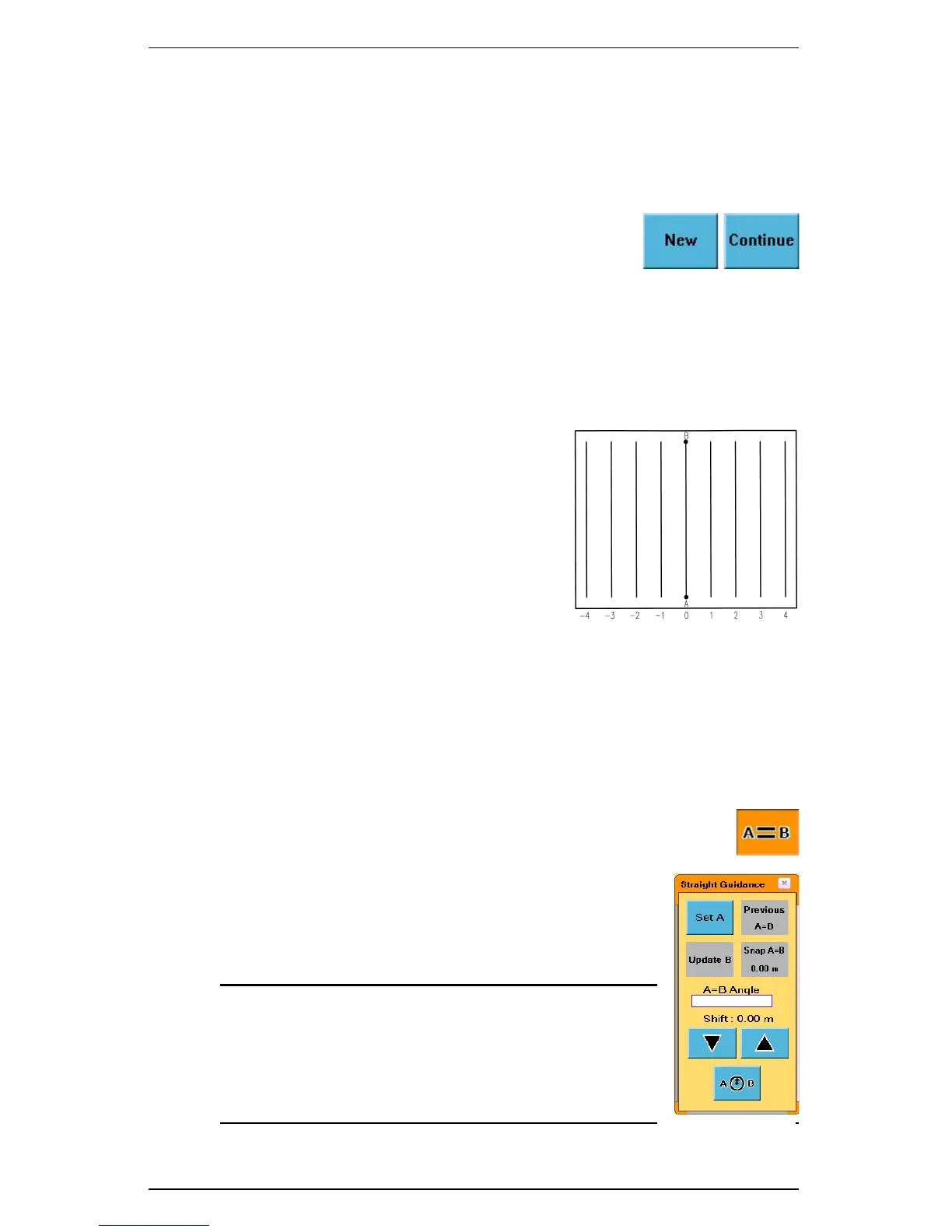
Creating Straight Paths : You can establish the first
pass either along a straight side of the field or by
dividing the field with a straight swath working out
each side. Either way, all passes are perfectly and
uniformly spaced across the field.
The A-B line is an imaginary line that passes through
two points to define the first pass. All other passes are
perfectly spaced on both sides of the first pass.
You can define an A-B line either by:
• Marking a Point A and a Point B
• Marking a Point A and entering the required heading
When traveling on or near a pivot guideline, the nearest guideline is shown on the
map as a red circular line (similar to the guideline used in other guidance modes.)
Marking Point A and Point B While Driving
1. Position the vehicle at the beginning of the first pass.
2. Touch the Straight Guidance control button. The
Straight Guidance window appears.
3. Touch the Set A button to mark Point A. The text on the
button changes from Set A to Set B.
4. Drive the first pass.
5. At the end of the pass, touch the Set B button to mark
Point B.
Note: You can also touch the A=B Angle field and
then enter an angle in the A=B Angle window. If you set
your own B point using the Set B button, the S3 polls
the angle of the A=B line and displays it in the A=B
Angle field. The A=B Angle field is only editable while
creating a new A=B line.


 To Next Page
 Loading...