S3 User Guide 45 PN 875-0196-000 Rev C1
Chapter 4: Advanced Features
Loading or Deleting Job Data
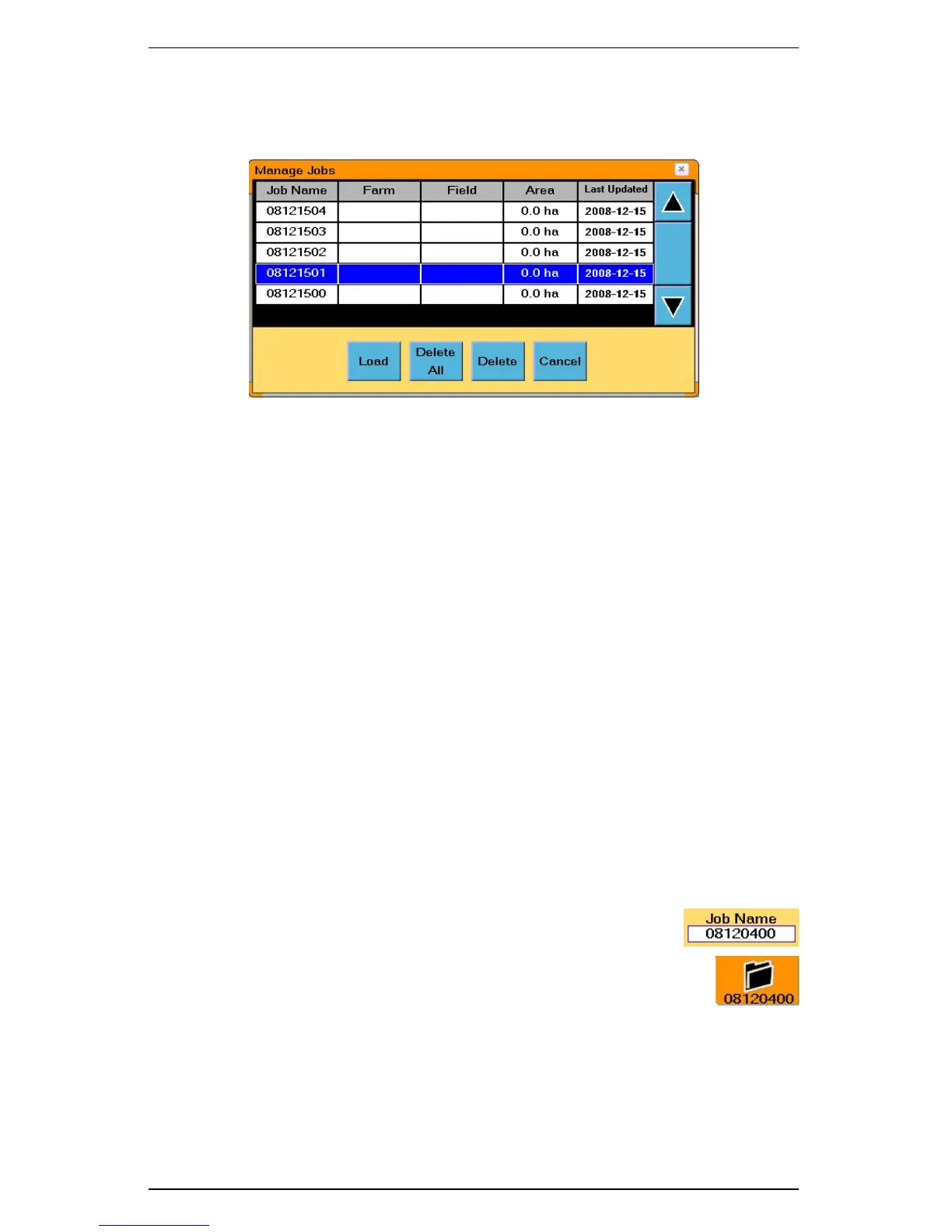
Using the Manage Jobs window (Figure 4-2) you can load a job (to continue work, add
or edit annotations, or to view coverage data), delete a job, or delete all jobs.
Figure 4-2: Manage Jobs window
To display the Manage Jobs window:
• On the Jobs screen touch the Jobs button.
To load a job:
1. In the Manage Jobs window, select the job you want to load.
2. Touch the Load button. The selected job (and its data) is loaded as the
current job.
To delete a job:
1. In the Manage Jobs window, select the job you want to delete.
2. Touch the Delete button. The selected job (and its data) is deleted from the
S3.
To delete all jobs:
1. In the Manage Jobs window, touch the Delete All button. A confirmation
message appears.
2. Touch Ye s to continue. All jobs (and their data) are deleted from the S3.
Beginning a New Job
To begin a new job:
• On the Jobs screen touch the New button. The number
in the Job Name field and on the bottom of the Job tab
change.
Exporting Data to the USB Drive
1. Insert a USB drive into the USB port on the side of the S3.
2. On the S3 touch the Job tab.


 To Next Page
 Loading...