S3 User Guide 47 PN 875-0196-000 Rev C1
Chapter 4: Advanced Features
Loading or Deleting a Template
Templates allow you to take a previously completed job and save the perimeter, A-B
lines, and marks to create an outline for future jobs.
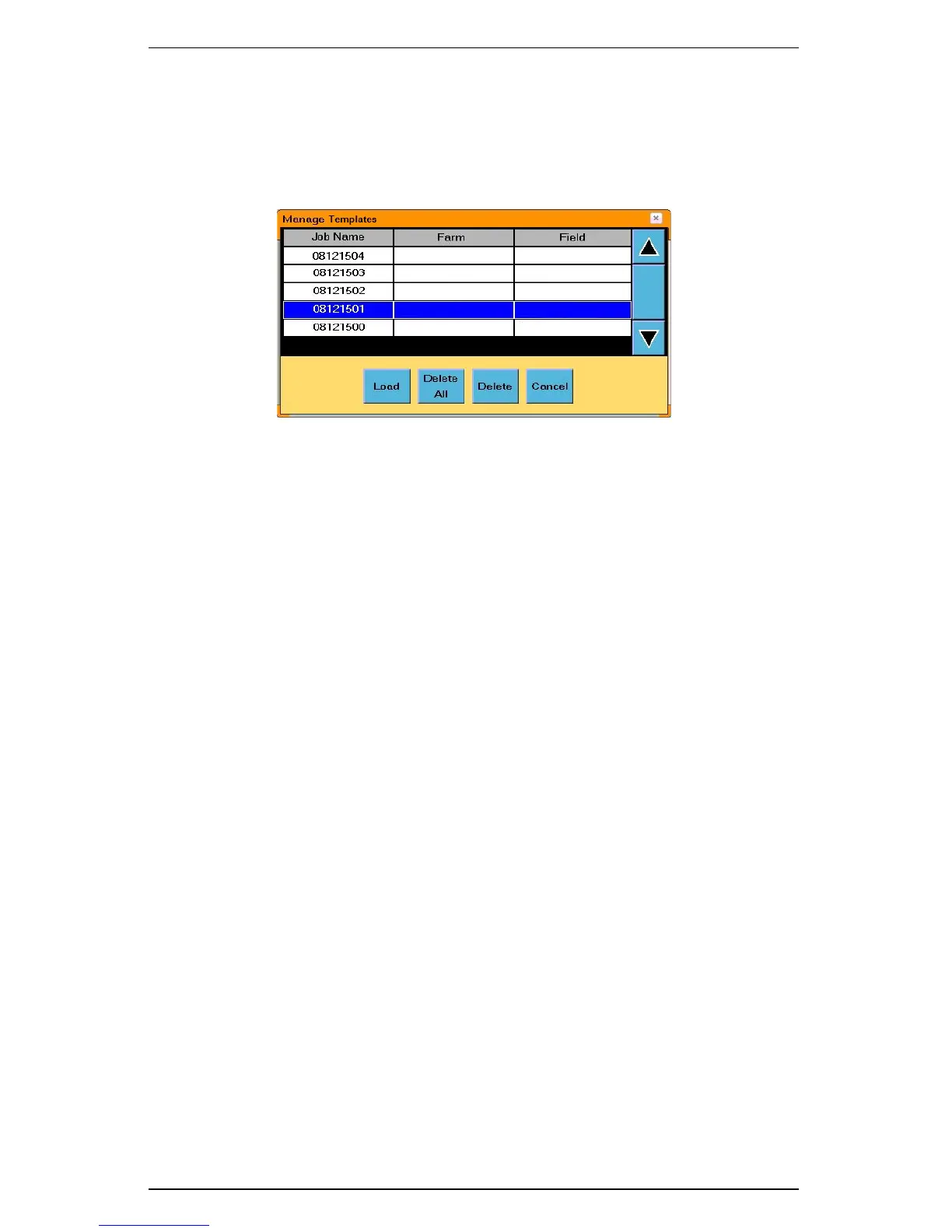
Using the Manage Templates window (Figure 4-2) you can load a template, delete a
template, or delete all templates.
Figure 4-3: Manage Templates window
To display the Manage Templates window:
• On the Jobs screen touch the Templates button.
To load a template:
1. In the Manage Templates window, select the template you want to load.
2. Touch the Load button. The selected template is loaded and applied to the
current job.
To delete a template:
1. In the Manage Templates window, select the template you want to delete.
2. Touch the Delete button. The selected template is deleted from the S3.
To delete all templates:
1. In the Manage Templates window, touch the Delete All button. A
confirmation message appears.
2. Touch Ye s to continue. All templates are deleted from the S3.
Creating a Template
1. On the Jobs screen touch the Make Template button. The Create Templates
window appears.
2. Select a job from the list and touch the Tem p l a t e button. The S3 creates a
template from the selected job. The template is then listed in the Manage
Templates window.
Closing a Job
1. On the Jobs screen touch the Close button. A confirmation message
appears.
2. Touch the OK button. The job closes.


 To Next Page
 Loading...