EasyManua.ls Logo

OWC Thunderbolt Dock - User Manual

OWC Thunderbolt Dock
10 pages
Print Icon
To Next Page IconTo Next Page
Loading...
THUNDERBOLT DOCK
All the Thunderbolt ports and device
connectivity you need.
Thunderbolt™ 4
For any Apple M1 Mac, any Apple
‘Intel’ Mac with Thunderbolt 3,
or any Thunderbolt 4 PC
More Devices
Connect more storage, add up to two
4K displays or one 5K/6K/8K display.
You name it, you can use it!
Thunderbolt Cable
Transfer data, run a display and power
your notebook – all from one cable!
4
Question and Answer IconNeed help?

Do you have a question about the OWC Thunderbolt Dock and is the answer not in the manual?

Summary

Introduction to OWC Thunderbolt Dock

System Requirements

Specifies the operating system and hardware requirements for the Thunderbolt Dock.

Package Contents

Lists all items included in the OWC Thunderbolt Dock package.

About This Manual

Provides context on manual variations and where to find the latest product details.

OWC Dock Ejector

Explains the OWC Dock Ejector application for safely ejecting drives.

Front and Top Views

Details and labels the ports and features on the front and top of the dock.

Side View

Identifies the security slots located on the side of the dock.

Rear View

Details and labels the ports and connectors on the rear of the dock.

Connection and Usage Notes

Connection Guide

Step-by-step instructions for connecting the Thunderbolt Dock to power and computer.

Usage Guidelines

Notes on dock operation, hot-plugging, bandwidth sharing, and compatibility.

Display Notes

Display Capabilities and Limitations

Information on supported display resolutions, refresh rates, and Mac compatibility.

Support Resources

Troubleshooting Steps

Guidance on diagnosing and resolving issues with the Thunderbolt Dock.

Contacting Technical Support

Provides phone, chat, and email contact information for OWC support.

Safety and Precautions

Health and Safety Precautions

Warnings and guidelines to prevent electrical shock, fire, and injury.

General Use Precautions

Recommendations for proper device handling, temperature, and environmental conditions.

Warranty and Legal Information

OWC Limited Warranty

Details the duration and terms of the OWC Thunderbolt Dock warranty.

Copyrights and Trademarks

Lists intellectual property rights and trademarks associated with the product and manual.

Summary

Introduction to OWC Thunderbolt Dock

System Requirements

Specifies the operating system and hardware requirements for the Thunderbolt Dock.

Package Contents

Lists all items included in the OWC Thunderbolt Dock package.

About This Manual

Provides context on manual variations and where to find the latest product details.

OWC Dock Ejector

Explains the OWC Dock Ejector application for safely ejecting drives.

Front and Top Views

Details and labels the ports and features on the front and top of the dock.

Side View

Identifies the security slots located on the side of the dock.

Rear View

Details and labels the ports and connectors on the rear of the dock.

Connection and Usage Notes

Connection Guide

Step-by-step instructions for connecting the Thunderbolt Dock to power and computer.

Usage Guidelines

Notes on dock operation, hot-plugging, bandwidth sharing, and compatibility.

Display Notes

Display Capabilities and Limitations

Information on supported display resolutions, refresh rates, and Mac compatibility.

Support Resources

Troubleshooting Steps

Guidance on diagnosing and resolving issues with the Thunderbolt Dock.

Contacting Technical Support

Provides phone, chat, and email contact information for OWC support.

Safety and Precautions

Health and Safety Precautions

Warnings and guidelines to prevent electrical shock, fire, and injury.

General Use Precautions

Recommendations for proper device handling, temperature, and environmental conditions.

Warranty and Legal Information

OWC Limited Warranty

Details the duration and terms of the OWC Thunderbolt Dock warranty.

Copyrights and Trademarks

Lists intellectual property rights and trademarks associated with the product and manual.

Overview

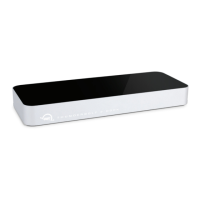
The OWC Thunderbolt Dock is a versatile connectivity solution designed to expand the port capabilities of compatible computers. It provides a comprehensive array of Thunderbolt ports and other device connections, making it suitable for a wide range of workflows, from creative professionals to everyday users.

Function Description:

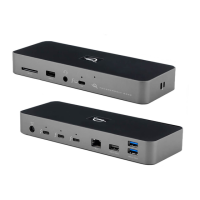
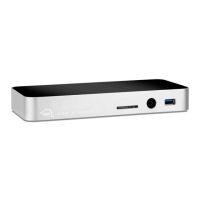
The OWC Thunderbolt Dock serves as a central hub for connecting multiple peripherals to a host computer via a single Thunderbolt cable. It consolidates various ports, including Thunderbolt 4, USB, Ethernet, SD card, and audio, into one compact device. This allows users to connect external storage, multiple displays, network cables, and other USB devices, while also providing power delivery to the host laptop. The dock is designed to simplify cable management and enhance productivity by offering all necessary connections in one place.

Important Technical Specifications:

  • System Requirements:
    • Operating System:
      • Mac: macOS 11.1 or later
      • PC: Windows 10 or later
    • Hardware:
      • Mac: Any Apple M1 Mac or any Apple 'Intel' Mac with Thunderbolt 3
      • PC: Any PC with a Thunderbolt 4 port
  • Ports:
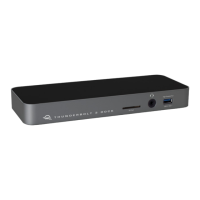
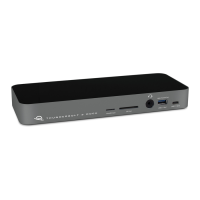
    • Front/Top:
      • 1x SD Media slot (UHS-II supported)
      • 1x USB 2.0 port
      • 1x Combo audio port (3.5mm connector for microphone or headphones)
      • 1x Thunderbolt host port (Thunderbolt 3 or later on Mac, Thunderbolt 4 on PC; provides up to 90W Power Delivery)
    • Rear:
      • 1x DC IN (for power supply)
      • 3x Thunderbolt 4 ports (compatible with Thunderbolt 4, Thunderbolt 3, or USB-C devices; up to 15W bus power for downstream Thunderbolt ports)
      • 1x Gigabit Ethernet port
      • 3x USB 3.2 Type-A ports (up to 10Gb/s supported)
    • Side:
      • 1x Kensington™ Security slot
      • 1x Kensington Nano slot
  • Display Support:
    • Supports up to two 4K displays or one 5K/6K/8K display.
    • 8K resolutions are part of the DisplayPort 1.4 specification, supported by the dock, but require host computer and display to also fully support this specification.
    • Mac M1 (Apple Silicon) Macs support only a single display over Thunderbolt, with dual display configurations possible via the Mac mini's built-in HDMI 2.0 port.
    • Other display connections (HDMI, DisplayPort) are possible via appropriate USB-C display adapters or cables.
  • Power Delivery: Up to 90W Power Delivery to the host laptop via the Thunderbolt host port.
  • Thunderbolt Device Chains: Supports up to six Thunderbolt devices in a chain, allowing five additional Thunderbolt devices to be chained to the dock.
  • USB Bandwidth: USB Type-A ports, audio port, SD media slot, and Ethernet port share bandwidth. Connecting multiple USB devices will share the available bandwidth.

Usage Features:

  • Plug-and-Play Connectivity: The dock is designed for straightforward connection. Simply connect the power supply, then connect the dock to your computer's Thunderbolt port using the included Thunderbolt cable.
  • Hot-Plugging Support: All ports support hot-plugging, allowing devices to be connected or disconnected without restarting the computer.
  • OWC Dock Ejector: A dedicated application for safely ejecting all connected drives with a single click, ensuring data integrity during fast-paced workflows. This feature is available for both macOS and Windows.
  • LED Indicator: An LED on the top of the dock indicates its status:
    • White: Power is on, but no data connection, or device is in Sleep mode.
    • Blue: Power is on, and there is an active data connection.
  • LED Brightness Control: The LED brightness can be adjusted (lower brightness or off) by pressing an internal button with a paperclip. The LED resets to default brightness when power is reconnected.
  • ClingOn Anchors: The dock includes anchors for securing Thunderbolt and USB-C cables, preventing accidental disconnections.
  • Security Slots: Kensington™ Security and Kensington Nano slots are provided for physical security, allowing users to secure the dock with compatible locks.
  • Backward Compatibility: For Mac users, the Thunderbolt 4 device is backward compatible with Thunderbolt 3 computers running macOS 11.1 or later, and with Thunderbolt 3 devices connected to the back of the dock. For PC users, it works with Thunderbolt 4 computers and allows Thunderbolt 3 devices to be connected to the back of the dock.

Maintenance Features:

  • No Power Switch: The dock functions as long as it is connected to power and a computer. When the computer powers off or sleeps, connected devices will power off or sleep accordingly.
  • Safe Ejection of Storage Devices: Always eject or unmount connected storage devices from your operating system before disconnecting them from the dock to prevent data loss. The OWC Dock Ejector application facilitates this process.
  • Firmware Updates: Functions and features may change with firmware versions. Users are encouraged to check the product web page for the latest details and warranty information.
  • General Precautions:
    • Avoid disassembling or modifying the device.
    • Do not expose the device to rain, water, or damp conditions.
    • Keep the device within the recommended temperature range (-20° C to 60° C / -4° F to 140° F).
    • Unplug the device during lightning risk or extended periods of disuse.
    • Avoid placing objects on top of the device or near other electrical appliances that could cause interference.
    • Protect from excessive dust exposure.
  • Troubleshooting: The manual provides basic troubleshooting steps, including verifying power and cable connections, and checking if the dock is recognized by the host computer's system information (Mac) or device manager (PC). If issues persist, users are directed to contact OWC Technical Support via phone, chat, or email.

OWC Thunderbolt Dock Specifications

General IconGeneral
BrandOWC
ModelThunderbolt Dock
CategoryDocking Station
LanguageEnglish

Related product manuals