
 Need help?
Do you have a question about the OWC U.2 SHUTTLE and is the answer not in the manual?
Details required operating system, hardware, and supported NVMe M.2 drive types for the shuttle.
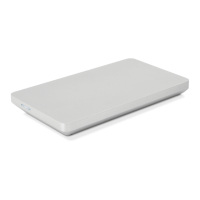
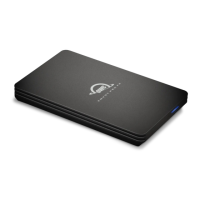
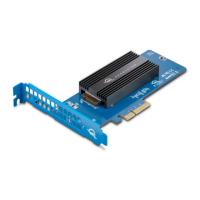
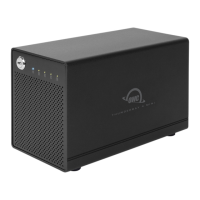
Lists the items included in the OWC U2 Shuttle package with accompanying images.
Provides context on manual accuracy, firmware changes, and warranty details.
Step-by-step guide for installing M.2 NVMe SSDs into the OWC U2 Shuttle.
Instructions for installing the U2 Shuttle into the OWC Mercury Helios 3S.
Instructions for installing the U2 Shuttle into the OWC ThunderBay Flex 8.
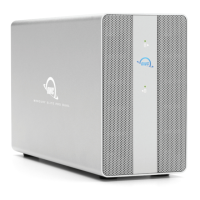
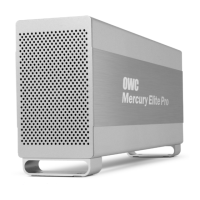
Instructions for installing the U2 Shuttle into the OWC Mercury Pro U.2 Dual.
Provides specific performance notes when using the Shuttle with ThunderBay Flex 8.
Guides users on diagnosing and resolving common installation and connectivity issues.
Provides information and links for formatting M.2 SSDs for Mac and Windows.
Recommends data backup strategies and clarifies OWC's liability.
Lists phone, chat, and email contact methods for technical assistance.
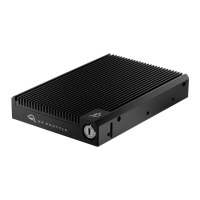
The OWC U.2 Shuttle is a 3.5-inch U.2 NVMe SSD Carrier Shuttle designed for fast and easy drive swaps between U.2 devices, PCs, and servers. It is ideal for media production workflows, allowing users to offload a day's shoot and send the drive to post-production. The device supports RAID configurations, enabling users to harness the power of RAID 0, 1, 4, 5, or 10 via their choice of RAID utilities.
The U.2 Shuttle serves as a carrier for up to four NVMe M.2 drives with a 2280 form factor and M-key connector. It allows these M.2 drives to be used in systems that support a 3.5-inch drive form factor with an NVMe U.2 connection. This enables users to leverage the high performance of NVMe SSDs in compatible enclosures and host systems.
The installation process for M.2 drives involves removing the shuttle's cover, securing the M.2 drives onto the internal PCBA, and then re-affixing the cover. The design ensures that the "fins" on the cover sit flush with the top edges of the chassis when correctly installed, which is crucial for proper seating within host enclosures and to prevent installation issues with the U.2 NVMe Interchange System.
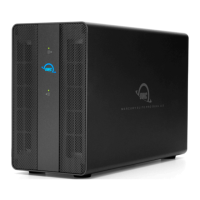
Once the M.2 drives are installed in the U.2 Shuttle, the shuttle can be inserted into various OWC host enclosures. For instance, when used with the OWC Mercury Helios 3S with U.2 NVMe Interchange System, the shuttle slides into the interchange chassis, connecting to the U.2 connector inside. A locking mechanism with included security keys allows users to secure the shuttle in place. It's important to note that this configuration is not hot-swappable, requiring the Helios 3S to be powered off and disconnected from the host computer before installing or removing the U.2 Shuttle.
When installed in an OWC ThunderBay Flex 8, the U.2 Shuttle is first seated into a drive sled. The drive sled, with the shuttle attached, then slides into one of the ThunderBay's bays. The top-left bay is recommended for optimal performance due to its four lanes of PCIe bandwidth (x4), while other top bays offer single-lane (x1) bandwidth.
For the OWC Mercury Pro U.2 Dual, the installation involves removing the inner chassis from the enclosure, placing the U.2 Shuttle into the inner chassis, and then securing it with screws. The inner chassis is then slid back into the outer enclosure. This process allows for the installation of one or two U.2 Shuttles or other U.2 devices.
After installation into a host enclosure, the M.2 drives within the U.2 Shuttle can be formatted and/or configured for RAID using software like SoftRAID or Apple's Disk Utility RAID Assistant feature. This flexibility allows users to create independent volumes or various RAID configurations to suit their performance and data redundancy needs.
The U.2 Shuttle offers several features that enhance its usability and integration into various workflows:
While the U.2 Shuttle itself is a passive carrier, its design and the accompanying instructions emphasize proper installation and troubleshooting to ensure reliable operation:
 General
| Interface | U.2 |
|---|---|
| Enclosure Material | Aluminum |
| Drive Bays | 4 |
| Supported Drive Types | U.2 NVMe SSD |
| Compatibility | Mac and Windows |
| Capacity | Up to 32TB |
| Power Supply | Bus-powered |
| LED Indicator | Activity LED |
| Included Accessories | U.2 cable, screws |



 To Next Page