IMPORTANT SAFETY INSTRUCTIONS
Before you install or use the apparatus, you must read and understand these Important Safety Instructions. At all times
when using the apparatus you must follow these Important Safety Instructions to reduce the risk of fire, electrical
shock and injury to persons.
1. Read these instructions.
2. Keep these instructions.
3. Heed all warnings.
4. Follow all instructions.
5. Do not use this apparatus near water.
6. Clean only with dry cloth.
7. Do not block any ventilation openings. Install in accordance with the manufacturer’s instructions.
8. Do not install near any heat sources such as radiators, heat registers, stoves, or other apparatus (including
amplifiers) that produce heat.
9. Do not defeat the safety purpose of the polarized or grounding-type plug. A polarized plug has two blades with
one wider than the other. A grounding type plug has two blades and a third grounding prong. The wide blade or
the third prong are provided for your safety. If the provided plug does not fit into the outlet, consult an electrician
for replacement of the obsolete outlet.
10. Protect the power cord from being walked on or pinched particularly at plugs, convenience receptacles, and the
point where they exit from the apparatus.
11. Only use attachments/accessories specified by the manufacturer.
12. Use only with the cart, stand, tripod, bracket, or table specified by the manufacturer, or
sold with the apparatus. When a cart is used, use caution when moving the cart/apparatus
combination to avoid injury from tip-over.
13. Unplug this apparatus during lightning storms or when unused for long periods of time.
14. Refer all servicing to qualified service personnel. Servicing is required when the apparatus has been damaged in
any way, such as power-supply cord or plug is damaged, liquid has been spilled or objects have fallen into the
apparatus, the apparatus has been exposed to rain or moisture, does not operate normally, or has been dropped.
Additional safety information
• This set-top has been manufactured and tested with your safety in mind. However, improper use can result in
potential electric shock, property damage or fire hazards.
• To disconnect power from the set-top, always disconnect its 5 V DC power supply unit from the wall AC outlet
(rather than disconnect the 5-volt cord from the set-top). Therefore you must install your set-top near to the wall
AC outlet, which should be easily accessible.
• Do not perform any servicing unless you are qualified to do so by the manufacturer. Refer all servicing to qualified
service personnel. Servicing the set-top yourself will invalidate the warranty.
• Maintain a minimum distance of three inches around your set-top for sufficient ventilation.
• To reduce the risk of fire or electric shock, do not expose this set-top to rain or moisture.
• The model and serial numbers of your set-top are on a label on its base, and its electrical rating is on the rear panel.
Warnings on the power supply unit
The lightning flash with arrowhead symbol, within a triangle, is intended to alert you to the presence of
uninsulated “dangerous” voltages within your set-top’s enclosure that may be of sufficient magnitude to
constitute a risk of electric shock to persons.
The exclamation point within a triangle is intended to alert you to the presence of important instructions in
the literature accompanying your set-top.
To ensure correct operation, use this set-top only with the Pace-approved power supply unit provided. If you use
an unapproved alternative, you will invalidate the warranty.
To avoid possible damage to your set-top box or to a connected TV or component, all AC power cords must be
plugged into properly wired outlets. As with all electrical products, connection to faulty or defective components,
or the failure to connect your set-top to a properly wired outlet, may cause sparking, property damage or damage
to any TV or other component connected to your set-top and pose a fire hazard. Failure to heed the Safety
Information provided by failing to connect to a properly wired outlet may void the manufacturer’s warranty.
WELCOME
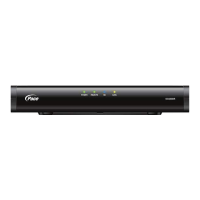
Connecting your DC550DR
1 Decide which connections work best with your equipment.
Depending on the type of TV and other equipment you have, choose the
connections that will provide the best quality video and audio. Refer to your
equipment user manuals and the tables provided in this guide.
2. Connect your DC550DR to your cable service.
Connect the cable from your cable wall outlet to the CABLE IN
connector on the rear panel of your DC550DR.
3. Connect the DC550DR to your TV and other equipment.
Once you have decided which audio and video connections you need to
make, refer to the illustrations in this guide to connect your DC550DR to
your TV and other A/V equipment.
4. Turn on your DC550DR.
Plug the 5-volt cord from the power supply unit into the power input socket
(labelled DC IN +5V) on the rear panel of your DC550DR, then plug the
power supply unit into the wall AC outlet using the power cord supplied.
Press the POWER button on your remote control - the DC550DR will turn
on.
5. Enjoy digital TV!
Use the User Settings menu (see below) to fine-tune your setup. Any
problems? Refer to the Troubleshooting section of this guide and to your
equipment user manuals.
SET-TOP SETUP
You can use the PACE USER SETTINGS menu to change your set-top’s
setup. The settings you can change are shown in the table below.
1. Make sure your set-top is turned on (the POWER light is green).
2. Press the POWER button on your remote control, then press the Menu
button. The USER SETTINGS menu is displayed on your screen.
3. Use the L, R, U, and D buttons to navigate the menus and the
OK/Select button to confirm your choices. See the example below.
4. Press POWER to remove the menu and return to normal viewing.
TROUBLESHOOTING
Check Suggested
solution
Further checks, if there is
still a problem
Is anything lighted on
your set-top’s front
panel?
YES
D
NO
R
Press the POWER
button on your remote
control to turn on your
set-top.
Make sure that the power supply unit is
properly plugged in.
If there is a switch by the wall AC outlet,
switch it ON.
Check that the wall AC outlet is working.
Does your remote
control operate your
set-top?
YES
D
NO
R
Check if the POWER
light on the front panel
is green. If it is not,
press POWER on your
remote control to turn
on your set-top.
Check that nothing is blocking the path
from your remote control to the front
panel.
Check that your remote control is working
and is set to operate your set-top.
If your remote control will still not operate
your set-top, replace the batteries in your
remote control.
Can you see a picture
on your TV screen?
YES
D
NO
R
Check that your TV
and other equipment
are plugged in and
turned on.
Check that you have selected the
appropriate A/V input on your TV.
If you are using the HDMI connection,
make sure it goes directly from your
set-top to your TV. Try disconnecting and
reconnecting the standard HDMI cable.
Make sure the set-top’s TV Display
Capability settings are appropriate for
your TV. Press the HD/ZOOM button until
a picture appears.
Is the picture distorted
or too small?
NO
D
YES
R
Check that the TV
Aspect Ratio and TV
Display Capability, as
set on your set-top,
are appropriate for
your TV.
If your TV is a 16:9 TV, you can use Auto
Pillarbox to add black borders to 4:3
transmissions, so that the picture is not
stretched.
If the set-top’s settings are correct, try
adjusting your TV’s display.
Can you display
menus and guides on
the screen?
NO
R
If your TV is connected
to the VIDEO OUT
connector, you will
see menus and guides
only if the resolution
480i is set to “Yes”
and all others are set
to “No”.
Change the TV Display Capability
resolution settings if necessary.
DC550DR
Quick Start Guide
If you are still having problems, contact your cable service provider.
Manufactured under license from Dolby Laboratories. Dolby and the double-D symbol are trademarks of Dolby Laboratories.
HDMI, the HDMI Logo and High-Definition Multimedia Interface are trademarks or registered trademarks of HDMI
Licensing LLC in the United States and other countries.
This product incorporates copyright protection technology that is protected by U.S. patents and other intellectual property
rights. Use of this copyright protection technology must be authorized by Rovi Corporation, and is intended for home and
other limited viewing uses only unless otherwise authorized by Rovi Corporation. Reverse engineering or disassembly is
prohibited.
Open Source Licenses
The software contained in this product may be covered by certain components consisting of free software or open source
software. A list of these components and a copy of the relevant copyright notices and license term notices that are
required by such licenses are available at this web page:
http://www.pace.com/opensource/license
Other trademarks listed herein are the property of their respective owners.
Service address:
Pace Americas Inc. 3701 FAU Boulevard, Suite 200, Boca Raton, Florida 33431 U.S.A.
Pace and
are trade marks and/or registered trade marks of Pace plc.
© 2013 Pace plc. All rights reserved.
504-6D13100
High-definition
digital set-top
OK
Select
OK
Select
OK
Select
OK
Select
TV Aspect Ratio
4:3
>16:9
TV Aspect Ratio
>
4:3
16:9
PACE USER SETTINGS
TV Aspect Ratio
TV Display Capability
Auto Pillarbox
Closed Captions
Front Panel Settings
HDMI Settings
Restore Defaults
Select[OK] Exit[POWER]
Standard-definition video connections (SDTV)
Video
quality
TV video
input
DC550DR video
output
Includes
audio?
Standard Composite Video VIDEO OUT No
High-definition video connections (HDTV)
Video
quality
TV video input
DC550DR video
output
Includes
audio?
Top
HDMI
®
HDMI Yes
DVI * HDMI No
High Component (YPbPr) COMPONENT VIDEO No
* HDMI adapter required, or use an HDMI-to-DVI cable
Alternate audio connections
Audio
quality
Audio connections
Top OPTICAL AUDIO OUT (S/PDIF)
High AUDIO OUT (stereo L and R)
Note: If you use the optional RF connections (shown by dashed lines in the setups overleaf), you
must tune your TV (and VCR) to your set-top’s VHF output channel (3 or 4: consult your cable
service provider to find which channel it is for your location). Consult the manuals supplied with
your TV and VCR for information on RF tuning.
PACE USER SETTINGS MENU
Menu item Description Options*
TV Aspect Ratio Choose your TV screen’s shape 4:3 or 16:9
TV Display
Capability
Choose the screen resolutions your TV is
capable of displaying
1080i, 720p, 480p, 480i,
1080p24 Pass, and/or
1080p30 Pass
Auto Pillarbox
If your 16:9 TV doesn’t automatically detect
programs transmitted in 4:3, choose to
have black bars added to the sides of 4:3
programs
Yes or No
Closed Captions
Choose to display subtitles and alerts on
your TV screen
On or Off, and Configure Captions
Front Panel
Settings
Set the brightness level of the front-panel
lights (but not the POWER light)
Standby Brightness: Low, Std, or
High
Viewing Brightness: Low, Std, or
High
HDMI Settings
Choose an Audio Output Mode, and to
enable or disable automatic detection of
a newly connected HDTV (when using an
HDMI cable)
Audio Output Mode: Auto,
L-PCM, or Pass Through
Disable Auto Detect: Yes or No
Restore Defaults
Restore the user settings to their factory
defaults
-
*Factory default settings shown in bold.
This guide describes some on-screen displays such as menus. These may change in the future.
E134-QSG-Iss1.indd 1 02/12/2013 12:16

 Need help?
 General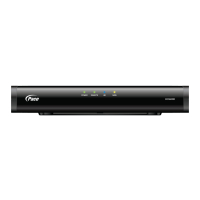

 To Next Page