11
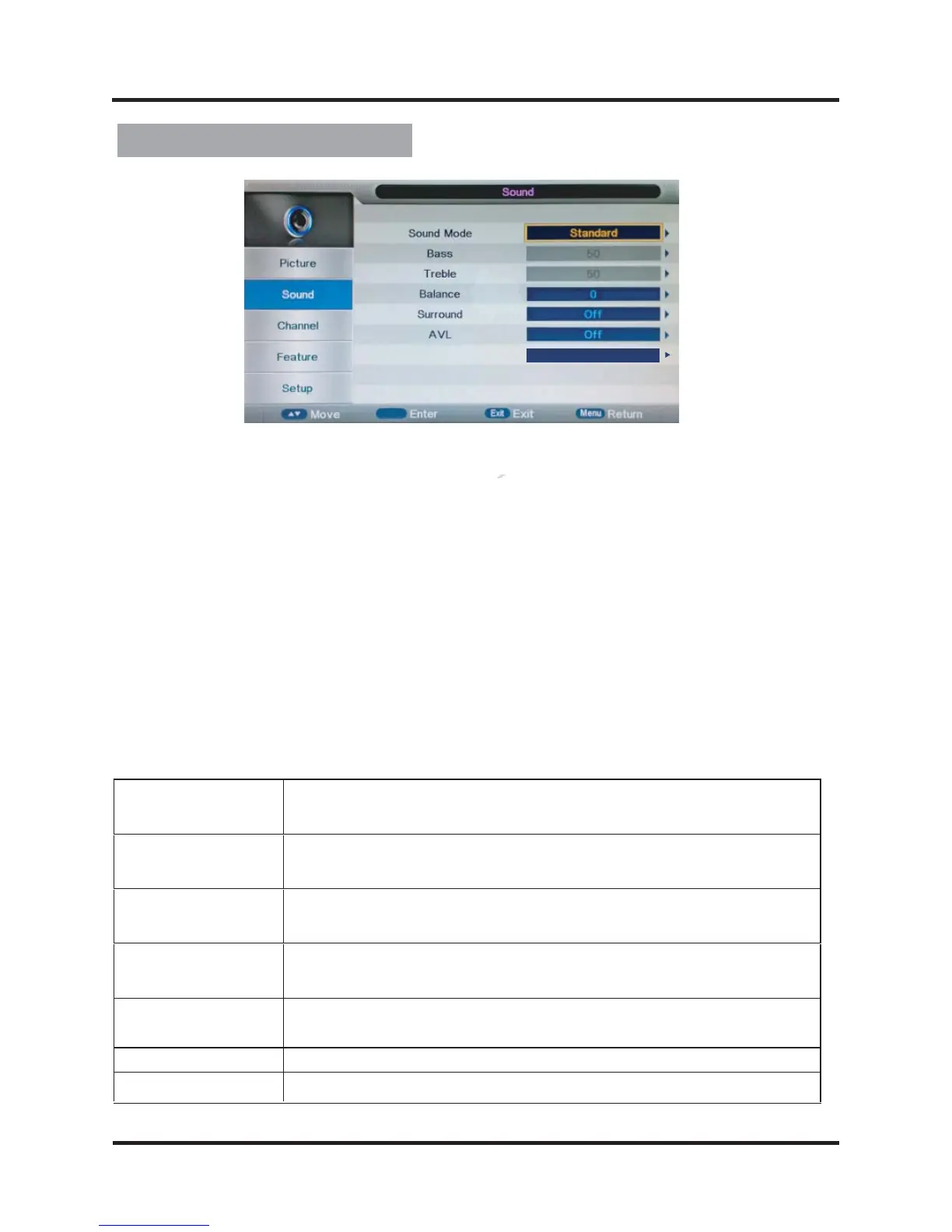
Sound Adjustment
1. Press MENU button on the front panel or MENU button on the remote control
to display the main menu.
2. Press ▲/▼ buttons on the remote control or
CH +
/
-
button
s on the
front
panel to select the Sound Setting menu, then press
OK or
▼
buttons for the
submenu.
3. Press ▲/▼ buttons on the remote control or
CH +
/
-
buttons
on the
front
panel
to select the item you want to adjust.
4. Press OK button on the remote control and press
▲
/
▼
◄/►
buttons to
change the status.
5. Press MENU button to go to the previous menu.
Sub windows info:
Sound Mode
Press “ OK ” button to
enter Sound Mode, then press
▲
/
▼
▲
/
▼
buttons
to select : Standard, Movie, Music, Speech, User, Off.
Treble
Press “ OK ” button to
enter Treble, then press
◄/►
buttons to
Press “ OK ” button to
enter Surround, then press buttons
adjust the high frequency content of audio output.
Bass
Press “ OK ” button to
enter Bass, then press
◄/►
buttons to
adjust the low frequency content of audio output.
Balance
Press “ OK ” button to
enter Balance, then press
◄/►
buttons
to
adjust
the audio output between left and right speakers.
Surround
to adjust Surround mode:On,Off.
AVL
SPDIF
Press “
▲
/
▼
” button to a
djust AVL mode: On,Off.
Press “
▲
/
▼
” button to a
djust SPDIF mode: Auto,Off,PCM.
OK
SPDIF
PCM



 To Next Page