EasyManua.ls Logo

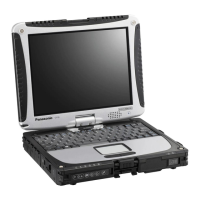
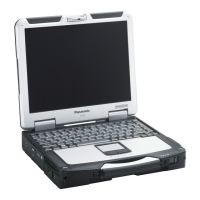
Panasonic CF-18 Series - User Manual

Panasonic CF-18 Series
40 pages
Print Icon
To Next Page IconTo Next Page
Loading...
Operation
Starting Up/Shutting Down............................14
Touch Pad (Basic Operation) ............................. 17
Digitizer (Basic Operation) ................................. 18
Operating in Tablet Mode .............................. 19
Reference Manual ......................................... 21
OPERATING INSTRUCTIONS
Personal Computer
®
Appendix
LIMITED USE LICENSE AGREEMENT........29
Hard Disk Data Erase Utility.......................... 31
Names and Functions of Parts ...................... 32
Specifications ................................................ 34
LIMITED WARRANTY...................................36
Troubleshooting
List of Error Codes .........................................22
Dealing with Problems (Summary)................... 23
Reinstalling Software .................................... 27
Getting Started
Read Me First.................................................. 3
First-time Operation ........................................ 9
Contents
[Additional Manual]
Reference Manual
This manual can be accessed on your computer. Refer
to page 21 on how to access the Reference Manual.
Reference Manual
Read Me First
Key Combinations
Reference Manual
Tablet Buttons
Touch Pad (Advanced)
Digitizer (Advanced)
Display Rotation
Standby/Hibernation
Functions
Security Measures
Computing on the Road
Battery Power
PC Cards
RAM Module
Port Replicator
External Display
USB Devices
Modem
LAN
Wireless LAN
Hard Disk Drive
Setup Utility
LED Indicators
Reference Manual
Technical Information
DMI Viewer
List of Error Codes
Dealing with Problems
(Advanced)
Appendix Getting StartedOperationTroubleshooting
Model No. CF-18 Series
Please read these instructions carefully before using this product and save this manual for future use.
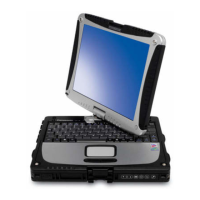
Tablet PC

Other manuals for Panasonic CF-18 Series

Questions and Answers

  • B
    brendamejiaJul 31, 2025
    What to do if my Panasonic CF-18 says 'Not in Service'?
    • L
      Lauren BarreraJul 31, 2025
      If your Panasonic Desktop displays 'Not in Service', the issue might be related to signal blockage. Try repositioning your computer, especially if you are inside a building or near a structure that could interfere with the signal. Also, ensure you're within the CDMA network coverage area. If problems persist, there may be a network or account issue. Contact Verizon to check if this is the case.
  • H
    Heather MooreAug 10, 2025
    Why does my Panasonic Desktop SMS keep failing?
    • R
      Rebecca FordAug 10, 2025
      Your Panasonic Desktop SMS might fail due to several reasons: you may not have a subscription to a service that allows you to send SMS messages, you might not have NationalAccess service or an active dial-up/Quick 2 NetSM (14.4kbps) connection, the destination number in the 'To' field might be invalid, the message might exceed the maximum length for SMS messages (usually around 160 characters), or there might be a CDMA network problem or a problem with your account. Check these potential causes to resolve the issue.
  • M
    Michelle WellsAug 20, 2025
    What to do if Panasonic Desktop says 'Modem is In Use'?
    • S
      Steven SandersAug 20, 2025
      If your Panasonic Desktop displays a 'Modem is In Use' message, it indicates that a call is already in progress. To resolve this, end the current call before initiating a new one.

Summary

Read Me First

Important Safety Instructions

General Handling Precautions

General safety measures for handling and using the computer.

First-time Operation

Connecting to Power

Instructions for connecting the computer to a power source.

Powering On the Computer

Procedure to power on the computer and start the system.

Windows Operating System Setup

Detailed steps for installing and configuring the Windows operating system.

Information for Windows XP

Starting Up;Shutting Down

Computer Startup Procedure

Procedure for powering on the computer and initiating the boot process.

Computer Shutdown Procedure

Steps to properly save data and turn off the computer.

Operating in Tablet Mode

List of Error Codes

Dealing with Problems (Summary)

Troubleshooting Startup Issues

Troubleshooting common issues encountered during computer startup.

Reinstalling Software

Software Reinstallation Steps

Step-by-step guide for reinstalling the operating system and software.

Panasonic CF-18 Series Specifications

General IconGeneral
SeriesToughbook CF-18
Operating SystemWindows XP Professional
ProcessorIntel Pentium M 1.1 GHz
Memory512MB
Storage40 GB HDD
Battery LifeUp to 5 hours
PortsUSB 2.0, VGA, serial
WirelessWi-Fi 802.11b/g, Bluetooth
DurabilityMIL-STD-810F certified
Dimensions270 x 216 x 49 mm (10.6 x 8.5 x 1.9 inches)

Related product manuals