EasyManua.ls Logo

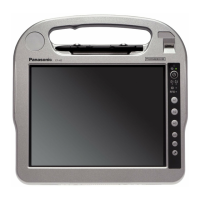
Panasonic CF-H2 series - User Manual

Panasonic CF-H2 series
40 pages
Print Icon
To Next Page IconTo Next Page
Loading...
Getting Started
Useful Information
Troubleshooting
Appendix
Read Me First
Contents
Read Me First
OPERATING INSTRUCTIONS
Personal Computer
Model No.
CF-H2
series
Safety Precautions .....................................................
2
Regulatory Information ...............................................
6
Getting Started
Introduction ...............................................................
11
Description of Parts ..................................................
12
Preparation ...............................................................
14
First-time Operation ..................................................
16
Turning On / Turning Off ...........................................
20
Useful Information
On-screen Manual ....................................................
21
Handling and Maintenance .......................................
22
Installing Software ....................................................
25
Troubleshooting
Troubleshooting (Basic) ............................................
29
Please read these instructions carefully before using this product, and save this manual for future use.
Appendix
LIMITED USE LICENSE AGREEMENT ...................
34
Specications ...........................................................
35
Standard Limited Warranty .......................................
38
CPE02747ZA_CF-H2mk3_EU_OI_M.indb 1 2013/07/24 13:13:11

Questions and Answers

  • R
    Ross MorseSep 9, 2025
    What does '[Executing Battery Recalibration]' mean on my Panasonic Desktop?
    • B
      Bobby MartinSep 9, 2025
      If the [Executing Battery Recalibration] screen appears on your Panasonic Desktop, it means the Battery Recalibration was canceled before Windows was shut down last time. To start up Windows, turn off the computer using the power switch, and then turn it on again.
  • T
    Tiffany JamesAug 23, 2025
    How to fix a Panasonic Desktop cursor that isn't working?
    • K
      Kayla WilliamsAug 23, 2025
      If the cursor on your Panasonic Desktop isn't working, and you're using an external mouse, ensure it's correctly connected. If that doesn't work, restart the computer using the keyboard: press the Windows key, then press the up arrow key twice, press Enter to select Restart. If the computer does not respond to keyboard commands, read “No response.”
  • W
    William PatelAug 25, 2025
    How to fix a disordered screen on my Panasonic CF-H2 Desktop?
    • T
      Troy FullerAug 25, 2025
      If your Panasonic Desktop screen is disordered, restarting the computer may help, as changing the number of display colors and resolution can affect the screen. Also, connecting or disconnecting an external display, or resuming from sleep or hibernation, can cause this issue. Restart the computer to resolve it.
  • J
    James WilsonAug 26, 2025
    How to fix disordered screens during simultaneous display on Panasonic CF-H2 Desktop?
    • S
      Sara RichardsonAug 26, 2025
      When using Simultaneous display on your Panasonic Desktop, if one of the screens becomes disordered, use the same display colors for the external display as those used by the LCD. If you still experience problems, try changing the display.
  • O
    oandersonAug 27, 2025
    How to fix incorrect date and time on my Panasonic Desktop?
    • J
      John MillerAug 27, 2025
      If the date and time are incorrect on your Panasonic Desktop, you should first correct the settings via the Control Panel. You can access this through the Start menu, then navigate to Clock, Language, and Region, and finally Date and Time. If the issue persists, the internal clock battery may need replacement, and you should contact Panasonic Technical Support. Also, if your computer is connected to a LAN, verify the date and time of the server. Note that this computer may not correctly recognize years 2100 A.D. or later.
  • D
    David DuffyAug 29, 2025
    Why is my Panasonic CF-H2 Windows startup slow?
    • R
      Ricky JimenezAug 29, 2025
      If Windows startup and operation are slow on your Panasonic Desktop, you can try pressing F9 in the Setup Utility to restore the default settings (excluding passwords). Then, restart the Setup Utility and configure the settings again. Keep in mind that processing speed depends on the application software, so this might not always improve performance. If you installed any resident software after purchasing the computer, try turning it off.
  • N
    Nicole BoydSep 17, 2025
    Why does my Panasonic Desktop say 'Warming up the system'?
    • A
      Alicia FieldsSep 18, 2025
      If your Panasonic Desktop is turned on but shows “Warming up the system (up to 30 minutes)”, it means the computer is warming up before starting. Wait for it to complete, which can take up to 30 minutes. If it displays “Cannot warm up the system”, turn off the computer, leave it in an environment of at least 5 °C for about an hour, and then try turning it on again.
  • D
    David LiSep 18, 2025
    How to correct the date and time on my Panasonic CF-H2?
    • G
      glopezSep 18, 2025
      If your Panasonic Desktop date and time are incorrect, correct the settings by going to Start - Control Panel - Clock, Language, and Region - Date and Time. If the problem persists, the internal clock battery may need replacement. When the computer is connected to LAN, check the date and time of the server. The 2100 A.D. or later year will not be correctly recognized on this computer.
  • L
    lisa43Sep 7, 2025
    Why doesn't the password prompt appear when resuming my Panasonic Desktop?
    • S
      Sabrina MurphySep 8, 2025
      If the [Enter Password] prompt does not appear when resuming your Panasonic Desktop from sleep or hibernation, select [Enabled] in [Password On Resume] in the [Security] menu of the Setup Utility. Note that the Windows password can be used instead of the password set in the Setup Utility.
  • D
    Douglas PriceSep 4, 2025
    How to troubleshoot other startup problems on Panasonic CF-H2 Desktop?
    • X
      xwaltonSep 4, 2025
      If you are experiencing other startup problems with your Panasonic Desktop, first press F9 in the Setup Utility to restore the default settings (excluding passwords), then restart the Setup Utility and configure the settings again. Remove all peripheral devices. Check for disk errors by removing all peripheral devices including any external displays. Then, open “Computer”, right-click [Local Disk (C:)], and click [Properties]. Next, click [Tools] - [Check Now]. Select the option in [Check disk options] and click [Start]. Click [Schedule disk check] and restart the computer. Finally, start the computer in Safe Mode and check the error details by pressing and holding F8 until the Windows Advanced Options Menu is displayed.

Summary

Read Me First

Safety Precautions

Essential safety warnings to prevent injury, fire, malfunction, or damage.

Regulatory Information

Description of Parts

Preparation

Inserting Battery Packs

Step-by-step guide on how to insert the battery packs into the computer.

Preparation

First-time Operation

Setting Up the Computer

Steps to set up the computer with the cradle, keyboard, mouse, and AC adaptor.

Windows Setup and Configuration

Detailed steps for setting up Windows, including language and network configuration.

Powering On and Language Selection

Instructions to power on the computer and select the operating system language.

Turning On; Turning Off

Powering On and Off Procedures

Step-by-step instructions for powering on and shutting down the computer.

Handling and Maintenance

Operation Environment and Handling Cautions

Specifies recommended operating conditions and guidelines for safely handling the computer.

Handling and Maintenance

Handling and Maintenance

Computer Cleaning and Maintenance

Procedures for cleaning the LCD panel and other parts of the computer.

Installing Software

Hard Disk Recovery and Windows Reinstallation

Steps to reinstall the OS using recovery partition or factory reset.

OS Reinstallation Using Recovery Disc

Instructions for reinstalling the OS using a recovery disc.

Troubleshooting (Basic)

Startup Issues

Covers common problems related to powering on and initial system startup.

Password and Login Problems

Addresses forgotten passwords and incorrect login messages.

Troubleshooting (Basic)

Appendix

Appendix

Panasonic CF-H2 series Specifications

General IconGeneral
Operating SystemWindows 7 Professional
GraphicsIntel HD Graphics 3000
Memory4GB
Storage320GB
Weight1.5 kg

Related product manuals