EasyManua.ls Logo

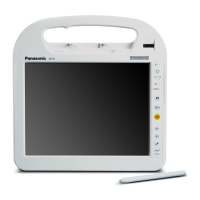
Panasonic CF-H1 Series - User Manual

Panasonic CF-H1 Series
8 pages
Print Icon
To Next Page IconTo Next Page
Loading...
This manual contains supplementary instructions regarding the use of the
computer. It explains the cases where the operation of the computer differs from
that in the Operating Instructions.
Your computer is equipped with the HSPA modem enabling you to communicate
using radio frequencies.
Contents
Description of Parts ............................................................ 2
Inserting/Removing a SIM Card ......................................... 2
Supplied Accessories ......................................................... 2
Installing the Software ........................................................ 3
Troubleshooting .................................................................. 5
Specications ...................................................................... 6
Appendix .............................................................................. 7
NOTE: Useful and helpful information.
CAUTION: Condition that may result in minor or moderate injury.
(Start) - [All Programs] :
Click (Start), and then click [All Programs].
[start] - [Run]: Click [start], and then click [Run].
You may need to double-click in some cases.
Some of the illustrations in this manual may differ slightly in shape from the
actual items in order to make the explanation easier to understand.
About the abbreviations in this manual, refer to the table on page 7.
Terms and illustrations in this Manual
Supplementary Instructions
for HSPA Modem
Personal Computer
DFQX5744ZA_all_model.indd 1 2010/06/30 17:33:38

Questions and Answers

  • E
    Eric RobertsonAug 11, 2025
    How to fix no sound on Panasonic Laptop?
    • B
      Brandon WeberAug 11, 2025
      If there is no sound on your Panasonic Laptop, first try pressing Fn + A or Fn + S to unmute the audio. If this doesn't work, restart your computer.

  • K
    karen76Aug 18, 2025
    What to do if my Panasonic Laptop cannot shut down?
    • K
      Karl SimmonsAug 19, 2025
      If your Panasonic Laptop is unable to shut down or restart Windows, try removing any connected USB devices. Be aware that the shutdown process may take 1 to 2 minutes to complete.
  • L
    Lori SteinAug 27, 2025
    What to do if Panasonic Laptop doesn't enter sleep automatically?
    • A
      anealAug 27, 2025
      If your Panasonic Laptop is not automatically entering sleep or hibernation, try these steps: * Disconnect any peripheral devices. * If using wireless LAN, configure access point settings. * If not using wireless LAN, turn off the wireless LAN function. * Ensure that you are not using software that regularly accesses the flash memory.
  • M
    murraytonySep 3, 2025
    Why does Panasonic Laptop take time to display Power Options screen?
    • C
      cummingsheatherSep 3, 2025
      If the Power Options screen takes a long time to display on your Panasonic Laptop, check if the [Copy of Panasonic Power Management] has reached 100 or more. To resolve this: 1. Click on the notification area and select [More power options]. 2. Click [Show additional plans]. 3. If multiple [Copy of Panasonic Power Management] options are displayed, click [Change plan settings] on the power plan you want to delete, and then click [Delete this plan].
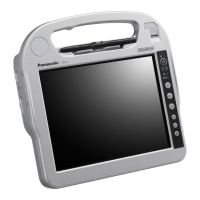
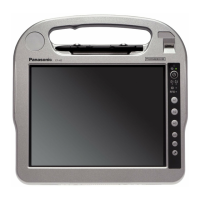
Panasonic CF-H1 Series Specifications

General IconGeneral
BrandPanasonic
ModelCF-H1 Series
CategoryDesktop
LanguageEnglish

Related product manuals