EasyManua.ls Logo

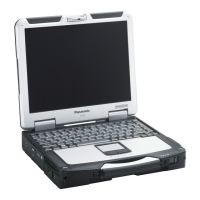
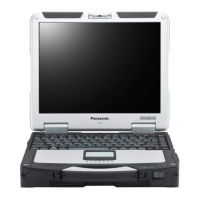
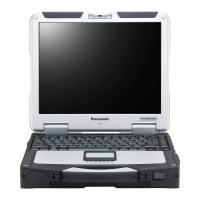
Panasonic CF-31 Series - User Manual

Panasonic CF-31 Series
40 pages
Print Icon
To Next Page IconTo Next Page
Loading...
Contents
Getting Started
OPERATING INSTRUCTIONS
Personal Computer
Model No.
CF-31
series
Introduction .................................................................
2
Read Me First ............................................................
3
(Precautions)
Description of Parts ..................................................
11
First-time Operation ..................................................
14
Useful Information
On-screen Manual ....................................................
18
Handling and Maintenance .......................................
19
Reinstalling Software ................................................
21
Troubleshooting
Troubleshooting (Basic) ............................................
23
Appendix
LIMITED USE LICENSE AGREEMENT ...................
27
Specications ...........................................................
29
LIMITED WARRANTY ..............................................
33
Please read these instructions carefully before using this product, and save this manual for future use.
For further information about the com-
puter, you can refer to the on-screen
manual.
To access the on-screen manual
è
page 18 “On-screen Manual”
Getting StartedUseful InformationTroubleshootingAppendix
DFQW5649XAT_CF-31mk3_EN.indb 1 2013/06/21 14:53:23

Other manuals for Panasonic CF-31 Series

Questions and Answers

  • C
    Chris ClarkSep 14, 2025
    What to do when using a conventional port replicator on Panasonic Desktop?
    • S
      Sean CochranSep 15, 2025
      When using a conventional port replicator with your Panasonic Desktop, refer to the following cautions instead of the ones in Reference Manual 'Port Replicator / Car Mounter'. Use CF-AA5713A or CF-AA1653A. If you use an AC adaptor other than the above, the computer may become battery operation state, the battery indicator may blink red, etc. The CPU clock rate is lowered. If you connect a conventional port replicator to the computer while the computer is turned on, a message that prompts you to restart the computer will appear. Follow the instructions, and restart the computer.
  • L
    lisa95Aug 25, 2025
    What to do if there is no display on my Panasonic CF-31?
    • T
      tinabrownAug 25, 2025
      If there is no display on your Panasonic Desktop, it could be due to the external display being selected. Press Fn + F3 or + P to switch the display. If using an external display, check the cable connection, ensure the display is turned on, and verify the display settings. If the display is turned off by the power-saving function, press any key like Ctrl to resume. If the computer entered sleep/standby or hibernation, press the power switch to resume.
  • D
    daniel36Aug 25, 2025
    Why is the screen dark on my Panasonic CF-31 Desktop?
    • C
      Carol WatsonAug 26, 2025
      If your Panasonic Desktop screen is dark, especially when the AC adapter is not connected, press Fn + F2 and adjust the brightness. Also, press Fn + F8 to turn off the concealed mode.
  • D
    david61Aug 26, 2025
    Why is the screen disordered on my Panasonic CF-31 Desktop?
    • K
      Kevin WilliamsAug 26, 2025
      If the screen is disordered on your Panasonic Desktop, restarting the computer may help, as changing the number of display colors and resolution, or connecting/disconnecting an external display may affect the screen.
  • G
    gomezstephanieSep 15, 2025
    What to do if '[Executing Battery Recalibration]' screen appears on Panasonic Desktop?
    • B
      Billy AyersSep 15, 2025
      If your Panasonic Desktop displays the '[Executing Battery Recalibration]' screen, turn off the computer using the power switch, and then turn it back on to start Windows.
  • M
    Matthew LongSep 23, 2025
    Why is one screen disordered during simultaneous display on my Panasonic CF-31?
    • E
      eduardo43Sep 23, 2025
      If one of the screens becomes disordered during simultaneous display on your Panasonic Desktop, when using the Extended Desktop, use the same display colors for the external display as those used by the LCD. If problems persist, try changing the display. Note that simultaneous display cannot be used until Windows startup is complete.
  • S
    Steven SandovalSep 7, 2025
    What if nothing is displayed after changing RAM module on Panasonic CF-31?
    • C
      Carol PhillipsSep 7, 2025
      If after adding or changing the RAM module, the power is turned on but nothing is displayed on the screen of your Panasonic Desktop, turn off the computer and remove the RAM module, then confirm whether the RAM module has complied to specification. When the RAM module has conformed to specification, install it again.
  • K
    Kenneth HuffmanSep 7, 2025
    What does '[Executing Battery Recalibration]' mean on Panasonic CF-31 Desktop?
    • N
      Natasha PetersonSep 8, 2025
      If the [Executing Battery Recalibration] screen appears on your Panasonic Desktop, it means the Battery Recalibration was canceled before Windows was shut down last time. To start up Windows, turn off the computer by the power switch, and then turn it on again.
  • M
    Monica BranchSep 1, 2025
    Why does the message “Remove disks or other media. Press any key to restart” appear on my Panasonic CF-31?
    • J
      Jennifer HernandezSep 2, 2025
      If the message “Remove disks or other media. Press any key to restart” appears, and you have a floppy disk in the drive, remove the floppy disk and press any key. If a device is connected to the USB port or the ExpressCard slot, disconnect the device, or set [USB Port] or [Legacy USB Support] or [ExpressCard Slot] to [Disable] in the [Advanced] menu of the Setup Utility. If the problem persists after removing the disk, it may be a hard disk failure, so contact Panasonic Technical Support.
  • H
    hallsabrinaAug 31, 2025
    What to do if my Panasonic CF-31 Desktop shows 'Remove disks or other media'?
    • V
      Vanessa TerryAug 31, 2025
      If your Panasonic Desktop displays “Remove disks or other media. Press any key to restart”, it may be due to a floppy disk in the drive without system startup information. Remove the floppy disk and press any key. If a device is connected to the USB port, disconnect the device, or set [USB Port] or [Legacy USB Support] to [Disabled] in the [Advanced] menu of the Setup Utility. If a device is connected to the ExpressCard slot, disconnect the device, or set [ExpressCard Slot] to [Disabled] in the [Advanced] menu of the Setup Utility. If the problem persists after removing the disk, it may be a hard disk failure, in which case you should contact Panasonic Technical Support. You can also try to set [UEFI Boot] to [Disabled] in the [Boot] menu of the Setup Utility.

Summary

Getting Started Guide

Important Safety Instructions

Provides crucial safety precautions for using the telephone equipment.

User Information and RF Guidelines

Details RF energy emission and usage restrictions for wireless devices.

Getting Started Guide (continued)

Canada Modem and IC Notice

IC regulations and modem attachment limitations.

Canada Wireless Radiation Exposure

Industry Canada radiation exposure limits for wireless devices.

FCC Interference Statement

FCC regulations regarding RF interference and user compliance.

FCC RF Exposure Warning

Warnings about RF exposure limits for wireless devices.

Wireless Device Safety Precautions

Detailed safety measures for wireless WAN, aircraft use, and explosive environments.

General Precautions

Operational Environment Warnings

Warnings about using the product in specific environments and with power connections.

General Precautions (continued)

Battery Pack Handling and Safety

Safety guidelines for using and handling the battery pack.

Product Overview

Front and Top Component Identification

Identifies key components on the front and top of the computer.

Left Side Component Identification

Identifies components located on the left side of the computer.

Right Side Component Identification

Identifies components located on the right side of the computer.

Rear Side Component Identification

Identifies components located on the rear side of the computer.

Bottom Component Identification

Identifies components located on the bottom of the computer.

Product Overview (continued)

Right Side Port and Connector Details

Detailed listing of ports and connectors on the right side.

Rear Side Port and Connector Details

Detailed listing of ports and connectors on the rear side.

Bottom Port and Connector Details

Detailed listing of ports and connectors on the bottom.

Initial Setup Guide

Accessory Check and Identification

Steps to check and identify supplied accessories before setup.

Inserting the Battery Pack

Step-by-step guide on how to install the battery pack correctly.

Initial Setup Guide (continued)

Initial Windows Setup Process

Steps for the initial Windows setup process.

Touchscreen Calibration Procedure

Guide to calibrate the touchscreen for accurate input.

Startup and Shutdown Precautions

Prohibited actions during startup and shutdown.

Connecting to Power Outlet

Guidance on connecting the computer to a power source for charging.

Changing Partition Structure Steps

Steps to modify disk partitions, including creating new ones.

Initial Computer Power On Procedure

Instructions on how to power on the computer for the first time.

Software Reinstallation

Hard Disk Recovery Procedure

Instructions and precautions for hard disk recovery.

Software Reinstallation (continued)

Reinstalling OS Using Recovery Disc

Steps to reinstall OS using a recovery disc.

Troubleshooting Guide

Startup Issue Solutions

Solutions for issues related to powering on the computer.

Power Indicator Troubleshooting

Troubleshooting steps when the computer does not power on.

Troubleshooting Guide (continued)

No Display Troubleshooting

Steps to take when there is no display output.

System Unresponsiveness Troubleshooting

Troubleshooting for system unresponsiveness.

Limited Warranty Information

Hardware Component Warranty

Details warranty coverage for hardware components.

Limited Warranty Information (continued)

Canadian Warranty Coverage

Canadian warranty terms for computers and peripherals.

Australian Warranty Coverage

Australian warranty terms for computers and peripherals.

Warranty Exclusions and Limitations

Lists items and conditions not covered by the warranty.

Panasonic CF-31 Series Specifications

General IconGeneral
ProcessorIntel Core i5 or i7
Operating SystemWindows 7 Professional or Windows 10 Professional
MemoryUp to 16GB DDR3
Storage512GB SSD
GraphicsIntel HD Graphics
PortsUSB, HDMI, Ethernet, Serial port, VGA, SD card
Wireless ConnectivityWi-Fi (802.11 a/b/g/n), Bluetooth
DurabilityMIL-STD-810G certified, dustproof

Related product manuals