EasyManua.ls Logo

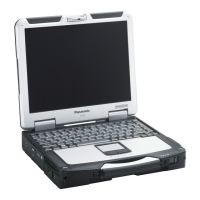
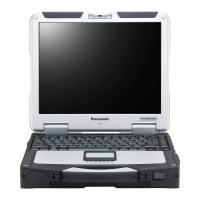
Panasonic CF-31GT2AXDE - User Manual

Panasonic CF-31GT2AXDE
36 pages
Print Icon
To Next Page IconTo Next Page
Loading...
Contents
Getting Started
OPERATING INSTRUCTIONS
Personal Computer
Model No.
CF-31
series
Introduction .................................................................
2
Read Me First .............................................................
3
(Precautions)
Description of Parts ..................................................
10
First-time Operation ..................................................
13
Useful Information
On-screen Manual ....................................................
19
Handling and Maintenance .......................................
20
Reinstalling Software ................................................
22
Troubleshooting
Troubleshooting (Basic) ............................................
24
Appendix
LIMITED USE LICENSE AGREEMENT ...................
29
Speci cations ...........................................................
30
Standard Limited Warranty .......................................
34
Please read these instructions carefully before using this product, and save this manual for future use.
For further information about the
computer, you can refer to the on-
screen manual.
To access the on-screen manual
page 19 “On-screen Manual”
Getting StartedUseful InformationTroubleshootingAppendix

Questions and Answers

  • M
    Monica ThompsonSep 14, 2025
    What to do when using a conventional port replicator on Panasonic Desktop?
    • K
      Keith TuckerSep 14, 2025
      When using a conventional port replicator with your Panasonic Desktop, refer to the following cautions instead of the ones in Reference Manual 'Port Replicator / Car Mounter'. Use CF-AA5713A or CF-AA1653A. If you use an AC adaptor other than the above, the computer may become battery operation state, the battery indicator may blink red, etc. The CPU clock rate is lowered. If you connect a conventional port replicator to the computer while the computer is turned on, a message that prompts you to restart the computer will appear. Follow the instructions, and restart the computer.
  • T
    Timothy BennettAug 25, 2025
    What to do if there is no display on my Panasonic CF-31GT2AXDE?
    • L
      ldawsonAug 25, 2025
      If there is no display on your Panasonic Desktop, it could be due to the external display being selected. Press Fn + F3 or + P to switch the display. If using an external display, check the cable connection, ensure the display is turned on, and verify the display settings. If the display is turned off by the power-saving function, press any key like Ctrl to resume. If the computer entered sleep/standby or hibernation, press the power switch to resume.
  • S
    Sandra TaylorAug 25, 2025
    Why is the screen dark on my Panasonic CF-31GT2AXDE?
    • S
      sanchezgregoryAug 26, 2025
      If your Panasonic Desktop screen is dark, especially when the AC adapter is not connected, press Fn + F2 and adjust the brightness. Also, press Fn + F8 to turn off the concealed mode.
  • C
    Cynthia TurnerAug 26, 2025
    Why is the screen disordered on my Panasonic CF-31GT2AXDE?
    • J
      James McdanielAug 27, 2025
      If the screen is disordered on your Panasonic Desktop, restarting the computer may help, as changing the number of display colors and resolution, or connecting/disconnecting an external display may affect the screen.
  • E
    Elizabeth StaffordSep 15, 2025
    What to do if '[Executing Battery Recalibration]' screen appears on Panasonic CF-31GT2AXDE Desktop?
    • C
      Chad HernandezSep 15, 2025
      If your Panasonic Desktop displays the '[Executing Battery Recalibration]' screen, turn off the computer using the power switch, and then turn it back on to start Windows.
  • K
    Katherine MilesSep 23, 2025
    Why is one screen disordered during simultaneous display on my Panasonic CF-31GT2AXDE Desktop?
    • G
      gina26Sep 23, 2025
      If one of the screens becomes disordered during simultaneous display on your Panasonic Desktop, when using the Extended Desktop, use the same display colors for the external display as those used by the LCD. If problems persist, try changing the display. Note that simultaneous display cannot be used until Windows startup is complete.
  • A
    alexanderpowellSep 7, 2025
    What if nothing is displayed after changing RAM module on Panasonic CF-31GT2AXDE Desktop?
    • J
      James AdamsSep 7, 2025
      If after adding or changing the RAM module, the power is turned on but nothing is displayed on the screen of your Panasonic Desktop, turn off the computer and remove the RAM module, then confirm whether the RAM module has complied to specification. When the RAM module has conformed to specification, install it again.
  • M
    Melissa SmithSep 8, 2025
    What does '[Executing Battery Recalibration]' mean on Panasonic CF-31GT2AXDE Desktop?
    • I
      Isaac LeeSep 8, 2025
      If the [Executing Battery Recalibration] screen appears on your Panasonic Desktop, it means the Battery Recalibration was canceled before Windows was shut down last time. To start up Windows, turn off the computer by the power switch, and then turn it on again.
  • C
    chenkaraSep 2, 2025
    Why does the message “Remove disks or other media. Press any key to restart” appear on my Panasonic Desktop?
    • S
      Stephanie JohnstonSep 2, 2025
      If the message “Remove disks or other media. Press any key to restart” appears, and you have a floppy disk in the drive, remove the floppy disk and press any key. If a device is connected to the USB port or the ExpressCard slot, disconnect the device, or set [USB Port] or [Legacy USB Support] or [ExpressCard Slot] to [Disable] in the [Advanced] menu of the Setup Utility. If the problem persists after removing the disk, it may be a hard disk failure, so contact Panasonic Technical Support.
  • M
    Marcus DavisAug 31, 2025
    What to do if my Panasonic Desktop shows 'Remove disks or other media'?
    • D
      David CampbellAug 31, 2025
      If your Panasonic Desktop displays “Remove disks or other media. Press any key to restart”, it may be due to a floppy disk in the drive without system startup information. Remove the floppy disk and press any key. If a device is connected to the USB port, disconnect the device, or set [USB Port] or [Legacy USB Support] to [Disabled] in the [Advanced] menu of the Setup Utility. If a device is connected to the ExpressCard slot, disconnect the device, or set [ExpressCard Slot] to [Disabled] in the [Advanced] menu of the Setup Utility. If the problem persists after removing the disk, it may be a hard disk failure, in which case you should contact Panasonic Technical Support. You can also try to set [UEFI Boot] to [Disabled] in the [Boot] menu of the Setup Utility.

Panasonic CF-31GT2AXDE Specifications

General IconGeneral
BrandPanasonic
ModelCF-31GT2AXDE
CategoryDesktop
LanguageEnglish

Related product manuals