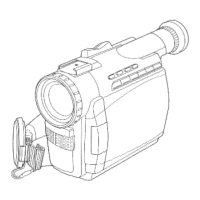
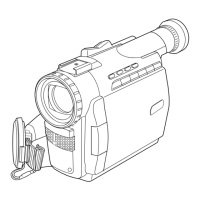
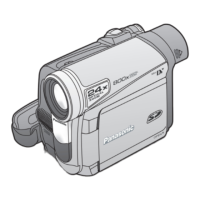
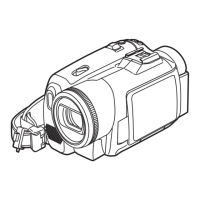
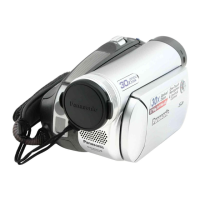
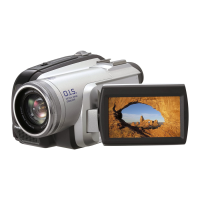
Pictures captured with the Palmcorder
can be transferred to your PC.
Transfer Button
-Before you begin --
• Insert a recorded tape. (p. 9
J
• Make Pa mcorder-PC connections.
(p. 43) _
• Turn your PL; on.
• Set Palmcorder POWER to VCR.
Repeat steps 1 and 2 on page 44 to
run the Software.
"Preview Window" screen appears.
3
Search and Select a still scene you
want to transfer to your PC using VCR
Operation Buttons on the "Preview
window" screen. Then click on
"Transfer" to transfer selected image
from camcorder to "Preview Window"
in PLAY or STILL mode,
Button
_lllrl=l i ill
!
]1 II
Click on "File" then "Save As".
Save transferred image to PC.
[_FTt_J
• If, while transferring the image to your PC,
the displayed picture appears abnormal,
close PHOTOVU LINK and turn
Camcorder POWER off. Run PHOTOVU
LINK again and turn Palmcorder Power
back on. Now transfer again.
• Photo Search may fail to detect a
recorded PhotoShot image if the image is
3 seconds or less.
45

 To Next Page
 Loading...