STEP 5 Set up to match your television
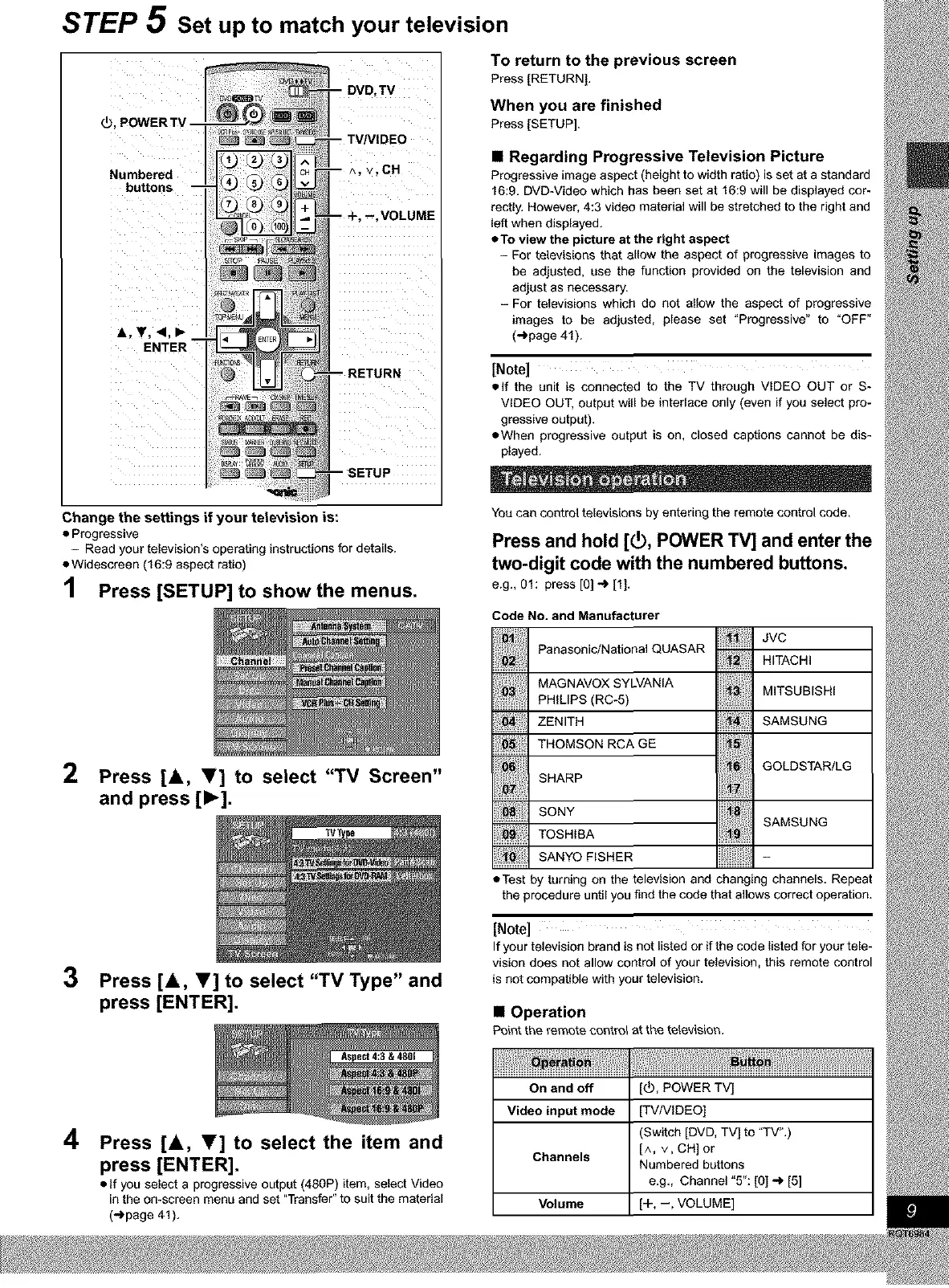
_,POWERTV
To return to the previous screen
Press [RETURN],
When you are finished
Press [SETUP].
Numbered
buttons
• Regarding Progressive Television Picture
Progressive image aspect (height to width ratio) is set at a standard
16:9. DVD-Video which has been set at 16:9 will be displayed cor-
rectly. However, 4:3 video material will be stretched to the right and
left when displayed.
• To view the picture at the right aspect
- For televisions that allow the aspect of progressive images to
be adjusted, use the function provided on the television and
adjust as necessary.
- For televisions which do not allow the aspect of progressive
images to be adjusted, please set "Progressive" to "OFF"
(_page 41 ).
[Note]
elf the unit is connected to the TV through VIDEO OUT or S-
VIDEO OUT, output will be interlace only (even if you select pro-
gressive output).
• When progressive output is on, closed captions cannot be dis-
played.
Change the settings if your television is:
• Progressive
- Read your television's operating instructions for details.
• Widescreen (16:9 aspect ratio)
1 Press [SETUP] to showthe menus.
2 Press [A, _f] to select "TV Screen"
and press [1_].
TVType
3 Press [A, V] to select "TV Type" and
press [ENTER].
You can control televisions by entering the remote control code.
Press and hold [_), POWER TV] and enter the
two-digit code with the numbered buttons.
e.g., 01: press [O] _ [1].
Code No. and Manufacturer
JVC
Panasonic/National QUASAR 1:
HITACHI
MAG NAVOX SYLVANIA MITSUB,SH,
............................PHILIPS (RC-5) ........................
ZENITH SAMSUNG
THOMSON RCA GE '
GOLDSTAR/LG
SHARP
SONY
TOSH, A SAMSUN
:, SANYOF_SHER
• Test by turning on the television and changing channels. Repeat
the procedure until you find the code that allows correct operation.
[Note]
If your television brand is not listed or if the code listed for your tele-
vision does not allow control of your television, this remote control
is not compatible with your television.
• Operation
Point the remote oontro_ at the television.
4
Press [A, V] to select the item and
press [ENTER].
• If you select a progressive output (480P) item, select Video
in the on-screen menu and set "Transfer" to suit the material
("_page 41).
On and off [_, POWER TV]
Video input mode [TV/VIDEO]
(Switch [DVD, TV] to "TV".)
Channels [^, v, CH] or
Numbered buttons
e.g., Channel "5": [O]_ [5]
Volume [+, --, VOLUME]





 To Next Page