EasyManua.ls Logo

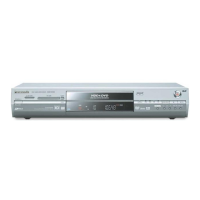
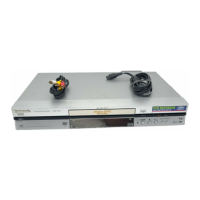
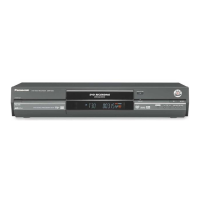
Panasonic Diga DMR-E80H - User Manual

Panasonic Diga DMR-E80H
64 pages
Print Icon
To Next Page IconTo Next Page
Loading...
Dear customer
Thank you for purchasing this product. For optimum performance
and safety, please read these instructions carefully.
Before connecting, operating or adjusting this product, please read
these instructions completely. Please keep this manual for future ref-
erence.
Region number supported by this unit
Region numbers are allocated to DVD players and software
according to where they are sold.
The region number of this unit is “1”.
The unit will play DVDs marked with labels containing “1” or
ALL”.
1
ALL
2
4
1
Example:
PC
®
DVD VIDEO RECORDER
Operating Instructions
Model No. DMR-E80H
[For\U.S.A.]only]
The warranty can be found on page 60.
[For\Canada]only]
The warranty can be found on page 61.
En las páginas 62 y 63 hay una guía de referen-
cia rápida en español.
RQT6984-P
P

Table of Contents

Questions and Answers

  • L
    Lisa WilliamsAug 18, 2025
    How to fix a Panasonic DVR remote control that is not working?
    • R
      Roger VillaAug 18, 2025
      If the remote control for your Panasonic DVR isn't working, ensure that the [DVD, TV] button is switched to “DVD” when operating the unit. Also, check that the remote control and main unit are using the same codes, or try changing the code on either the remote control or the main unit. Replace the batteries with new ones if they are depleted. Make sure to point the remote control at the remote control sensor on the main unit and remove any obstacles between them. If you are trying to operate the television, make sure that [DVD, TV] is switched to “TV” when selecting the receiving channel for the television. You may also need to change the manufacturer code, but note that some televisions may not be operable even after changing the code.
  • C
    chughesAug 21, 2025
    Why my Panasonic DVR has no power or switches to standby mode?
    • C
      Christopher CastroAug 22, 2025
      If your Panasonic DVR isn't powering on or keeps switching to standby mode, try these solutions: First, ensure the AC power supply cord is securely inserted into a working AC outlet. If that doesn't work, note that the standby mode could be a power-saving feature; you can disable it in the settings (Set Up—Off Timer— Off). Try pressing the [Í, DVD POWER] button to turn the unit on. If none of these steps work, a safety device might have activated; press [Í, DVD POWER] again to turn the unit on.
  • E
    erin94Aug 25, 2025
    What to do if my Panasonic DVR is on but not responding?
    • B
      breannamaloneAug 26, 2025
      If your Panasonic DVR is on but you cannot operate it or eject the disc, consider the following: Some operations might be restricted by the disc itself. Ensure that the recording or playback drive is correctly selected. If the unit is hot and displays “U14”, wait for this message to disappear. A safety device may have been activated; reset the unit by pressing [Í, DVD POWER] to switch to standby (or press and hold for 10 seconds if it doesn't switch), or disconnect the AC power cord for a minute, then reconnect it, and then press [Í, DVD POWER] to turn the unit on. If the problem persists, the unit may have an issue; with the power off, press and hold [?] and [X, CH] simultaneously on the main unit for about 5 seconds, remove the disc, and consult a dealer.
  • S
    Stacy DavidsonSep 1, 2025
    How do I fix ghosting on my Panasonic DVR with progressive output?
    • K
      kimberlydavisSep 1, 2025
      If you are experiencing ghosting when progressive output is on, or if there is no apparent change in picture quality when adjusted with the Video menu in the on-screen menus on your Panasonic DVR, set “Progressive” to “OFF”. This issue is often caused by the editing method or material used on DVD-Video, but it should be corrected if you use interlace output.
  • R
    Robert AndrewsSep 12, 2025
    How to fix dim display on Panasonic Diga DMR-E80H DVR?
    • O
      obarnesSep 12, 2025
      If the display on your Panasonic DVR is dim, or “12:00” is flashing, or the displayed recording time and actual recording time differ, or the display doesn’t show the correct time, try the following: To adjust the display's brightness, go to the Display menu and change it with “FL Display”. If “12:00” is flashing, the clock is not set. The displayed recording time is based on the number of frames per second, which can have minute variations, leading to differences between displayed and actual recording time over long periods. This is normal. Times may not appear correctly when searching through tracks recorded with a variable bit rate.
  • B
    brandonchapmanNov 14, 2025
    Why my Panasonic Diga DMR-E80H cannot record?
    • L
      lcoffeyNov 14, 2025
      If your Panasonic DVR is failing to record, consider the following potential issues: Ensure that you have inserted a recordable disc into the unit. If the disc is unformatted, you will need to format it. Check if the write-protect tab on the cartridge is set to PROTECT and disengage it if it is. Be aware that some programs may have limitations on the number of times they can be recorded due to CPRM. Check if the disc is protected with DISC SETTING and remove the protection if necessary. If the HDD or disc is full or nearly full, erase unneeded programs or use another disc. Note that you cannot record on finalized DVD-R discs. If you are using VCR Plusr, ensure that the guide channels are correctly set in the Channel menu under “VCR Plus CH Setting”. Verify that the clock is correctly set i...
  • P
    patriciasnyderNov 27, 2025
    Why images from my Panasonic Diga DMR-E80H not appear on the television?
    • C
      Cynthia JeffersonNov 28, 2025
      If you are experiencing issues with the images from your Panasonic DVR not appearing on the television, or if the television reception worsens after connecting the unit, or if you notice the screen size is wrong, on-screen messages do not appear, the blue background does not appear, there is ghosting, or play stops momentarily during Quick View, consider the following: Ensure that the television is correctly connected to the AUDIO/VIDEO, S-VIDEO OUT, or COMPONENT VIDEO OUT terminal on the unit and that the television’s input setting (e.g., VIDEO 1) is correct. If you are using the unit for the first time, the HDD will be empty, so you need to record a program to the HDD before playback. If you have set "TV Type" to "4:3 (480P)" or "16:9 (480P)" but the television is not compatible with pro...

Summary

Getting Started and Setup

Safety Warnings and Precautions

Critical safety instructions to prevent hazards and ensure proper operation.

Important Safety Instructions

Comprehensive safety guidelines for operating the unit.

Product Features Overview

Highlights key functionalities like HDD recording, DVD-RAM, and audio/picture quality.

Setting Up Your Device

Guides on connecting antennas, TVs, remote control, and initial tuning.

STEP 1 Antenna and Television Connections

Instructions for connecting antennas and televisions to the unit.

STEP 2 The Remote Control

Details on using and setting up the remote control, including battery installation.

STEP 3 Plug-in Auto Tuning

Automatic channel scanning and clock setting process for initial setup.

STEP 4 VCR Plus+ Guide Channel Settings

Configuring guide channels for using VCR Plus+ codes for timer recordings.

STEP 5 Set Up to Match Your Television

Adjusting unit settings to match television display types like progressive or widescreen.

Disc Information and Compatibility

Details on compatible discs for recording and playback, and discs that cannot be used.

HDD (Hard Disk Drive) Care and Operation

Guidelines for setup, operation, and safeguards to prevent HDD damage and data loss.

Control Reference Guide

Overview of all remote control buttons and their functions, mapped to page numbers.

Main Unit Controls and Display Indicators

Explains the buttons on the main unit and the various indicators on the unit's display.

Recording

Recording Television Programs

Step-by-step guide on how to record TV programs onto HDD, RAM, or DVD-R.

Inserting Discs for Recording

Instructions on how to correctly insert non-cartridge and cartridge discs.

Recording from External Sources

Instructions for connecting and recording from VCRs and other video equipment.

Flexible Recording Mode

Automatic rate selection for optimal quality within available disc space.

Playing Back

Playing Discs

Steps to select a drive, insert a disc, and start playback for various disc types.

Playback Controls and Features

Features like simultaneous playback/recording, chasing play, time slip, and general playback controls.

Advanced Playback Operations

Methods like skipping, slow-motion, frame-by-frame viewing, and using markers.

Playing MP3 Discs

Instructions for navigating and playing MP3 files from discs using on-screen menus.

Timer Recording

Timer Recording Functions

Scheduling recordings using timers, VCR Plus+, and manual programming.

Managing Timer Recordings

Checking, renewing, and changing/deleting scheduled timer recordings.

Dubbing

Dubbing Programs or Play Lists

Transferring programs and play lists between drives, including one-touch dubbing.

Recording Limits and Restrictions

Information on media limitations and copyright protection affecting dubbing and transferring.

Editing

Creating and Managing Play Lists

Steps to create, play, edit, and erase custom play lists from recorded scenes.

Editing Recorded Programs

Functions to erase, rename, protect, shorten, or divide recorded programs.

HDD and Disc Settings

Managing disc titles, protection, formatting, and finalization of DVD-R discs.

Entering Text for Titles and Programs

How to enter text for various naming purposes using the on-screen keyboard.

Advanced Operation

Changing Audio and Video Settings

Adjusting audio types, sound tracks, and video picture settings via menus.

Using On-Screen Menus and Functions Window

Navigating unit settings and accessing main functions quickly through menus and the FUNCTIONS window.

Changing Unit Settings

Configuring system settings for channels, remote control, clock, and display language.

Changing the Remote Control Code

How to change the remote control code to avoid interference with other devices.

Clock Settings

Setting the clock automatically or manually, including time zone adjustments and DST.

Other Channel Settings

Options for preset and manual channel captions to organize channels.

Home Theater Setup

Enjoying CATV;Satellite Broadcasts

Guide on connecting cable TV boxes or satellite receivers for viewing and recording.

Connecting Amplifiers and System Components

Instructions for connecting amplifiers via digital or analog connections for surround sound.

Connecting Other Video Equipment

How to connect other video devices to the unit's front or rear input terminals.

Other Antenna Connections

Various methods for connecting antennas to the unit and the television for optimal reception.

Reference, Troubleshooting, and Warranty

Glossary and Disc Handling

Definitions of technical terms and guidelines for proper disc handling and cleaning.

Error Messages and Troubleshooting

Identifying and resolving common operating problems and error messages encountered with the unit.

Technical Specifications

Detailed technical data including recording standards, disc compatibility, timings, and physical attributes.

Limited Warranty Information

Details of the product's limited warranty coverage, terms, exclusions, and service contacts.

Panasonic Diga DMR-E80H Specifications

General IconGeneral
Storage Capacity80 GB
TunerNTSC
Video Recording FormatMPEG-2
Audio Recording FormatDolby Digital
Video InputComposite, S-Video
Video OutputComposite, S-Video, Component
Dimensions430 x 295 x 60 mm
Weight3.5 kg
TV StandardNTSC
Recording FormatDVD-RAM, DVD-R
Playback FormatDVD-Video, DVD-RAM, DVD-R, CD, CD-R
Audio InputRCA
Audio OutputRCA, Optical
Video ModesSP, LP, EP
AudioDolby Digital
InputsComposite, S-Video
OutputsComposite, S-Video, Component, Optical
TypeDVD Recorder

Related product manuals