EasyManua.ls Logo

Panasonic FZ-G2 Series - User Manual

Panasonic FZ-G2 Series
207 pages
Print Icon
To Next Page IconTo Next Page
Loading...
Personal Computer
Model No. FZ-G2 Series
Operating Instructions - Reference Manual
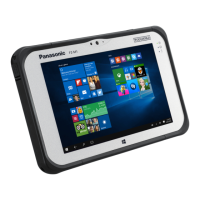
The illustration above shows only the tablet without the keyboard base mounted.
Depending on the models, the keyboard base ismounted or not, and the shape of the cover may differ.
We recommend that thisReference Manual be printed.
Disclaimer
Computer specifications and manualsare subject to change without notice. Panasonic Connect Co., Ltd. assumes no liabilityfor damage incurred directly
or indirectly from errors, omissions or discrepanciesbetween the computer and the manuals. Refer for the latest information about optional products to
the catalogs, etc.
Panasonic Connect Co., Ltd.
Web Site : https://panasonic.net/cns/pc/
© Panasonic Connect Co., Ltd. 2022
HS0721-3012
20200072WAD

Table of Contents

Other manuals for Panasonic FZ-G2 Series

Questions and Answers

  • T
    Teresa JamesSep 3, 2025
    Why is my Panasonic Desktop not detecting the access point?
    • T
      Trevor HubbardSep 3, 2025
      If the access point is not detected by your Panasonic Desktop, shorten the distance between the computer and the access point and try the detection again. Also, confirm that [Wireless LAN] is enabled in the [Advanced] menu of the Setup Utility and in [Wireless Configuration]. Check the channel being used by the access point.
  • L
    Laura WilliamsSep 18, 2025
    How to correct the date and time on Panasonic Desktop?
    • A
      Andrew JohnsonSep 18, 2025
      To correct the date and time on your Panasonic Desktop, go to (Start) - (Settings) - [Time & Language] - [Date & time], and select [Off] in “Set time automatically”. Click [Change], and then set the day and time. Click [Change], and select [On] in “Set time automatically”. If the problem persists, the internal clock battery may need to be replaced.
  • S
    schultzadrianSep 16, 2025
    What does 'Codec required' mean when playing videos on Panasonic Desktop?
    • Z
      zparsonsSep 16, 2025
      If a motion image file cannot be played using Windows Media Player on your Panasonic Desktop and the message “Codec required” appears, connect to the Internet and try playback of the file again. The Codec may automatically be downloaded.
  • K
    Kyle CunninghamSep 14, 2025
    What to check if reading barcodes is not working on Panasonic Desktop?
    • D
      David SmithSep 14, 2025
      If reading is not possible on your Panasonic Desktop, confirm that the barcode is readable (without damage, etc.), that the barcode (symbology) is readable, and the area for reading. Also, ensure the correct distance from the reader to the barcode.
  • W
    walllindaSep 12, 2025
    How to enable password prompt on resume on Panasonic Desktop?
    • D
      Denise ReevesSep 12, 2025
      If the [Enter Password] prompt does not appear when resuming from sleep/hibernation on your Panasonic Desktop, select [Enabled] in [Password On Resume] in the [Security] menu of the Setup Utility. Alternatively, the Windows password can be used instead of the password set in the Setup Utility. To add a Windows password, go to (Start) - (Settings) - [Accounts] - [Sign-in options], click [Password] - [Add], create a password, and select [Every Time] under “Require sign-in.”
  • T
    Travis HobbsSep 12, 2025
    Why does the password screen reappear on my Panasonic Desktop?
    • D
      David RobertsonSep 12, 2025
      If the password input screen is displayed again on your Panasonic Desktop even after entering the password, the computer may be in ten-key mode. If the Num Lock indicator lights, press ?Num Lock? to disable the ten-key mode, and then input. The computer may also be in Caps Lock mode; if the Caps Lock indicator lights, press ?Caps Lock? to disable the Caps Lock mode, and then input. Also, ensure you are using the same keyboard layout that was used to set the password.
  • J
    Jessica BirdSep 9, 2025
    Why can't I sign in with face recognition outdoors on my Panasonic Desktop?
    • A
      Anthony MckinneySep 9, 2025
      If you cannot sign in to Windows using face recognition for Windows Hello outdoors on your Panasonic Desktop, add Windows Hello face recognition outdoors. Sign in to Windows, go to (Start) - (Settings) - [Accounts] - [Sign-in options], click [Windows Hello Face] - [Improve recognition], and follow the on-screen instructions. If registration fails, try registering in the shade with your back against a wall that does not reflect light, or place the tablet vertically to block sunlight.
  • C
    Caroline JonesSep 7, 2025
    What to do if Panasonic Desktop shows 'Remove disks' message?
    • K
      Kevin BuckleySep 7, 2025
      If your Panasonic Desktop displays the message “Remove disks or other media. Press any key to restart” or a similar message, disconnect any devices connected to the USB port, or set [Tablet USB Port] or [Keyboard Base and Cradle USB Port] to [Disabled] in the [Advanced] menu of the Setup Utility. If the problem persists after removing the disk, it may be a flash memory failure.
  • J
    Joseph NguyenSep 5, 2025
    Why won't my Panasonic Desktop automatically enter sleep or hibernation?
    • P
      Patricia FreemanSep 5, 2025
      If your Panasonic Desktop cannot enter sleep or hibernation automatically, disconnect peripheral devices. If you connect to a network using wireless LAN function, select the profile and connect to the access point. If you do not use wireless LAN function, turn off wireless LAN function. Make sure that you are not using any software that regularly accesses the flash memory.
  • M
    Matthew JohnstonAug 20, 2025
    How to reset a forgotten password on Panasonic Desktop?
    • M
      Meghan PottsAug 20, 2025
      If you forgot your Supervisor Password or User Password, ask the system administrator. If you forgot your Administrator password and have a password reset disk, you can reset the administrator password by setting the disk, entering any wrong password, and following the on-screen instructions to set a new password. If you do not have a password reset disk, reinstall and set up Windows, and then set a new password.

Summary

Personal Computer

Introduction

Top Expansion Bay

Inserting an option to the top expansion bay

Provides step-by-step instructions for installing an option into the top expansion bay.

Rear Expansion Bay

Inserting an option to the rear expansion bay

Details the procedure for installing an option into the rear expansion bay.

Create a Recovery Disc

Flash Memory Backup;Restore Function

Description of Parts

Turning On; Turning Off

Screen Input Operation

Calibrating the Screen

Touchpad

Keyboard

Key Combinations

Lists function key combinations for various operations like touchpad control and LCD brightness.

Important Tips

Important Battery Tips

Crucial advice regarding battery life, handling, and replacement.

How to use the computer to maximize the battery operation time

Battery Power

Checking the Remaining Battery Power

Computer behavior with low battery

Replacing the Battery Pack

Sleep;Hibernation Functions

Panasonic PC Settings Utility

Touch Screen

Attaching;Detaching the Tablet from the Keyboard Base

Detaching the tablet from the keyboard base

Step-by-step guide to disconnect the tablet from the keyboard base.

Attaching the tablet to the keyboard base

LAN

Disabling;Enabling Wireless Communication

Wireless LAN

Bluetooth

Wireless WAN

Inserting;Removing a nanoSIM Card

Connect;Disconnect to a network

Saving Power

Reducing Power Consumption

Methods to reduce power consumption, including changing power modes and display brightness.

Security Measures

Setting the Supervisor Password;User Password

Steps to set supervisor and user passwords in the Setup Utility.

Setting the Windows Password

Preventing Your Computer from Unauthorized Use

Display Rotation

Concealed Mode

Setup Utility

Starting the Setup Utility

Procedure to access and start the system's Setup Utility.

Security Menu

Password On Boot

Settings for password prompts during startup and reboot.

Password On Resume

Settings for password prompts upon resuming from sleep or hibernation.

Handling and Maintenance

Handling the screen

Handling the pen (included)

Smart Card

Inserting;Removing the Smart Card

Step-by-step guide for inserting and removing a smart card.

External Display

Switching the display mode

USB Devices

Removing the USB device

Charging USB Devices

USB Power Delivery

Explanation of USB Power Delivery standards and capabilities.

Camera

Shooting Photos and Videos

OCR Scanning

Barcode Reader

Reading Barcodes

Instructions on how to aim and read barcodes.

Contactless Smart Card Reader;RFID Reader

SSD Pack

Attaching;Detaching the SSD Pack

Step-by-step guide for replacing the SSD pack.

Connecting;Disconnecting the Computer

Connecting;Disconnecting the Tablet

When inserting;removing the battery pack

Battery Charger

Charging the battery pack

Troubleshooting

Starting Up; Sleep; Hibernation; Resume

Common issues and solutions for startup, sleep, hibernation, and resume problems.

Entering Password

Display

Sound

Network

Wireless Communication (only for model with wireless LAN;Bluetooth;wireless WAN)

Connecting Peripherals

Touchpad; Touchscreen

No response.

Hardware Diagnostics

Running the Diagnostic Check

Reset your computer

Installing Software

Disk recovery

How to reinstall the operating system from recovery partition.

Error Message

Erasing data when disposing or transferring the computer

Hard Disk Data Erase Utility

Instructions for using the utility to securely erase hard disk data.

Dispose of Computer

Specifications

Main Specifications

Detailed technical specifications for the computer's hardware components.

Wireless LAN*7

Bluetooth*7*8

WARRANTY

Panasonic FZ-G2 Series Specifications

General IconGeneral
Operating SystemWindows 10 Pro
CategoryRugged Tablet
ProcessorIntel Core i5 or i7
MemoryUp to 16GB RAM
Storage512GB SSD
Display10.1-inch, 1920 x 1200 resolution
GraphicsIntel UHD Graphics
PortsHDMI
WirelessWi-Fi, Bluetooth, optional 4G LTE
DurabilityIP65 certified

Related product manuals