22
VQT2W23
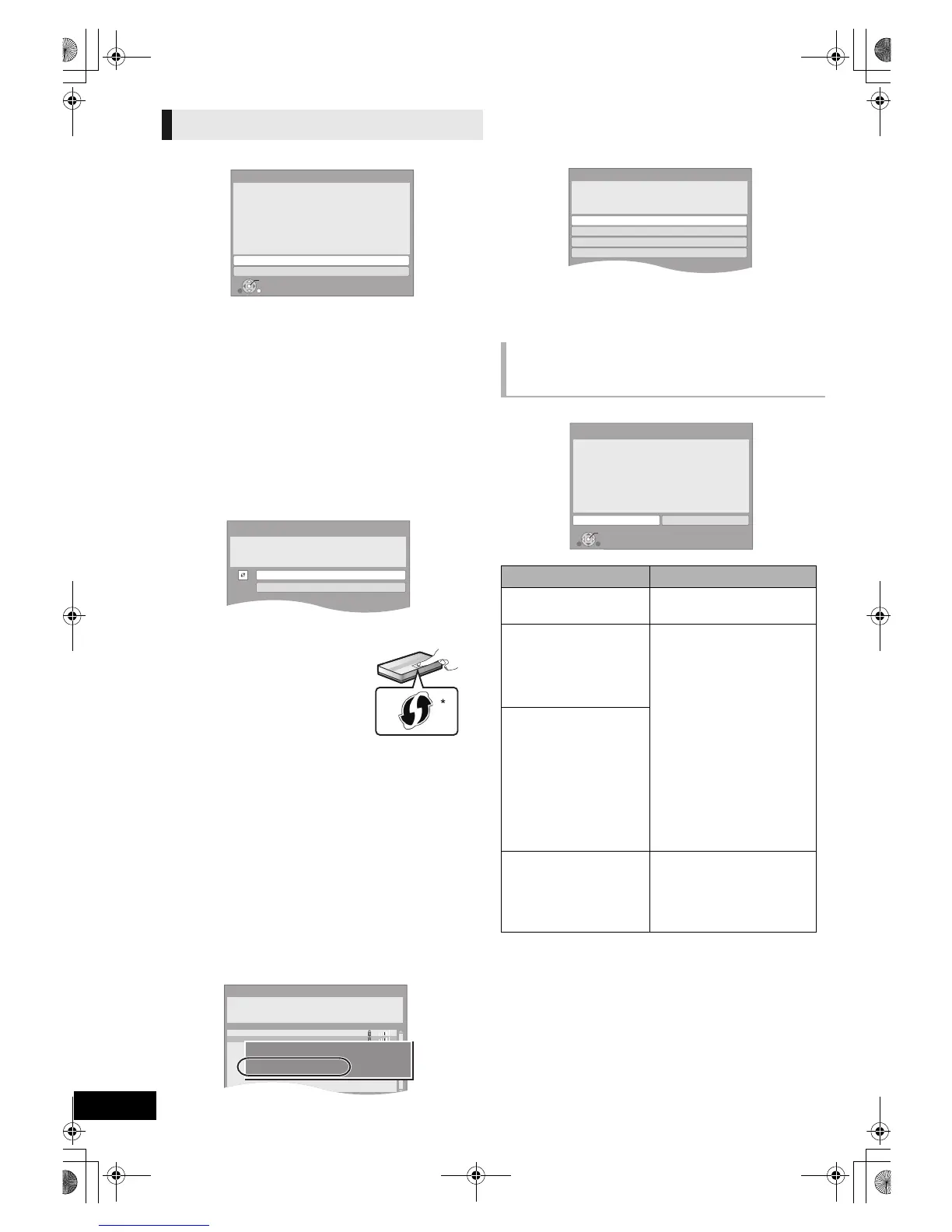
Select “Wired” or “Wireless” and press [OK].
∫ “Wired” connection
Follow the on-screen instructions to make your connection settings.
≥ When you experience problems (> right)
∫ “Wireless” connection
If you select “Wireless” and “Wireless LAN Adaptor is not
connected.” is displayed, check that the Wireless LAN Adaptor
is fully inserted. Alternatively, disconnect and reconnect it. If
there is still no change in the display, consult your dealer for
advice.
Select “WPS (PUSH button)” or “Search for
access point” and then follow the on-screen
instructions and make the settings.
WPS (PUSH button):
If your Wireless router (Access point)
supports WPS (PUSH button), you can
easily perform the settings by pressing
WPS button on it.
WPS (Wi-Fi Protected Setup) is a
standard that facilitates settings relating
to the connection and security of
wireless LAN devices.
1 Press WPS button or corresponding button of Wireless
router (Access point) until the lamp starts flashing.
≥ For details, refer to the operating instruction of Wireless
router (Access point).
2 Press [OK].
*1 Wi-Fi Protected Setup-compatible Wireless router (Access point) may
have the mark.
Search for access point:
Available Wireless routers (Access points) are searched and
listed. You can select the one to use from the list.
1 Press [3, 4] to select SSID*
2
of Wireless router (Access
point) you want to connect with. Then press [OPTION] to
show information of the selected router, make a note of the
authentication and encryption type.
≥ If you can not find the SSID*
2
, select “Search again”.
2 Press [RETURN] and then press [OK].
Then select an item on the following screen which
corresponds to the authentication type noted down in step
1 (> left).
Follow the on-screen instructions to make the settings.
≥ Input your encryption key code in “Encryption Key”
supplied with your Wireless router (Access point).
Access Point Connection Setting
Network Easy Setting
When you experience
problems with settings
Display Check the following
A conflict with other
devices occurred.
≥ Please wait a few moments,
and then try again.
A time out error occurred.
≥ Setting of the Wireless
router (Access point) for
MAC Address etc.
≥ The signal may be weak.
Using the USB extension
cable supplied with the
Wireless LAN Adaptor,
adjust the position of the
Wireless LAN Adaptor.
≥ The SSID*
2
and the
encryption key of the
Wireless router (Access
point).
≥ Please wait a few moments,
and then try again.
An authentication error or a
time out error occurred.
A device error occurred.
≥ Connection of Wireless LAN
Adaptor
If there is no improvement in
symptom, consult your
dealer.



 To Next Page