II
P
,2
1
4
DVD/CD
........_uouvllsL_l] _u!lul_
Remote control onlv
The menu language has been factory preset to English. You can
change the language by going to "3 Menu Language" of the initial
settings screen (.., page 54).
Set the screen size to suit your television. The initial setting is for a
regular television with an aspect ratio of 4:3. You do not have to
change the setting if you have this kind of television,
Preparation:
• Turn the television on.
• Switch the video input mode of the television to suit the type of
connection you have made (e.g., VIDEO 1).
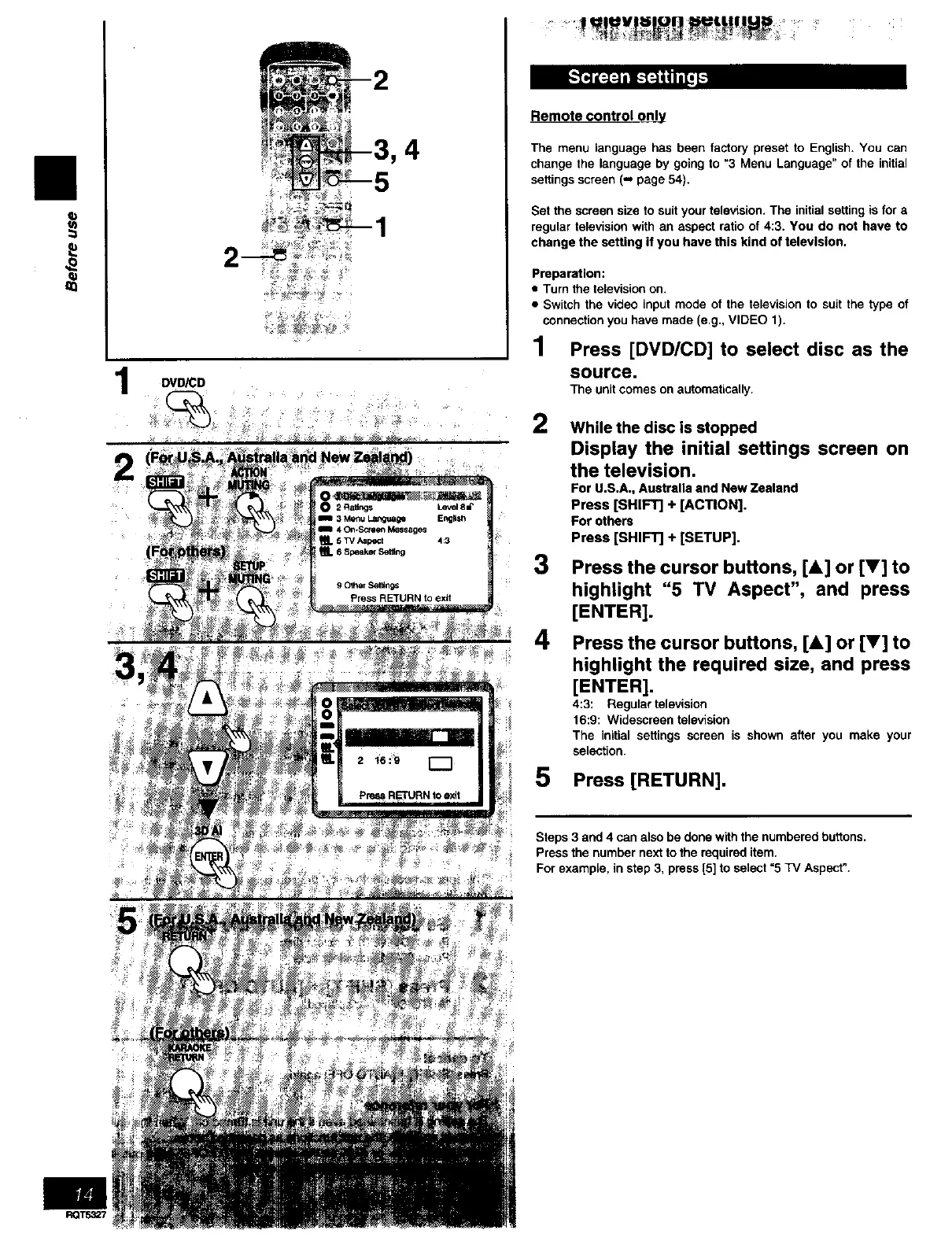
1 Press [DVD/CD] to select disc as the
source.
The unit comes on automatically.
2
3
4
While the disc is stopped
Display the initial settings screen on
the television.
For U.S.A., Australia and New Zealand
Press [SHIFT] + [ACTION].
For others
Press [SHIFT] + [SETUP].
Press the cursor buttons, [&] or [V] to
highlight "5 TV Aspect", and press
[ENTER].
Press the cursor buttons, [&] or [V] to
highlight the required size, and press
[ENTER].
4:3: Regular television
16:9: Widescreen television
The initial settings screen is shown after you make your
selection.
5 Press [RETURN].
Steps 3 and 4 can also be done with the numbered buttons.
Press the number next to the required item.
For example, in step 3, press [5] to select "5 TV Aspect".


 To Next Page