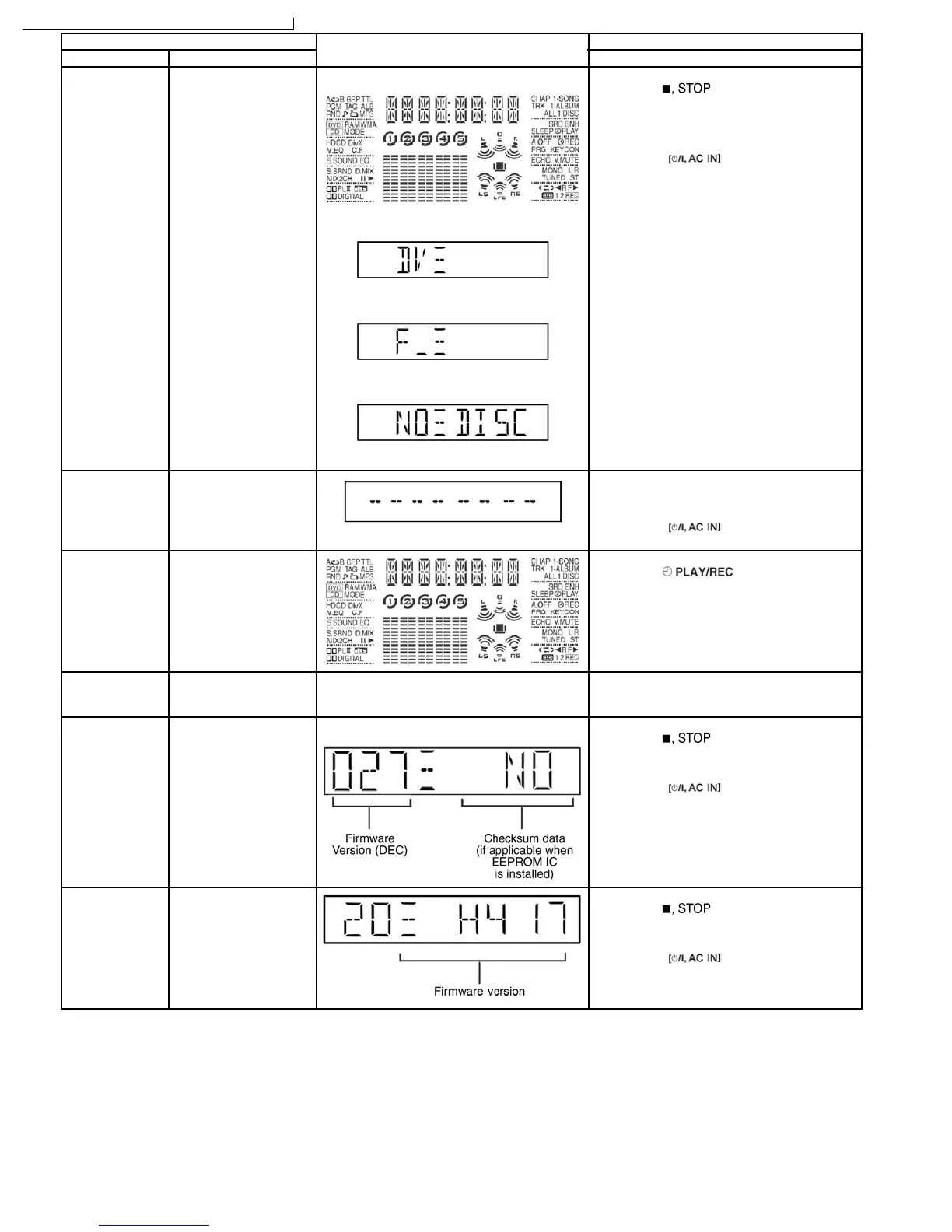
Item FL Display Key Operation
Mode Name Description Front Key
Doctor Mode To enter into “Doctor
Mode” for purpose of
checking various
functions of the main unit
(Example: Micro-p
Firmware version &
EEPROM IC check etc)
1. FL will light up for all segments
2. Device display
3.
4. In doctor mode (under CD mode)
1. All segments will light up for 1 second.
In CD mode:
1. Press [
] button on main unit
follow by [4] and [7] on remote control.
(Ensure no disc is inserted into drive unit.)
To exit, press [ENTER] button on remote
control or
button on main unit
or remote control.
Note: In firmware version & checksum data
(EEPROM IC) displayed when the buttons is
pressed twice.
Cold Start Initialize backup data and
start the micro-processor.
In doctor mode:
1. Press [4] on remote control.
To exit, press [ENTER] button on remote
control or
button on main unit
or remote control.
FL Display Test To check the FL
segments display (All
segments will light up and
LED will blink at 0.5
second interval)
In doctor mode:
1. Press
button on remote
control.
Tape Eject Test To check on the tape
eject function (For deck
1/2)
Both deck will be eject automatically. In doctor mode:
1. Press [0] button on remote control.
Firmware version
check &
EEPROM IC
Information
To display the micro-
processor firmware
version & checksum date
when there is an
EEPROM IC istalled
1. Firmware version display & the EEPROM. In doctor mode:
1. Press [
] button on main unit
follow by [4] and [7] on remote control.
To exit, press [ENTER] button on remote
control or
button on main unit
or remote control.
Refer to Section 10.3.1 for more information.
Firmware version
checking (For
DVD Module)
To display the firmware
version for the DVD
Module
(Firmware is loaded to
FLASH ROM IC)
In doctor mode:
1. Press [
] button on main unit
follow by [CANCEL] on remote control.
To exit, press [ENTER] button on remote
control or
button on main unit
or remote control.
H417: For GC/ GS region
J417: For GCS/ GCT region
10.3.1. EEPROM Checksum (ROM Correction)
Purpose: To check for microprocessor firmware version and EEPROM checksum (ROM correction).
Below are the procedures for this mode.
Step 1: Enter into Doctor mode (for more information, refer to section 10.3 the on key operation to enter into this mode.
Step 2: Check for firmware version and EEPROM checksum (By pressing STOP button on main unit followed by “4” and “7” on
remote control).
•
When entering into DOCTOR MODE, the firmware version and checksum data of EEPROM (if applicable) will appear on FL
34
A-VK950GC / SA-VK950GS / SA-VK950GCS / SA-VK950GCT
33
manual de servicio SC-TM910DVD



 To Next Page