48
Options Adjustments
Item Adjustments
Power On Message
(No activity power
off)
Whether to show/hide No activity power off Precautions at the time of power ON is set.
On: The warning precautions are shown at the time of power ON.
Off: The warning precautions are not shown at the time of power ON.
Note: This setting is enabled only if “No activity power off” is “Enable” (see page 33).
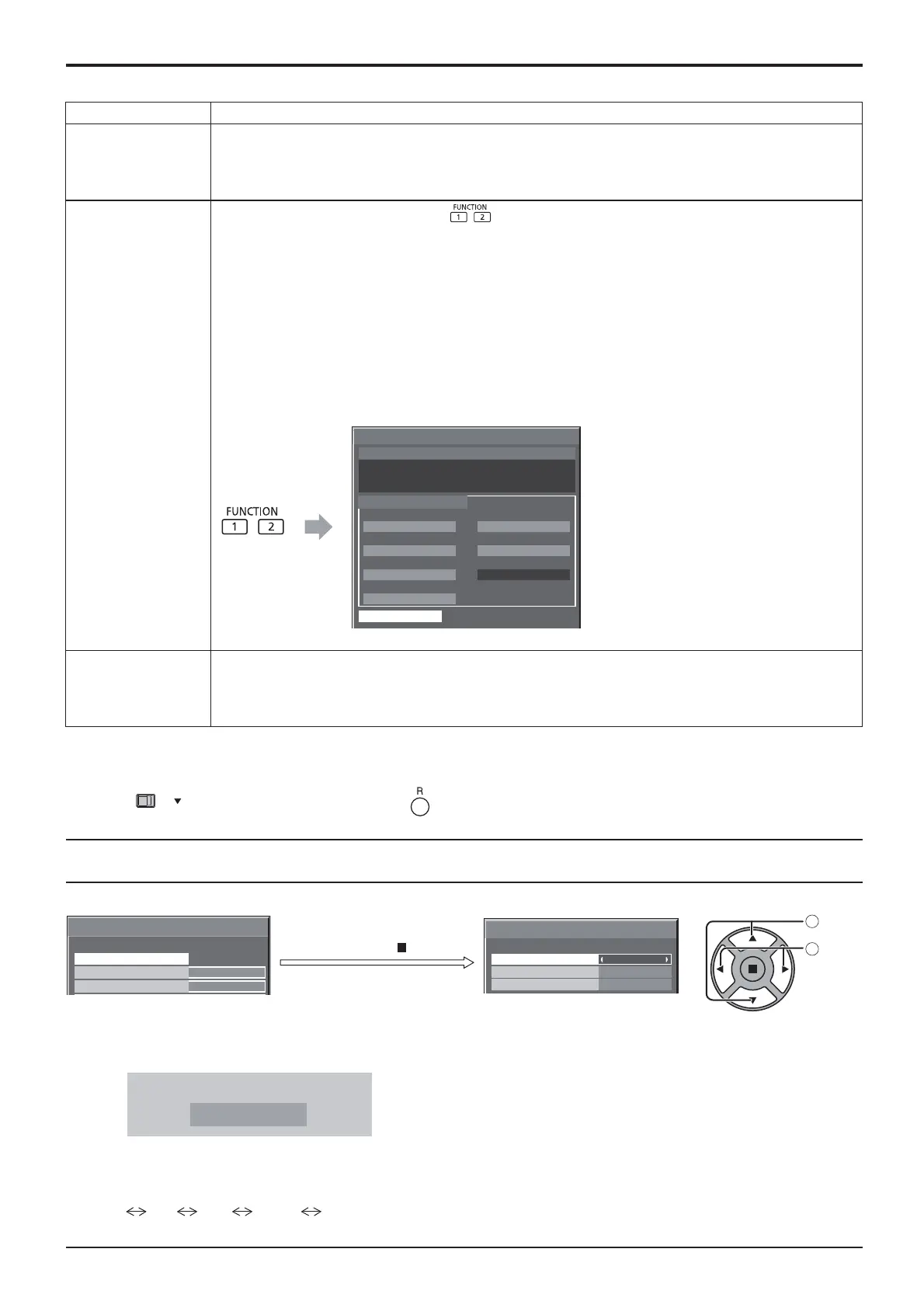
Function button assign 1
Function button assign 2
Set the functions that operates when is pressed.
Signal: The “Signal” menu is displayed.
Screensaver: The “Screensaver” menu is displayed.
ECO menu: The “ECO Mode settings” menu is displayed.
Set up TIMER: The “Set up TIMER” menu is displayed.
DIGITAL LINK:
Switch to DIGITAL LINK inputs. If it is ET-YFB100, the input switch menu on the YFB100 side is displayed.
Maintenance: Display the maintenance information.
Note:
Factory settings are as follows.
FUNCTION1 button: DIGITAL LINK
FUNCTION2 button: Maintenance
Use the FUNCTION button
The menu screen is displayed. (Example: Maintenance)
Maintenance information
Maintenance information
START TEST
Fan inspection required.
Please contact service provider.
No.1
OK
No.3
OK
No.5
OK
No.2
OK
No.4
OK
No.6
SERVICE
INSIDE
OK
FAN
Press the FUNCTION button to exit from the menu.
Power Switch Lock
Sets the lock setting for the display Power switch.
On: Power switch operation is disabled.
Off: Power switch operation is enabled.
Note: This function is only for TH-47LFX6U.
Normalisation
When both main unit buttons and remote control are disabled due to the “Button lock”, “Remocon User level” or
“Remote ID” adjustments, set all the values “Off” so that all the buttons are enabled again.
Press the
-
/
button on main unit together with button on the remote control and hold for more than 5 seconds.
The “Shipping” menu is displayed and the lock is released when it disappears.
Input Search
Primary Input
Off
Secondary Input
Input Search
Searching...
Press ACTION ( ) button
Options
1/3
On screen display
Input Search
On
Initial input
Off
Input Search
Off: When there is no signal, the input is not switched automatically.
All Inputs: Searches all inputs and switches to an input with a signal.
Priority: Searches “Primary Input” and “Secondary Input” in order and switches to an input with a signal.
Primary Input, Secondary Input
Set the input to search when “Priority” is selected.
(NONE)
PC DVI HDMI DIGITAL LINK
Note:
This menu is available only when “Input lock” is “Off”. (see page 46)
“Searching...” is displayed during the input search.
1
select
2
adjust
Input Search
When a signal is not detected, another input with a signal is automatically selected.







 To Next Page