10. Turning the Unit On
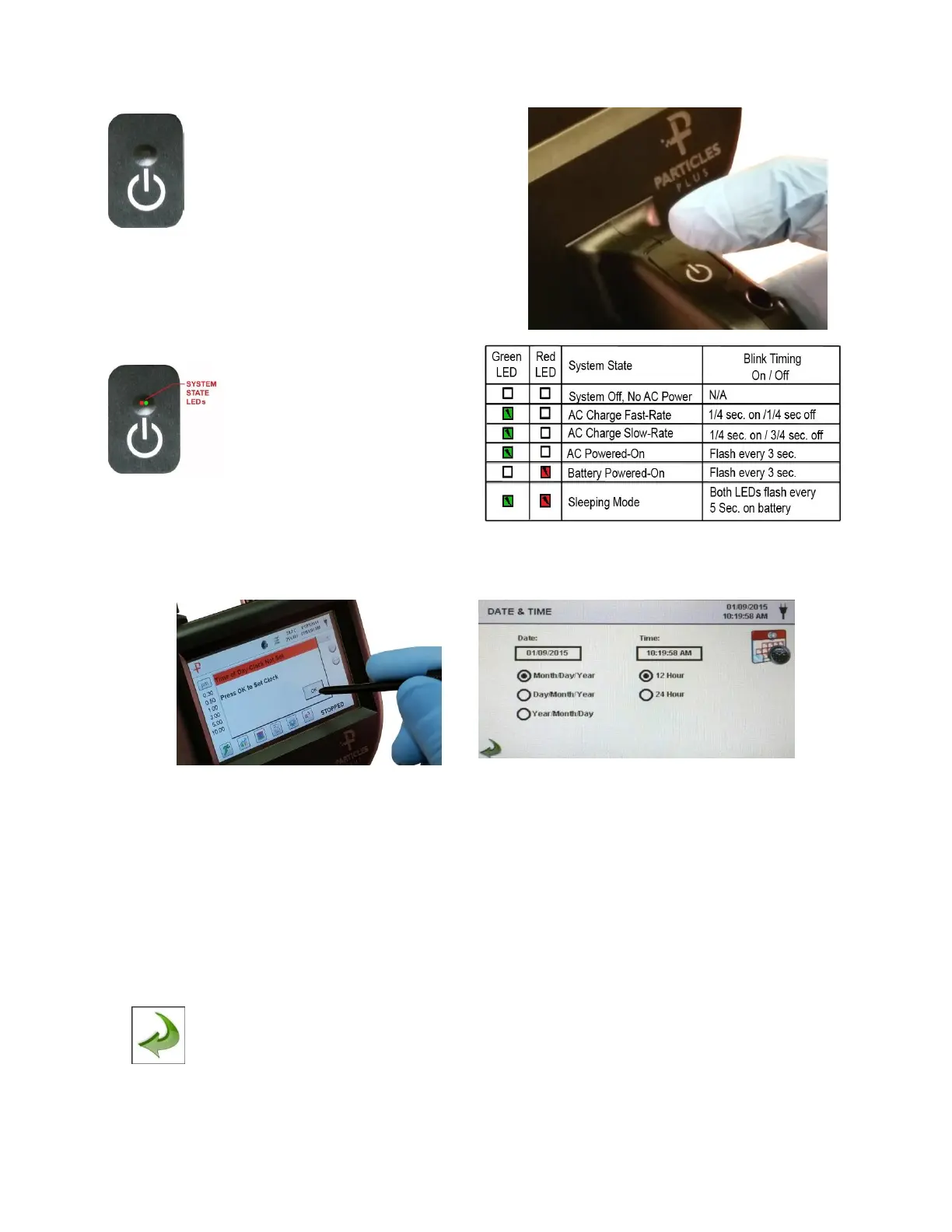
The External one-touch power and sample button on the
handle will power the instrument on and off and will turn
sampling on and off.
The one-touch external power button is conveniently
located on the particle counter handle to allow for easy
one touch operation. Holding the handle, place thumb
over the button and press and hold until the particle
counter turns on. Pressing the button momentarily starts the pump and
begins sampling. Pressing the one-touch button again for 1 second
stops sampling. Holding the button for 2.5 seconds turns the instrument
off. The unit can also be turned off from the power management screen.
11. Power and Charging Status LED
Power and charging status is indicated
externally on the instrument in the middle of
the one-touch power and sample button.
The indication provides information on the
charging rates and status (shown on right).
12. Operation – Initial Power Up – First
Time Use
After the Particle Counter turns on for the first time a window will appear stating “Time of Day Clock Not Set”. Press OK to
Set Clock.
Choose format for - Month/Day/Year, Day/Month/Year or Year/Month/Day
indication by selecting the corresponding button on the touchscreen.
Touch date window, a numeric keypad will appear to allow for date change.
For change or correction of input values navigate using < or > to move cursor.
When complete, press OK button
Choose 12 hour or 24 hour clock indication by selecting the corresponding
button on the touchscreen.
Touch time window, a numeric keypad will appear to allow for time change. Use
24 hour clock format for time entry to properly indicate AM or PM. For change
or correction of input values navigate using < or > to move cursor. When
complete press OK button - Time will display with AM/PM or in 24 hour format
based on format selection.
Press Back Arrow Icon on bottom left corner of the display to return to main
home screen.


 To Next Page
 Loading...