14. Control and Menu Icons
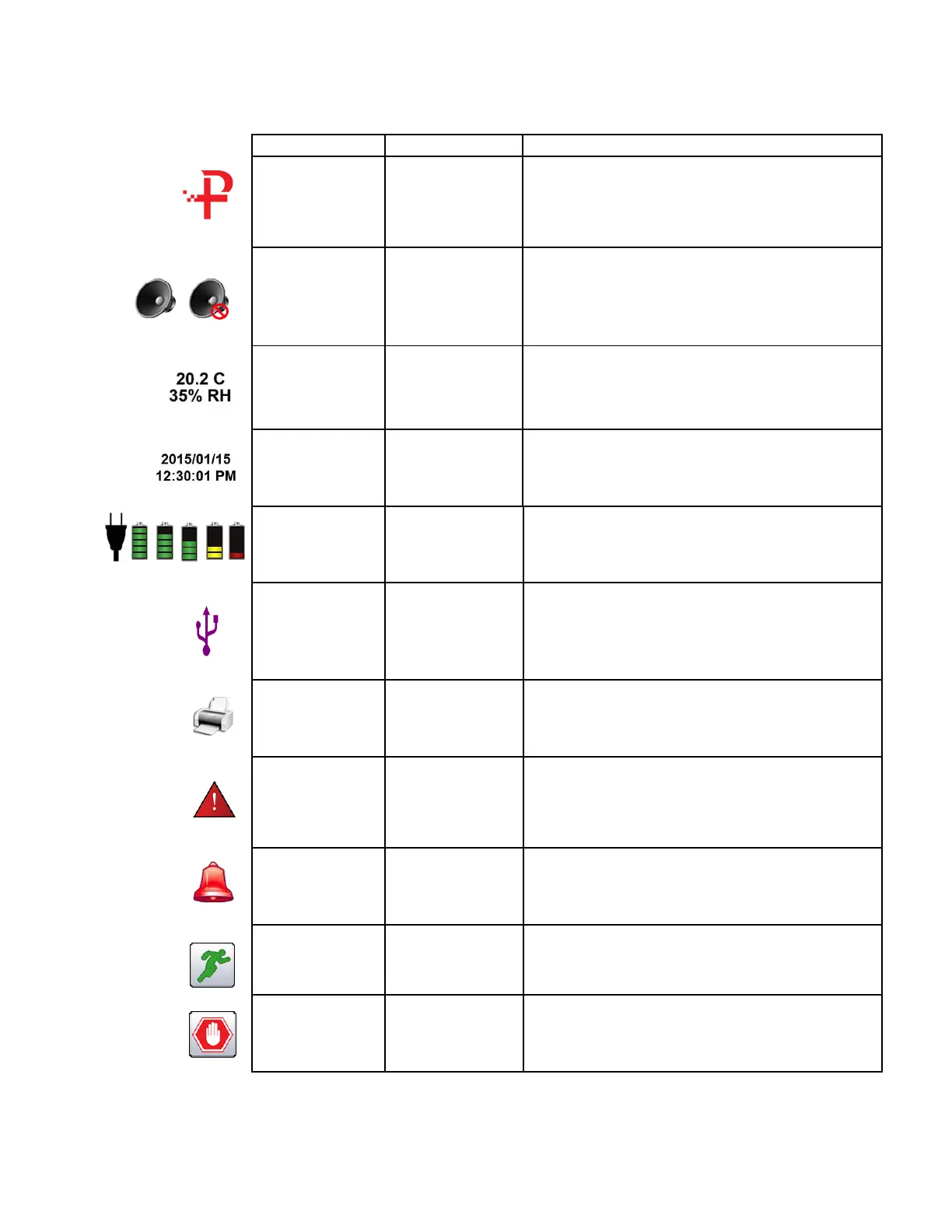
Press logo and a Product Information screen will appear
displaying your model number, serial number, manufacture
date, last calibration date, next calibration due date and
number of channels activated on the unit. Press back arrow
icon on bottom left corner of the display to return to home
screen.
Speaker Icon allows for volume adjustment using a pop-up
slider bar. When pressed the cross bar on slider and move
up and down for volume control. Icon will have red prohibited
symbol when sound is turned off or muted.
By pressing the temperature and RH value indication the
screen will change to a large indication of the current
Temperature, Relative Humidity and the current Barometric
Pressure. Press back arrow icon on bottom left corner of the
display to return to home screen.
To change time and date, press the date and time in the top
right corner of the display and the change time and date
screen will appear allowing for changes.
On the top right of the display is the battery/power adapter
indication icon. Pressing this icon displays the battery power
management screen as well as the current battery status.
If a USB drive is connected, the USB Icon will appear. When
pressed from the home screen the current record displayed
will be saved to the USB drive.
If the Particles Plus Printer is connected to USB Port, the
Printer Icon will appear. When pressed from the home screen
the current record on screen will be sent to the printer.
System Warning
Indication
When the System Warning Indication Icon appears, please
contact Particles Plus technical service for assistance. When
pressed, the Instrument will display additional information.
Visual indication of alarm condition if the particle count
exceeds the user defined thresholds. When pressed this will
silence the alarm.
The Run Icon starts the instrument sampling. Once pressed
the Run Icon will be replaced by the Stop Icon.
The Stop Icon stops the instrument from sampling.


 To Next Page
 Loading...