15. Control and Menu Icons (Continued)
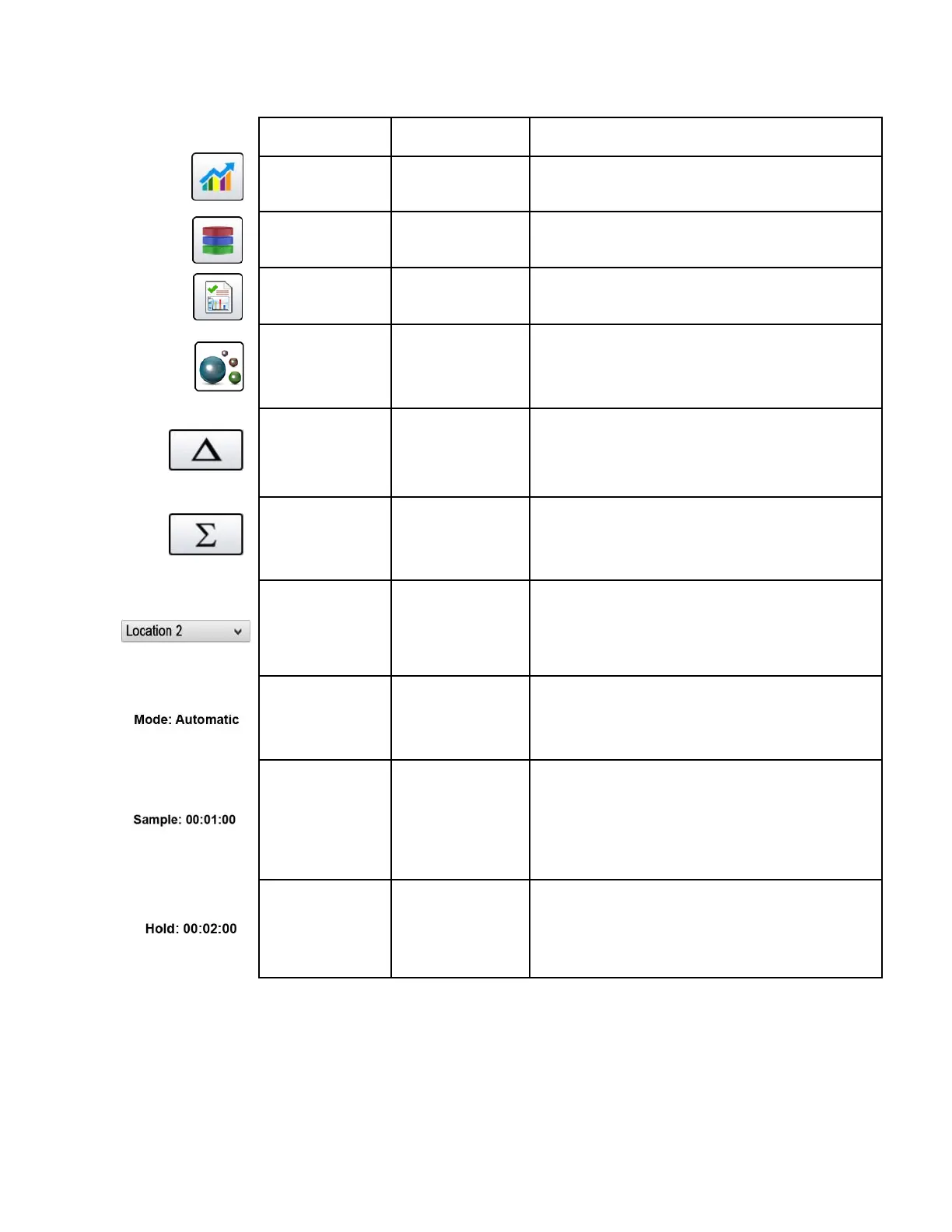
Real-Time Meter &
Graphing Icon
When pressed the Real-Time Icon switches between the
Real-Time Meter mode, graphing of pulse/seconds and the
Main Screen.
When pressed, the Recorded Data Icon will display the
saved data records page. All saved records can be
accessed from this screen.
When pressed, the Reports Icon will display the standards
options page, where ISO 14644-1, EU-GMP Annex 1, or
Federal Standard 209E modes can be selected.
Particle Data
Selection Icon
When pressed, the Particle Data Icon changes the indicated
values from particle count, count per cubic meter, or count
per cubic foot and particle mass concentration (activated in
channel management). These values are displayed
simultaneously as differential and cumulative counts.
When pressed, the Differential Mode Icon toggles the
differential data values off and on the display during or after
sampling.
When pressed, the Cumulative Mode Icon toggles the
cumulative data values off and on the display during or after
sampling.
When pressed, the Location Menu Icon displays the
Location and Recipe set up pages. This feature allows for
the input of up to 500 locations 20 characters long and up to
50 unique user-defined recipes.
The Mode Indication displays the current mode of operation
the Instrument is set to. These modes include automatic,
manual, continuous, and Real-Time Meter.
The Sample Time Indication displays the current sample
time duration (Hours:Minutes:Seconds). This value will
countdown from the set value for the sample time, displaying
the amount of time left in the current sample. See Sampling
Setup in Settings Menu.
The Hold Time Indication displays the current hold time, as
an interval between samples. The maximum hold time is 99
hours, 59 minutes and 59 seconds. See Sampling Setup in
Settings Menu.


 To Next Page
 Loading...