IV. APP Connection
Scan the QR Code with your smartphone or search it in the APP Store or Google Play to
download the "QZsmart" app.There are two ways to connect the APP: WiFi mode and
Bluetooth mode.
1. Make sure your air conditioner is on and ensure that your smartphone is connected to 2.4 GHz Wi-Fi
network. Note:This device only supports 2.4GHz Wi-Fi@ network, not 5GHz Wi-Fi@ network.
2. Ensure that the Bluetooth function of the mobile phone is enabled at the same time;otherwise, the device
cannot be automatically searched.
3. Download the QZsmart app from the App Store or Google PlayTM. NOTE: Authorize the app to access
network and location services.
4. If you are using the app for the first time, click the "Sign up" button and register. If you already have an
account, click the "Log in" button.
5. For better WIFI connection, please reset the product WIFI before using it for the first time.Insert the
power plug to keep the unit on. Touch the "
" button on the control panel of the portable ac for 5 seconds
until the LED indicator continues to blink.
Add Device
1. From the Home Page, press "Add Device" or press "+"in the top right corner of the screen. (If you
already have a device added to your account, the "Add Device" button will not appear.)
2. Connecting
Auto-connect: (Featured First)
The app will automatically search when Wi-Fi and Bluetooth are switched on, so you can add the
corresponding product directly from the automatic search.
Step 1: Press "Add Device" or press "+".
Step 2:When the device is found, press Add. The Bluetooth function must be enabled during this process.
Step 3:Select your Wi-Fi network. (Be sure to use a 2.4G network)
Step 4: Enter your router password.
Step 5:Wait for connection and click "NEXT".
Step 6:Once the device is added, you can use the menu to change the name and location of the device.
Step 7:When you are finished, click "Done".
Manual connection: Select your model from the device menu.
Step 1: Press "Add Device" or press "+.
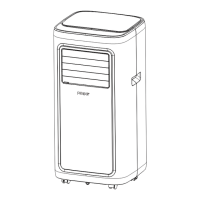
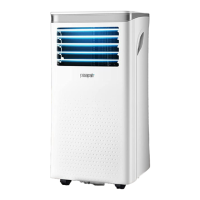
Step 2:Select a product type (mobile air conditioner), and click the product figure of the corresponding
model (A019F).
Step 3:Select your Wi-Fi network. (Be sure to use a 2.4G network)
Step 4:Enter your router password.
Step 5:Touch the "
" button on the control panel of the portable ac for 5 seconds until the LED indicator
continues to blink, Press "Next".
Step 6:Click "Next." Your smartphone will automatically connect.
Step 7:Once the device is added, you can use the menu of the app to change the name of the device.
WIFI MODE:
Preparation Before Use:


 To Next Page
 Loading...