EasyManua.ls Logo

Pax Technology A8500 - User Manual

Pax Technology A8500
7 pages
Print Icon
To Next Page IconTo Next Page
Loading...
1
Quick Setup Guide
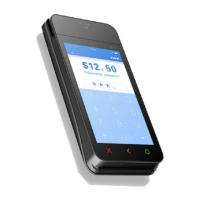
A8500 Smart Payment Terminal
PAX Technology Limited
Question and Answer IconNeed help?

Do you have a question about the Pax Technology A8500 and is the answer not in the manual?

Overview

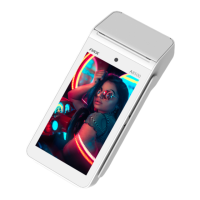
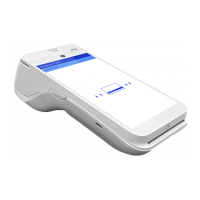
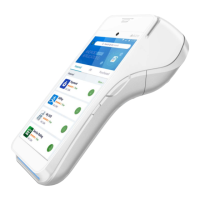
The PAX A8500 Smart Payment Terminal is a versatile device designed for various payment processing needs, offering both stationary and potentially mobile capabilities depending on the model. It is manufactured by PAX Technology Limited.

Function Description:

The A8500 is a smart payment terminal capable of processing multiple types of transactions. It supports magnetic stripe cards, Smart IC cards, contactless cards (NFC), and 1D/2D code scanning. The device includes a built-in printer for receipts and features a touch screen for user interaction and electronic signatures. It is designed to be a comprehensive solution for businesses requiring efficient and secure payment processing.

Important Technical Specifications:

  • Models: A8500P and A8500N. The A8500P model supports USB output 5Vdc 1A, while the A8500N model supports USB output 5Vdc 0.9A. For the A8500N, it's crucial to connect the product to a power supply of which output capability is less than 15W to avoid fire risk.
  • Connectivity: Both models feature LAN, USB Type C, USB Type A, and SAM/SIM/MicroSD card slots.
  • Card Readers:
    • Magnetic Stripe Reader: Bi-directional swipe.
    • Smart IC Card Reader: Chip-up insertion.
    • Contactless Reader: Located at the top central area of the screen, indicated by a universal contactless icon.
    • 1D/2D Code Reader: Scans codes toward the top central area of the screen.
  • Display: Features a main screen and a guest screen.
  • Printer: Built-in thermal printer.
  • Power: Powered via a DC power port using an AC power adapter and AC power cable.
  • Environmental Parameters:
    • Working Temperature: -10℃ to 45℃ (14°F to 113°F).
    • Storage Temperature: -20℃ to 70℃ (-4°F to 158°F).
    • Humidity: 5% to 95% (non-condensing).
  • Wireless Communication (for specific models/configurations): The device operates in the band 5150 – 5250 MHz for indoor use to reduce potential for harmful interference to co-channel mobile satellite systems.
  • Regulatory Compliance:
    • FCC: Complies with Part 15 of FCC Rules (Class B digital device).
    • ISED (Industry Canada): Complies with license-exempt RSS standard(s).
    • CE: Complies with Directive 2014/53/EU.
    • Radiation Exposure: Equipment should be installed and operated with a minimum distance of 20cm between the radiator and the user's body to comply with FCC and IC radiation exposure limits.
  • Trademarks: microSD logo is a trademark of SD-3C LLC. The Bluetooth® word mark and logos are registered trademarks owned by Bluetooth SIG, Inc.

Usage Features:

  • Power On: Connect the AC power adapter and cable to the DC power port. The device starts automatically, displaying the main and guest screens.
  • Magnetic Stripe Card Swipe: Insert the card with the magstripe facing inwards and swipe completely up or down in a steady, bi-directional manner.
  • Smart IC Card Insertion: Place the IC chip face up and insert the card into the slot until it reaches the end.
  • Contactless Card Tap: Tap the contactless card or mobile wallet near the universal contactless icon at the top center of the screen.
  • 1D/2D Code Scanning: Direct the 1D/2D code towards the top central area of the screen for scanning.
  • Electronic Signature: Use a finger to sign on the screen. Avoid using metal or sharp objects to prevent damage to the touch screen.
  • SAM/SIM/microSD Card Installation: Remove the back cover and insert the cards into their respective slots.
  • Printer Paper Installation: Open the printer cover, load the paper roll into the bin, extend the paper end out of the printer, and close the cover.
  • Password & PIN Entry: For security, enter passwords and PINs at an angle that makes it difficult for others to see. Shield the entry from surveillance and use your body or free hand to block the view of the keypad.
  • Regulatory Labels Access: Swipe down from the upper right edge of the screen to display the Control Panel, then touch "Regulatory labels" to view certification information.

Maintenance Features:

  • General Care: Avoid placing the product in direct sunlight for extended periods or in environments with excessively high temperature, moisture, or dust.
  • Repairs: If repairs are needed, contact a professional technician. Do not attempt repairs on your own.
  • Card Reader Cleaning: Before using the Smart Card Reader & Magnetic Card readers, ensure they are free from any foreign objects.
  • Screen Cleaning: To clean the screen, apply distilled water or mild glass cleaner onto a soft, lint-free cloth and gently wipe the terminal.
  • Disposal: The device should be disposed of in a professional recycling manner, indicated by the recycling icon.
  • Compliance: Changes or modifications not expressly approved by the responsible party could void the user's authority to operate the equipment.

Pax Technology A8500 Specifications

General IconGeneral
BrandPax Technology
ModelA8500
CategoryTouch terminals
LanguageEnglish

Related product manuals